0:00
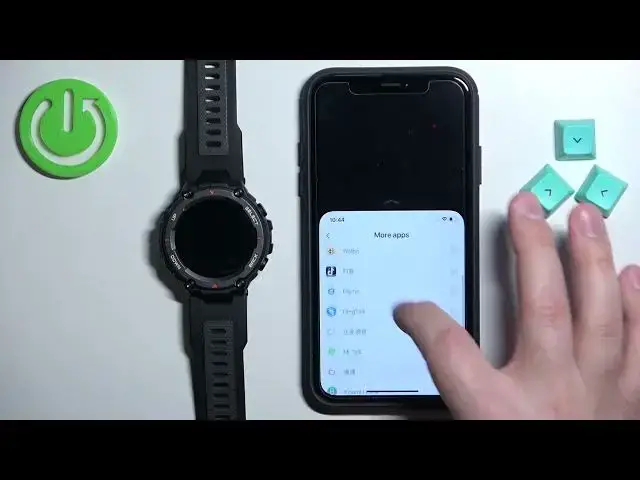
Welcome in front of me I have Amazfit Tirex Pro and I'm going to show you how to enable the phone notifications for this watch on the iPhone
0:09
Basically, if you want to receive the notifications from your iPhone on the watch
0:18
Before we start, if you want to receive the notifications from your iPhone on the watch, your watch needs to be paired with an iPhone via the Zep application
0:27
Once the devices are paired together, we can come. continue and now we need to make sure that the required permissions are allowed for the iPhone
0:35
and the ZEP application to send the notifications to our watch. So let's open the settings on our iPhone first
0:44
In the settings, scroll down to the list of applications, it's at the bottom and on this list
0:50
find the ZEP application. Right here, tap on it. Right here, make sure that the Bluetooth option is enabled and then you can also tap on
1:03
notifications and make sure that the allow notification options is also, or other allow notification
1:09
option, not options is also enabled. So make sure that the allow notifications and the Bluetooth are enabled Once they are enabled you can go back to the main page of settings scroll all the way up find the option called the Bluetooth and tap on it and here you should see the list of
1:28
my devices, and here, and on this list you should see MaseFit T-Rex Pro
1:33
Tap on the info icon next to it, and here make sure that the share system notifications
1:38
option is also enabled. Once it is, you can close the settings
1:44
And now we can open the ZEP application on our iPhone. Once you open the application, you should see the home page
1:57
Now you can tap on the profile icon. And here you should see the MAS fit T-RX Pro on the list of devices
2:05
Tap on it, selected. And on this page, find the option called notification and reminder
2:10
And tap on it. And here we have the list of other different types of notifications and reminders
2:15
First, let's enable the notifications for calls. So tap on an incoming call, and here we can enable them or disable them by tapping on the switch
2:24
We can also enable or disable a couple more options like show contact information and delay alerts
2:31
If you enable it, you can tap on set delay, and you can basically set the delay to whatever you want
2:38
What it does is basically it delays the notifications about the call on your watch So if you get the notification or other somebody calls you on your iPhone you have the delay set to 20 seconds The watch will wait 20 seconds
2:51
and then it will alert you about the call. Okay. Next we have the app alerts
2:56
This is the notifications for the applications. And you can enable the notifications for specific apps
3:04
right here on the list by tapping on the switch next to them. You can also scroll back
3:10
down, find the option called more apps to open the more, the list of more applications
3:16
basically, as you can see. And also, if you don't see the app on the list, on this list and the previous list
3:25
you can scroll all the way down in the app alerts, and you have the option called other
3:29
If you enable this option, it will basically enable notifications for every app on your iPhone
3:37
Okay, let's go back to notifications and reminders. And here we have the incoming SMS
3:47
You can tap on it. And here we can enable the notifications for messages by tapping on the switch
3:55
And the last option is incoming email. And you can enable the notifications for email, basically
4:01
Also you can change the settings for standing reminder You can enable it or disable it change the schedule time or when it working basically
4:13
And also you can change or enable or disable the goal notifications if you want
4:19
Okay. And once you're done customizing your settings, you should be able to receive the notifications at this point
4:26
I'm going to send myself a message on Discord just to demonstrate it. So let's do it
4:32
As you can see, we got the notification on our iPhone and also on our watch
4:47
If you miss the notification on your watch, you can, I believe, swipe right, yes, you can swipe right on the screen to open the notification panel
4:59
And you can tap on the notifications to read them, and you can scroll for them by swiping up and down. Okay
5:06
And that's how you enable the phone notifications for this watch on the iPhone
5:12
Thank you for watching. If you found this video helpful, please consider subscribing to our channel and leaving the like on the video