0:00
Welcome and follow me as a Huawei MatePad paper and today I will show you how you
0:06
can add books into your bookshelf. So once you import a book to your device, that'd be either to a computer or maybe
0:21
you just did it through a Bluetooth send, then you can probably realize that when
0:26
you go into bookstore you don't actually see it right here even though
0:32
it's on your device. Now luckily when you're doing this through Bluetooth it asks you if you want to automatically add this book to your bookshelf. So you
0:38
can just select to do so, but if you did it from your computer unfortunately it
0:43
will just be in the storage right here and won't be visible. So you need to
0:47
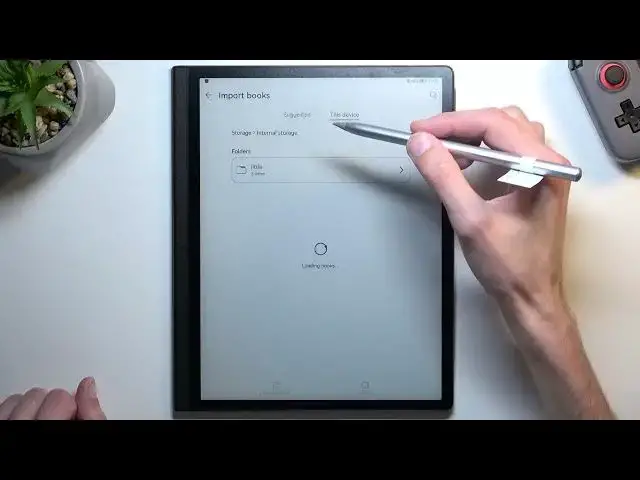
navigate right here to this plus button. I'm gonna select import and this will
0:54
then show you all the books that it can find on the device. It does show it
0:59
through suggested but if for some reason whatever book you're looking for isn't
1:03
visible in here you can also go to this device and then simply navigate through
1:07
the folders right over here. Now I have dropped these files into the downloads
1:13
folder which as you can see doesn't really show me the downloads folder so
1:18
I'm curious. There we go. So we have also this right here the strings. So it
1:30
automatically went to some EPUB and ebook folder but you can obviously
1:34
navigate to internal storage right here and as an example like I said for me I
1:39
have dropped my books into downloads so I can navigate into here and as you can
1:44
see it shows me the same books. So from here you can select all of them quickly
1:49
by tapping right over here or we can individually select them like this. I'm
1:56
gonna select all of them and then click on the other button add to bookshelf
2:08
Okay so there are already added as you can see the icon here changed to this
2:14
kind of like lines with a checkmark or lines it's a basically a book with a
2:19
checkmark so it is already added into our bookshelf and as you can see there
2:25
they are. So now I have a couple more books that I can read right here. So
2:31
there we go. Now if you found this video helpful don't forget to hit like
2:34
subscribe, and thanks for watching