0:00
Hello everyone and welcome to our
0:02
channel. In front of me I have my watch
0:04
R and today I'm going to show you how to
0:07
uh pair this watch with the iPhone. So
0:16
So to pair our watch with our iPhone,
0:18
first you will need to turn on your
0:19
watch and you can press uh you can do it
0:21
by pressing and holding the side button
0:23
for a few seconds basically until you
0:25
see the my logo on the screen and then
0:27
you can release the button and after the
0:29
watch is done booting up you probably
0:30
will see the list of languages on the
0:32
screen. Find the language you would like
0:33
to use on your watch and once you select
0:36
it tap on the check mark uh to confirm.
0:39
And now you should see the QR code on
0:42
the screen. And you can use this code to
0:44
download the application and then to
0:45
pair the devices together. But I'm just
0:48
going to open the app store on our
0:49
iPhone. Of course, make sure you have
0:51
the internet connection and Bluetooth
0:52
enabled. Once you do, uh either scan the
0:55
QR code or use the app store
0:58
and look for the app called Myo
1:04
And we need to download this
1:06
application. So let's tap on the button
1:07
right here to install it. And once the
1:09
application is done installing, we can
1:11
continue. So let's wait until it's done.
1:24
And it looks like it's going to take a
1:25
while. Oh, never mind. Now it's
1:30
Okay, so the app is done installing. We
1:31
can tap on open. and the app. Uh you
1:35
will need to allow permissions. So allow
1:37
this one. Allow this one. Uh here tap on
1:40
agree. Select the region you want to
1:44
There's quite a few of them. So I'm just
1:50
select United States. Tap next. And as
1:53
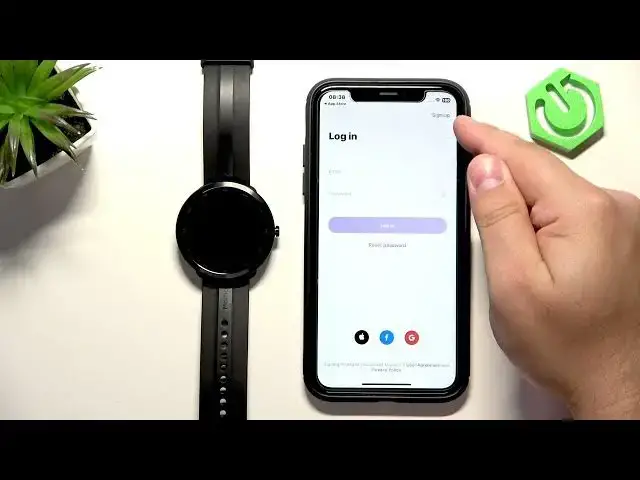
you can see, we need to login into an
1:54
account. If you don't have an account,
1:56
you can always make one by tapping right
1:57
here on sign up. Or you can use third
1:59
party accounts like Apple, Facebook, or
2:01
Google. I already have an account. So,
2:03
I'm going to log in into one.
2:30
Okay. Tap on login and after you login
2:33
you will see homepage. Now tap on device
2:36
add device and we need to scan the QR
2:38
code from our watch. So wake up the
2:42
permissions. Okay. Now point the
2:45
iPhone's camera on the watch to scan the
2:47
QR code and once you scan scan the QR
2:50
code the pairing process will start and
2:51
we can tap on agree and continue.
2:59
uh check mark on the watch
3:02
allow permission. Tap on start now
3:07
and the watch will appear on the device
3:09
page. It should start synchronizing and
3:11
once it's done it should say connected
3:13
or it should should so show you the uh
3:17
battery basically battery level of your
3:19
watch. So let's wait until it's done
3:22
synchronizing like this. It says
3:24
connected. And that's how you pair this
3:26
watch with the iPhone. So, if you found
3:28
this video helpful, please consider
3:30
subscribing to our channel and leave the
3:32
like on the video. Thank you for
3:33
watching and see you in the next one.