0:00
Hello. In this video, I'm going to show
0:01
you how to create what's backup on Honor
0:10
Okay. To create our backup, all we need
0:12
to do is to launch our WhatsApp. Once we
0:15
are here, click on those three dots in
0:17
the top right corner and open up the
0:18
settings. Now, we need to find the
0:23
Scroll down a little and click on chat
0:27
And now let's begin with Google account.
0:30
That's basically the most important
0:32
part. As you take a look, currently in
0:34
my case, this Google account is
0:36
selected. And on that account, to be
0:38
more precise, in the cloud of this
0:40
Google account, my backup will be saved
0:43
and stored. So for example, if I want to
0:45
restore a backup later in the future,
0:47
I'll need to be signed in into the exact
0:50
Google account. So you just need to
0:52
remember about it. You cannot forget the
0:54
Google account that you have selected
0:56
because you won't be able to restore
0:59
If you want, of course, you can add
1:01
another account. Simply click on add and
1:05
sign in. Down below, we have the
1:07
automatic backups. Defaultly, this
1:09
option is turned off. In my case, I
1:11
selected it on the monthly, which means
1:13
that each month the backup will be
1:15
automatically made, and I simply don't
1:16
need to do this manually. Pretty
1:18
convenient and comfortable thing. So if
1:20
you want you can pick the mode that you
1:22
can see on the screen. We have daily,
1:24
weekly, monthly or only when I tap
1:25
backup or if you want you can you can
1:32
Now we can also include the videos in
1:34
our backup. Really important to select
1:37
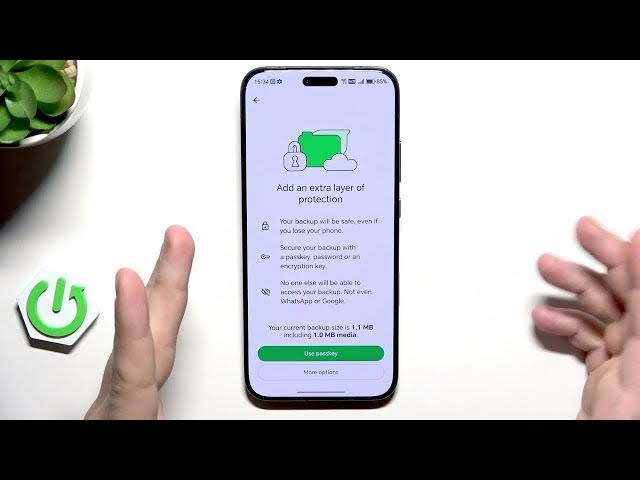
it. And on the bottom we have end to end
1:40
encrypted backup. It's not necessary to
1:42
turn it on. Basically it's like an extra
1:44
security feature that you can enable. If
1:46
you choose to turn it on, you'll be able
1:48
to create a unique password that you'll
1:49
need to type in the future if you want
1:51
to restore your chats. But be aware that
1:54
if you create a password and when you
1:55
forget it, you won't be able to restore
1:58
your chats and everything will be lost.
2:00
So, if you choose to create it, don't
2:03
forget it. But just like I'm saying,
2:07
Also, make sure that you have some free
2:09
Google storage space right in here. If
2:10
you don't have enough, simply click on
2:12
that and click on clear storage to get
2:14
more space. And now click on backup
2:17
button to start the process.
2:22
In my case, it won't take long. It's
2:25
already done actually. In your case, if
2:27
you have a lot of conversations, a lot
2:28
of chats, it's going to take longer.
2:32
As you take a look, we have the hour on
2:34
which we made the last backup. It's the
2:36
same. So, this confirmation that
2:38
everything went successfully. And down
2:40
below, we can also see the size of our
2:42
backup right in here. 1.1 of uh 1.1
2:46
megabytes. All right, now that's all in
2:49
this video. Thank you all for watching.
2:50
If you found this video helpful, please
2:52
leave a like, comment, and subscribe.