
DELL Pro 14 – First Setup (Windows 11)
Jun 9, 2026

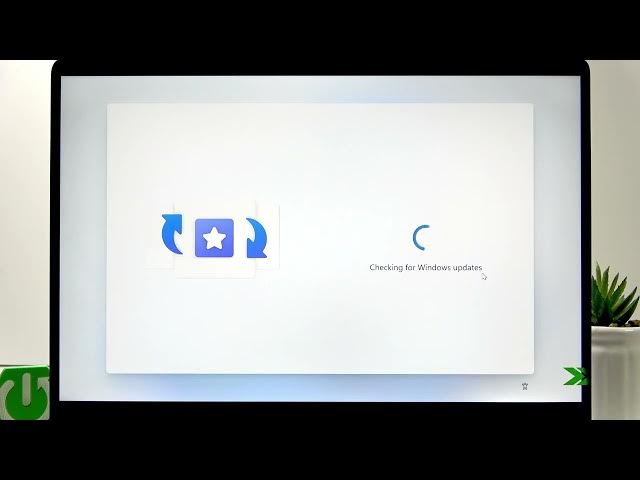
Set up your new DELL Pro 14 with Windows 11 step by step. In this video you will learn how to choose your country and keyboard layout, connect to Wi‑Fi or Ethernet, let Windows check and install updates (keep the charger connected), rename your laptop, sign in to your Microsoft account, create a PIN, choose privacy settings, restore from backup or set up as a new PC, and link your smartphone and OneDrive. These clear steps will help you finish the initial Windows 11 first boot on your DELL Pro 14 without problems and get your laptop ready to use.
How to set up DELL Pro 14 with Windows 11?
How to sign in to a Microsoft account on DELL Pro 14?
How to connect an Android or iPhone to DELL Pro 14 during setup?
0:00 Welcome & select country / keyboard layout
0:30 Connect to Wi‑Fi or use Ethernet and start updates check
1:10 Rename your laptop and restart options
1:52 Choose personal use and wait for updates (keep charger connected)
2:11 Sign in to your Microsoft account (email / phone / verification code)
3:02 Create a PIN and confirm it / choose privacy settings
4:06 Restore from backup or select setup as a new PC
4:51 Connect smartphone, OneDrive photo backup and Edge sync
5:35 Decline extra offers and finish setup
#DELLPro14 #Windows11 #FirstSetup #DellTips
Find out more:
https://www.hardreset.info/devices/dell/dell-pro-14/first-setup/
Show More Show Less #Science