0:01
Welcome. In front of me is a Infinix
0:04
Note 60 and today I will show you how
0:07
you can insert SIM card into this
0:17
Okay, so before we get started, you will
0:20
want to grab a SIM eject tool similar to
0:22
this one, which will come provided with
0:23
a device in the box, though it probably
0:26
won't look as fancy as this one. Now, if
0:28
you can't find it, what you could do is
0:30
use a paper clip. Should know one of the
0:31
ends. And if it has the plastic
0:33
wrapping, you will need to cut that off
0:35
as otherwise it would be too thick. And
0:37
once you do all that, you should have
0:39
basically as good of a tool for popping
0:42
out SIM card as the dedicated one. Now,
0:45
uh once you have either one of those,
0:46
you can now pop out the tray. Uh we will
0:47
need to take off case for this purpose.
0:51
Actually, wait, no, sorry, we don't.
0:52
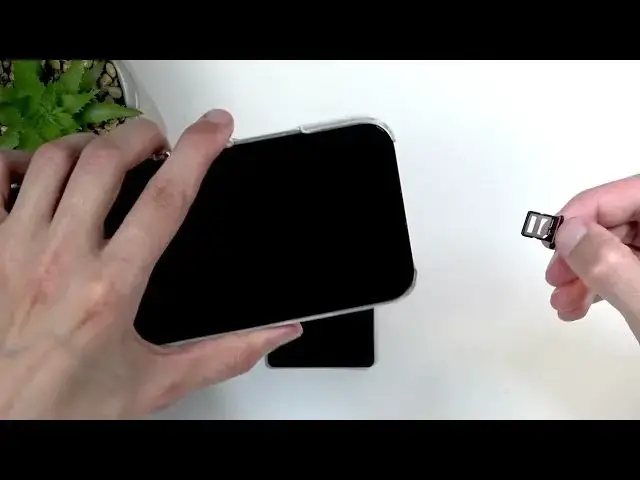
Never mind. So, the provided case that
0:56
comes with the phone actually has a
0:58
bottom of the the case cut off as you
1:01
can see, which allows us to pop out the
1:02
tray without actually taking it off,
1:04
which is pretty nice. Now, you want to
1:05
use the tool uh right here near the
1:07
corner part of this cutout.
1:15
And you want to push it in. When you do
1:17
so, we can see that the tray pops out
1:19
enough for you to fully pull it out. On
1:22
the tray, you have space for two SIM
1:23
cards. Now, you can use both of them if
1:26
you want to or one. And if you're
1:28
planning to use just one, you can place
1:29
a card on top or bottom. Doesn't really
1:31
matter, but it will matter if you are
1:33
also planning to use eSIM. When enabling
1:37
eSIM uh functionality in the phone
1:40
settings, the bottom tray, aka SIM spot
1:44
number two, as you can see, it is
1:48
will become deactive. So any card on
1:51
here, the phone will just be ignoring
1:53
it. So for that purpose, I would
1:56
primarily recommend sticking with the
1:57
top tray, uh, SIM number one. That way,
2:00
even when you later on enable e SIM
2:02
support in the settings, your physical
2:05
SIM card won't be affected.
2:08
So anyway, uh, from there, make sure
2:10
that the card is on the tray correctly.
2:12
It should be laying completely flat and
2:14
should not be falling out of the tray if
2:15
you flip it upside down. And just insert
2:17
it back into your phone. When you do so,
2:22
this card should start working right
2:24
away. Hence why it's prompting me to
2:25
confirm my SIM card PIN. And once I have
2:27
done so, it becomes unlocked, connects
2:29
to a mobile network, and it's good to
2:33
Pretty simple. So, if you found this
2:36
very helpful, don't forget to hit like,
2:39
subscribe, and thanks for watching.