0:00
Welcome and welcome to Nifas C7S and today I'll show you how to transfer
0:11
photos or videos or any kind of other file from the device to the SD card or
0:16
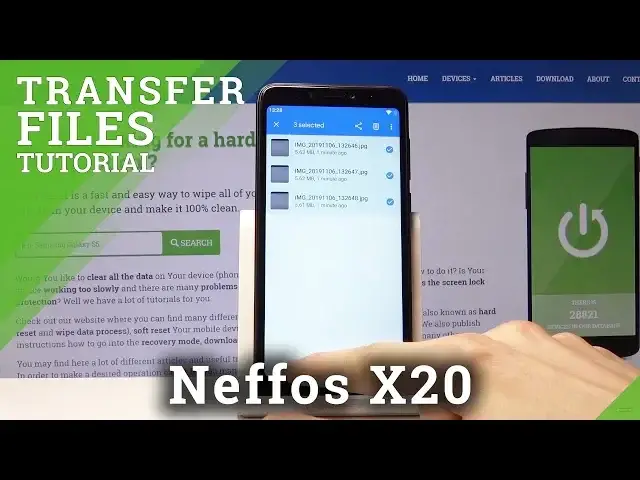
vice versa. So to get started you want to open up the files app. Let me just close
0:22
whatever I opened. So files right here and once you open it, let's tap on
0:30
continue, you'll get a overview of everything that I can access basically
0:37
from here. So videos, audio, images, downloads, all neatly organized with the
0:43
difference of actually not showing you where they are located. And below you
0:47
actually have both of the storages, so the SD card and the internal storage of the device. And from here you can access also all these files that were
0:56
above. And if you want to move something or copy it, easy way to find it is images
1:04
or photos and videos that are captured with the device will be located under
1:08
the DCIM folder. Pictures will have screenshots and just pictures that might you have might have synced from your computer. Downloads will have
1:18
anything that I have downloaded from the net on the phone. So I believe my
1:24
photos will be right here because I captured them with the device. So just
1:28
check and there they are. So DCIM and from here you can select each photo
1:35
individually like by holding it and then tapping on additional ones to add more
1:39
And if you have entire folder full of photos that you just don't feel like
1:43
selecting each photo individually, you can always tap on the entire folder
1:48
select that and move the entire folder. So you tap on the three dots up there
1:53
and then choose between copy or move, each doing their respective thing. So
2:00
I'm gonna select move and once you tap on it it gives you the option where you
2:04
want to move it. So you can move it somewhere on the internal storage which is where these files are located at the moment. Or you can go to the SD card
2:12
which is the one below and then it opens you up the SD card where you can either
2:17
paste it like right here the folder or you can also create a new folder to keep
2:24
it organized. So just tap on allow for instance and create the same kind of
2:28
folder. So DCIM and move the folder and it immediately created the folder and
2:37
pasted the photos in there. So this is actually back on the internal storage so
2:43
let's go back to the SD card now and there it is. And this process works the
2:51
same way for any kind of other file not just photos you would do it with
2:55
anything else the same way. And if you found this video helpful don't forget to
2:59
hit like, subscribe and thanks for watching