0:00
Welcome to the Infernape Galaxy M14 and I'll show you how to find and manage sound settings on this device
0:11
So first open the settings application and then tap to the sound and vibration
0:17
Just to change the sound to vibration or mood modes, just select one from the available modes
0:23
Here in sound mode we can use vibration while ringing and in mood modes we can use temporary mood and mod it for 1-3 hours or to set the custom ones
0:32
Here we can change ringtone and notification sounds. In system sound section we can turn on and off touch interactions, dial buttons
0:41
swing keyboard, charging and screen lock and lock sounds. So just to do that we should click on each of the switches
0:47
To change system sound volume be sure that the don't disturb mode is turned off on your device
0:54
So now I'll show you how to turn on and turn off the don't disturb mode
0:58
In volume section here we'll see ringtone, media, notification system sounds. Just to change the volume of them we should slide to the left or to the right side these blue dots
1:10
Here we got volume keys for media switcher. When it's turned on by pressing the up or to the down one button will change the medias
1:19
and when we'll turn it off will change the ringtone. Let's go back
1:24
In call vibration we can change here the vibration pattern or to turn on silent mode
1:32
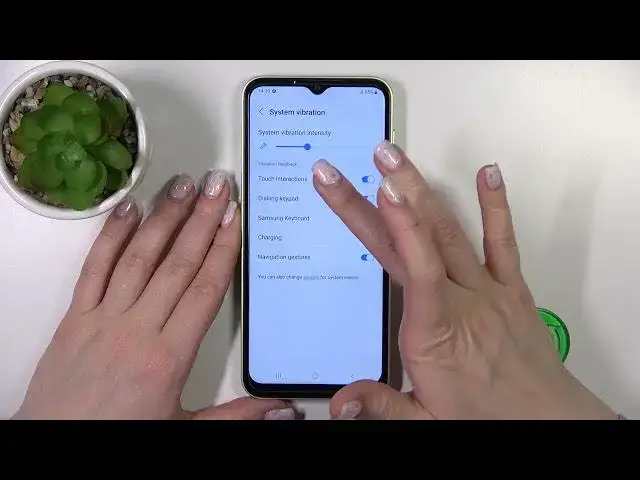
By the same way we can change notification vibration pattern. System vibration intensity we can change it by slide to the left or to the right side these dots on this panel
1:43
And by the same way to turn on and turn off the vibration for touch interactions
1:47
dial, keyboard, charging and navigation gestures. Vibration intensity by the same way we can switch by slide to the left or to the right side these blue dots
2:03
And in sound quality and effects we just can use Dolby Atoms for gaming and to use the separate up sound
2:11
Also we got here the Don't Disturb mode so just to activate it or turn it off we should click on the switchers
2:17
and here we can set the shadow, the start and the end time, to delete the shadow, to set the new one
2:23
and to allow the calls, notifications, just alarm sounds during the Don't Disturb mode we can just switch the settings here
2:32
So that's it. Thank you for watching and if you find this video helpful
2:36
don't forget to leave a like, comment and to subscribe our channel