0:00
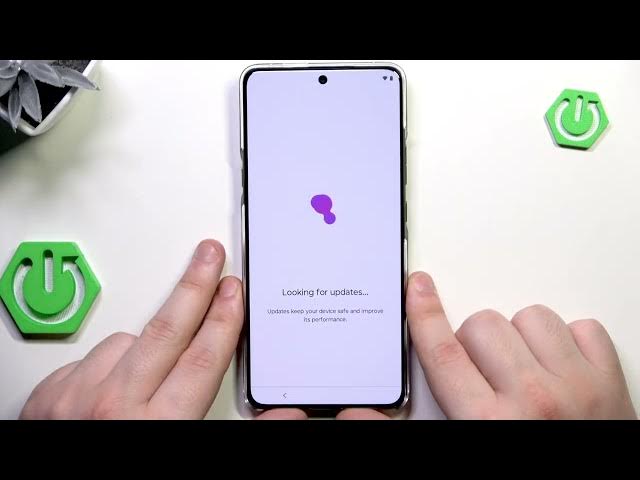
Hello. In this video, I'm going to show
0:01
you how to restore backup and how to
0:03
transfer data on Motorola Signature.
0:10
Okay, so as you take a look, we are in
0:12
the setup process and I'll show you how
0:13
we can transfer data from a previous
0:15
device into your Motorola and then I'll
0:17
show you how you can restore the backup
0:19
from Google One. So, first select your
0:22
language and click on start.
0:26
And as you take a look, the first option
0:27
that appears on our screen is
0:29
possibility to set up our Motorola using
0:32
another device. First, we need to select
0:34
the type of previous device. In my case,
0:37
it's Android. And now, we need to scan
0:41
using uh our previous phone. I'm about
0:44
to use Google Lens for that.
0:52
Now, both devices are going to connect
0:56
So we need to wait a little bit. Okay.
1:00
Now in my case I have to draw the screen
1:03
lock that I have on my previous device
1:05
as a confirmation. Also take a look. Our
1:07
phone is automatically connected into
1:14
connected on our previous phone. Okay.
1:16
Get in the phone ready. Scroll down.
1:19
Click on accept and continue.
1:22
Once again we need to wait. Sometimes it
1:24
takes a few minutes. You can also read
1:27
it. So simply be patient and wait.
1:58
Okay. If you want, you can insert your
2:00
SIM card right now or set up your ESIM.
2:03
I'll skip it. Don't worry, everything is
2:05
also available later. You can also
2:07
enable the fingerprint unlock. I'll skip
2:10
it. Okay. Copy up some data. Click on
2:20
again. Red is copying. We need to wait.
2:39
Okay, now we have that list. When it
2:41
comes to things such as Gmail, Google
2:43
Photos, contacts and calendar, they are
2:45
synced automatically. And now from
2:47
there, let's select what you want to
2:48
copy. In my case, I want to copy
2:50
everything except apps. If you have
2:52
select everything, click on copy.
2:56
The process will begin in the
2:57
background. And now we just need to go
2:59
through the setup process. So scroll
3:01
down, click on accept. Now we have
3:03
backup services. They're really useful
3:05
and always highly recommend turning them
3:06
on. Now we need to select our default
3:09
browser and also the search engine. I
3:11
always use Google Chrome. Click on set
3:15
as default and Google as my search
3:19
Uh I want to continue the setup. Now we
3:22
have a feature that will let contact
3:23
nearby find and share with us. In here
3:26
we can read how it works. I'll agree.
3:28
Why not? Click on continue. Now we have
3:31
the Gemini which is our personal
3:33
assistant. And now we can turn on the
3:35
feature that will let that will let us
3:38
launch the Gemini by simply saying this
3:41
sentence. Hey Google, I'll agree. Why
3:43
not? You can add your card into Google
3:47
You can review those uh you can review
3:49
those additional apps.
3:52
Okay, we're nearly done.
3:55
Okay, copying finished.
4:00
You can uh sign up into Motorola
4:04
account. I'll skip it.
4:09
Select navigation method, buttons or
4:11
gestures. It's up to you. You can also
4:14
change the button order if you're
4:16
interested. I'll stick to buttons.
4:19
Okay. Select the theme, light, dark, or
4:23
You can set up parental controls if
4:25
you're if this device is for your child,
4:27
for example. I'll skip it. Click on go
4:30
to my home screen. And now we are ready
4:32
to use our phone. Also, some of the
4:34
things might still being installed in
4:36
the background. As you can see, you can
4:38
check it in the notification bar. So,
4:40
don't disconnect from the Wi-Fi yet. And
4:42
simply wait until everything gets
4:44
installed. Okay, that was the first
4:46
method. Now, I'll show you how we can
4:47
restore the backup from Google one.
4:50
Okay, again, we are doing the setup
4:52
process. Select language. Click on
4:57
But this time when you have possibility
4:58
to set up our phone using another click
5:01
on skip. We need to manually connect to
5:04
the Wi-Fi this time. So select available
5:06
network for you and type password to it.
5:11
Then click on connect.
5:18
Okay. Click on more and accept.
5:42
Okay, I'm setting this phone for myself.
5:55
Okay. And now the most important part.
5:57
We need to sign in into the exact same
6:00
Google account on which we made the
6:02
backup before. It is really important
6:03
because if you'll sign in into wrong
6:05
account, you won't have possibility to
6:07
restore your backup. So connect into
6:10
proper account. First type the mail
6:19
then click on next. And now we will have
6:21
to type the password also.
6:34
Click on next if you have typed.
6:40
Okay. Okay. Now also need to verify
6:42
using my second phone. Okay. Click on
6:51
Now you can insert your SIM card if
7:00
I'll skip it everything up for now. Uh
7:02
now copy apps and data. Click on next.
7:07
And now select which backup you want to
7:09
restore. In my case, I want
7:12
uh this one. So I just need to select
7:15
it. Now when it comes to Google Photos,
7:17
Gmail, Calendar, and Drive, those things
7:19
are synced automatically. Down below, we
7:21
can see a list from things that we can
7:23
uh restore. I want to restore everything
7:25
except my app. So I will unselect them.
7:27
And if you have selected everything that
7:29
you want, click on restore.
7:35
Okay. Now scroll down, click on accept
7:38
and just like in the previous method, we
7:39
just need to go through the setup
7:40
process right now. So now we have backup
7:42
options. I'll turn them on because they
7:44
are really useful. Click on next. Select
7:47
default browser. Just like in the
7:48
previous method, I'll pick Google Chrome
7:51
and Google as my search engine.
7:54
Let's continue the setup. Now we have
7:57
that feature that will let contacts
7:58
nearby fun and share with us. In here we
8:00
can read how it works. I always agree to
8:02
that. Now the Gemini, we can launch that
8:05
alternate option of turning on the
8:07
Gemini by simply saying, "Hey Google,
8:10
let's turn it on." Click on okay.
8:26
Okay. If you are interested, you can
8:27
sign into that Motorola Fans Club.
8:32
I don't want it, so I'll skip it for
8:33
now. Everything is of course available
8:35
later in the settings. So don't worry if
8:36
you don't do it now. You'll have
8:37
possibility to do it later. Okay. Select
8:40
navigation style. I'll stick to buttons.
8:43
You also have gestures.
8:45
Select your theme, light, dark, or
8:49
You can set up the parental controls. I
8:51
don't want it. I'm an adult. Click on
8:54
finish. Click on go to my home screen.
8:57
And now we are ready to use our phone.
9:00
And just like in the previous method,
9:01
some of the things might still being
9:03
installed in the background. So don't
9:04
disconnect from the Wi-Fi yet and wait
9:06
until everything gets downloaded.
9:11
All right, and that's all in this video.
9:12
Thank you all for watching. If you found
9:13
this video helpful, please leave a like,
9:15
comment, and subscribe.