
DELL Pro 14 – How to Check MAC Address
Jun 10, 2026

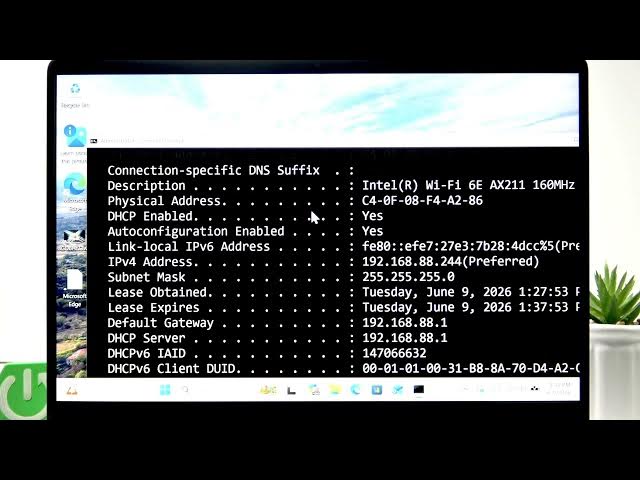
In this video you will learn how to check the MAC address on your DELL Pro 14 laptop using the Windows Command Prompt. We show each step: open the Start menu, search for CMD, run the Command Prompt as administrator, type ipconfig /all, and identify the active adapter (Wi‑Fi or Ethernet) and its Physical Address (MAC). This quick method also reveals the Bluetooth adapter MAC and works on most Windows Dell laptops. Follow along to find your MAC address fast and correctly.
How to check MAC address on DELL Pro 14?
How to find MAC address on Dell Pro 14 using Command Prompt (ipconfig /all)?
Where is the Physical Address shown on DELL Pro 14 for Wi‑Fi, Ethernet, or Bluetooth?
0:00 Intro - What we will show
0:04 Open Start and search for Command Prompt (CMD)
0:15 Run Command Prompt as administrator
0:22 Type "ipconfig /all" and press Enter
0:44 Find the connected adapter and read the Physical Address (MAC)
1:06 Check Bluetooth adapter MAC and other adapters
1:28 Outro - Subscribe and final tips
#Dell #DellPro14 #MACAddress #WindowsTips
Find out more:
https://www.hardreset.info/devices/dell/dell-pro-14/check-mac-address/
Follow us on Instagram ► https://www.instagram.com/hardreset.info
Show More Show Less #Science