Up next in 10


Read more about XIAOMI Black Shark 5:
https://www.hardreset.info/devices/xiaomi/xiaomi-black-shark-5/tutorials/
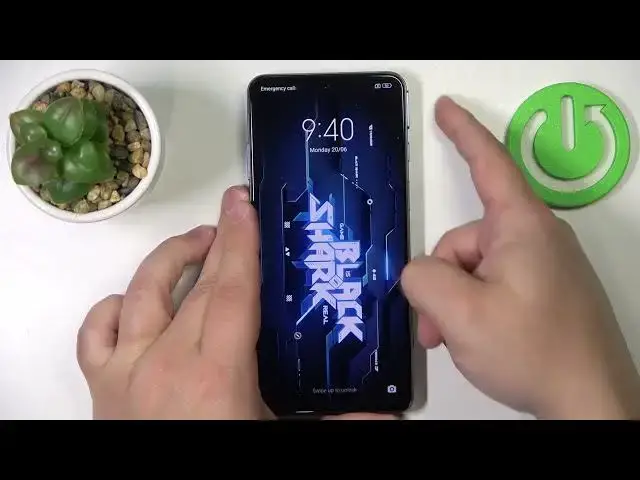
In this video, you can find tricks and tips for XIAOMI Black Shark 5. Check software hacks and hidden features for XIAOMI Black Shark 5. Everyone must know those secrets about XIAOMI Black Shark 5. Become a pro user and change the way you use your XIAOMI Black Shark 5.
What cool things can XIAOMI Black Shark 5 do?
What can you do with XIAOMI Black Shark 5?
How to get the most out of XIAOMI Black Shark 5?
#xiaomiblackshark5 #XiaomiBlackSharktricks #XiaomiBlackSharktips
Follow us on Instagram ► https://www.instagram.com/hardreset.info
Like us on Facebook ► https://www.facebook.com/hardresetinfo/
Tweet us on Twitter ► https://twitter.com/HardResetI
Support us on TikTok ► https://www.tiktok.com/@hardreset.info
Use Reset Guides for many popular Apps ► https://www.hardreset.info/apps/apps/
Show More Show Less View Video Transcript
0:00
Hello, in front of me I have Black Shark 5 and I'm going to show you a few tricks you can use on this device
0:10
First I'm going to show you how to change the navigation or system navigation type on this device
0:17
So let's open the settings on our phone and settings scroll down, find the home screen option and tap on it
0:27
Here tap on system navigation. see right here we have two types of navigations we can select from
0:33
The first one is the buttons. So basically you have the buttons right here on the bottom of the screen
0:38
and you can use them to navigate the system. We have the back button, the home button
0:42
and the menu or recent tasks button. And we can use them by tapping on them like this
0:53
And we can do a couple of things with them. Also, we can customize them a little. We can enable or disable the option to mirror the buttons
1:00
Basically, they will switch the side, the menu and the back button
1:06
We can tap on button shortcuts to make a shortcuts for them. For example, we can tap on one like long press the menu button
1:14
select something like turn off screen. And now when I press and hold on the recent tasks slash menu button
1:23
it will turn off the screen. For some reason it didn't work
1:28
Let me check why. because it was not selected for some reason
1:32
Okay, turn off screen now and the screen will turn off like this. And you can customize a couple of the shortcuts as you can see
1:39
Okay. Below we have also automatically disabled navigation buttons. You can basically enable it for certain apps
1:47
and the buttons will be disabled or should be disabled when you open the app, basically
1:55
This option is bit wonky, doesn't work too well, but that's how it works, I believe
2:02
Okay, let's go back. Now we can select the different type, the gestures
2:09
This allows you to perform or other navigative system by using the gestures on the screen
2:14
So, for example, if you want to go back, you swipe from the edge of the screen to the middle of the screen
2:19
like this, and it works from the both edges, so left or right edge
2:23
Next, if you want to go to home screen, you swipe from the bottom to the tab, like this
2:27
And if you want to open the recent tasks, rather, you select from the bottom to the middle
2:32
and hold for a second or two to open the recent tasks like this
2:37
And we can also enable or disable the option to hide full screen indicator
2:42
and also to enable or disable the gesture confirmation. Okay. So that's how you change the system navigation
2:52
Now, let's go back to settings. In settings, scroll down, find the option called Additional
2:57
settings and tap on it and here we have a couple of things I want to show you
3:02
First we have the master trigger This option allows you to customize the triggers on your phone Basically this phone comes with the switch right here or right here and right here on the tab and bottom of the phone
3:15
And this switch allows you to pop out the trigger buttons. Basically, this is the gaming phone
3:20
That's why you have this option. And we can assign different shortcuts for these buttons
3:24
and customize what they do with this master trigger menu. So, what we can do, for example, is to open the button
3:33
pop it out and you should see the bubble right here and you can tap on it and here you can select the
3:38
shortcut for it so for example let's see i want to let's say rather i want to clear the cache with it
3:45
so i'm going to press and hold on the clear memory like this drag it to the bubble this should be
3:51
replaced right here and now we can tap on complete and now when we hide the button open it the
3:57
bubble pops out we can press the button to perform the shortcut quite simple we can do the same for the
4:03
shortcut. So let's open it. Tap on the bubble. Maybe set the screenshots to it
4:08
to it rather. So we're going to drag it here. Tap complete. And now when we hide it
4:15
open it, press the button. It will take a screenshot. You can also enable
4:21
or rather assign the applications for it. So for example, if you swipe left right here in this menu
4:25
you can open the applications. So I'm going to drag the Google plate here. Tap on complete
4:31
Hide it, open it, press it the button. and it's going to open the Google Play
4:35
Quite useful, in my opinion, and quite cool. Okay. So, next we can enable or disable the shoulder key shortcut function
4:48
So if you disable this option, the pop-up menu, the shortcut menu will not appear when you open the buttons
4:54
So if you want to use the shortcuts with the buttons, this option needs to be enabled
5:00
As you can see, below that, We have the master trigger screen off function
5:05
This option allows you to perform the shortcuts with the triggers when the screen is off
5:10
So we can tap on it, turn it on, and now select the function, for example, camera photo mode and camera photo or video mode
5:18
And now when we turn off the screen, open the button, double press it, I believe, or press it once
5:31
I think it's double press. But I may be wrong. Yeah, it is double press
5:35
Okay, so you need to double press it basically to perform the shortcuts. So lock the screen, open button, double press it to perform the shortcut like this
5:44
Okay, and that's how it works. And you can select only between camera and flashlight
5:50
Okay. Next, we can scroll down, and here we can customize the button themselves
5:55
We can, buttons rather, we can enable or disable the haptic for them, so the phone won't vibrate or will vibrate when you switch
6:03
the buttons. We can change the sound effect, for example, we can select something like
6:08
meow like that We can also customize the gaming scene So if you playing you can enable or disable the haptic
6:23
You can change the sound effects while playing. And also light effects
6:28
Like this. Okay. Okay. So we're done with the trigger. Now we can tap on switch right here
6:36
And here we have the shortcuts for the switches. So basically the switches that you use to pop out the trigger
6:42
and we can do a couple of things for them. We can enable the shortcuts for them
6:46
So now when you enable the Tago switch shortcut function, you can tap on shortcut right here
6:51
We have the upper or lower switch. We can tap on the shortcut on the upper
6:55
and find something to open, for example, screenshot. So the upper button has the screenshot
7:01
and the lower button. Let's select something like, I don't know, screen record
7:08
Okay? And now to perform the shortcuts with them, we need to close the trigger and quickly open it like that to perform the shortcut
7:20
And we can also do the same of the lower button. Quite simple and quite cool, if you ask me
7:27
We can also do this for the turn off screen, of course, so we can tap on toggle with the screen off, and we can enable it, select one of the options
7:35
and when the screen is off, we can perform the shortcut like this
7:42
Okay, that's about the triggers. Now, another thing I want to show you is the magic ball, or quick ball rather, right here, quick ball
7:54
Tap on it, and here we can turn it on. And if you turn on the quick ball, this basically allows you to have this little shortcut menu on the side
8:03
You can tap on it, it's barely visible right here. And this will open the shortcut menu, and we can do a couple of things, like, for example, take a screen shot and stuff like that
8:11
and we can customize this menu. To do it, simply tap on select shortcuts
8:17
And here we can tap on one and select something like Bluetooth
8:21
Next, let's tap on lock and select something like silent. And now when we tap on this icon, it will open the menu
8:28
We have Bluetooth. It should turn on the Bluetooth, turn it off like that, silent like this
8:37
We can also change the order of the icons on the list. So, for example, let's move the bug to the top
8:43
Like that. If you open the mini debug will be here. Quite simple
8:48
And next we have the preferred gesture. You can select tap or swipe. Then we have hide automatically
8:54
Here you can turn it on for the apps. And if you, for example, enable it for Chrome and open the Chrome, the quickball will disappear
9:02
It won't be visible anymore. So if you don't want to have it in certain apps, it's going to disappear
9:07
Next, we have move aside when full screen. So if you open something in full screen, it will move aside
9:13
And then we have a stick to the edge after three seconds of an activity. And here you can enable it or disable it
9:19
So basically it going to hide itself if you enable this option And you can also set the wake areas And here you can customize them by swiping on the bar So basically how far from the edge of the screen you need to tap to open this menu
9:37
Quite. Okay, that's about the quick ball. Next thing I want to show you is the magic press
9:47
So let's tap on it. And this option allows you basically to open the different shortcut menu
9:52
So if you enable it, you can press and hold in the area where you have the fingerprint sensor
9:57
press and hold firmly to open this menu, basically. And you can then swipe on it to perform the action like this
10:03
And we can select different options. We have vibration feedback. We have the force of pressure sensor and stuff like that
10:14
So if you enable or disable the vibration feedback, it will vibrate or will not vibrate. or will not vibrate when you open the menu
10:20
The force of pressure sensor, basically here you can select or choose how hard you need to press on the screen to open this menu
10:29
and you can change it by swiping on the slider. And then we have options like Suspent, and we can tap on it
10:35
And here we can select different options for the Suspent, different shortcut
10:41
Then we have the flick up, flick down, and stuff like that
10:44
You can customize the shortcuts like this. So when you open the menu, you can perform different actions with them
10:52
Okay. Let's go back. And I'm going to show you the last thing, which is gesture shortcuts
10:59
Let's tap on it. And here we can basically turn on and turn off some shortcuts like launch Google Assistant
11:06
take a screenshot and stuff like that. So first let's tap on Launch Google Assistant, and we can enable the shortcut for it by tapping on the switch
11:13
And what it does, it will basically turn off the PowerMet. knee and if you press and hold the power button, it will open the Google Assistant
11:21
So if you like Google Assistant, you might want to use this option. Next, we have the Take a Screenshot, and here you can enable or disable to take a screenshot
11:29
with the three fingers. So if you enable this option, you can take a screenshot by swiping three fingers on the screen
11:35
swiping them down. Quite simple. Next, we have launch camera, and here you can basically enable shortcuts to launch the camera
11:43
like double-press the power button. like this next we have the
11:53
double press volume down when the screen is turned off so if you turn off the screen
11:56
double press the volume down and will open the camera like that
12:00
and that's about the camera next we have turn on torch so basically we can turn on the
12:07
flashlight and we can enable the option to turn it on by double pressing the power button okay
12:13
and that's about it That's about all I want to show you. Thank you for watching
12:19
If you found this video helpful, please consider subscribing to our channel
12:22
and leaving the like on the video
#Gadgets & Portable Electronics