0:00
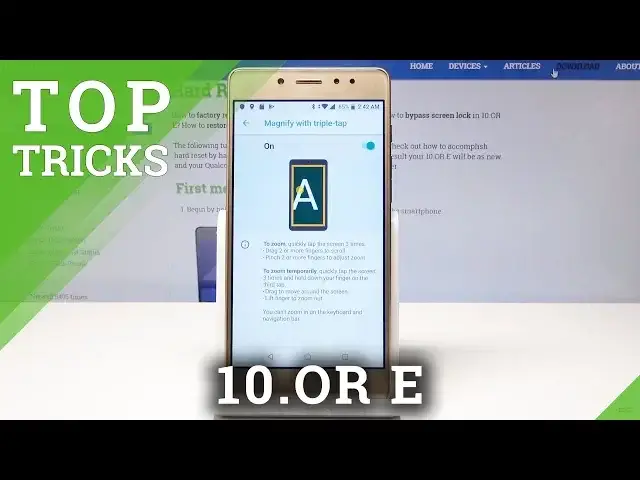
Here I have Tenore M, let me show you top tricks on the following device
0:11
So at the very beginning let me show you the night light. So all you need to do is open the list of apps, choose here settings, in settings let's
0:18
choose the display. Here let's find night light and as you can see here you can use the night light
0:23
So you can enable right now the following mode, this is eye protection mode, night light
0:28
tins your screen amber so it makes easier to look at your screen
0:32
You can change the intensity of the night light, you can also use the schedule time
0:36
for example you can switch on this night light on a custom time or for example from sunset
0:41
to sunrise. It's really useful to use it at night so let me leave from sunset to sunrise
0:47
Alright let's go back, let me show you the next trick. So let me show you the gestures
0:51
Let's go back right here and here let's find the system. In system select gestures and here you can use for example swipe fingerprint to notification
1:01
or you can use jump to camera. Jump to camera is really useful thing, let's make sure that you've got this enabled
1:07
Now from every screen you can double press the power key to open the camera
1:11
Let me show you, double press power and you just open the camera
1:14
So it could be really useful. Let's go back and let me show you the next trick
1:18
So this time let me show you the magnification. Let's go back to the list of settings and here you need to find and select accessibility
1:26
Scroll down and tap on magnification. Let's enable the magnification by using that switcher and now you can magnify your screen
1:32
just by triple tapping on the screen. Let me show you. That's it
1:36
Now you can change the position by using two fingers and you can triple tap again to un-magnify things
1:43
Alright, if you would like to disable this feature let's use this switcher and now we
1:48
can go next and let me show you the sound recorder. So it could be really useful
1:52
Let's open the list of all apps. Here let's scroll down and choose sound recorder
1:57
So in Tenore you've got built-in sound recorder. All you need to do is just use this record button, allow a few permissions and now you
2:05
can record voice and some other stuff, for example the lecture. You can also pause the recording or stop it
2:13
That's it. Let's save it. You can change the name. Now you can use the following recording and you can play them
2:21
Alright, so that's it. Let's go back. You can of course find the recorders by using your file manager, for example, or by using
2:30
your phone storage. And now let me show you the last trick. So let me show you the hidden mode called save mode
2:36
So all you need to do is simply press power key and if you would like to enter the save
2:40
mode let's hold down on power off. The following information should pop up
2:45
Tap ok and let's wait a couple of seconds
2:55
That's it. The save mode pops up so now you can check out how your device works without the third
2:59
part apps. And if you would like to quit this mode let's simply press power key, choose restart and
3:05
let's wait a few seconds. That's it
3:14
The save mode pops up so everything went well. Thank you for watching. Please subscribe our channel, leave a thumbs up under the video