live_tv
Livestream Starting Soon
00
Hours
:
00
Minutes
:
00
Seconds
Up next in 10


Find out more about LG Wing: https://www.hardreset.info/devices/lg/lg-wing/
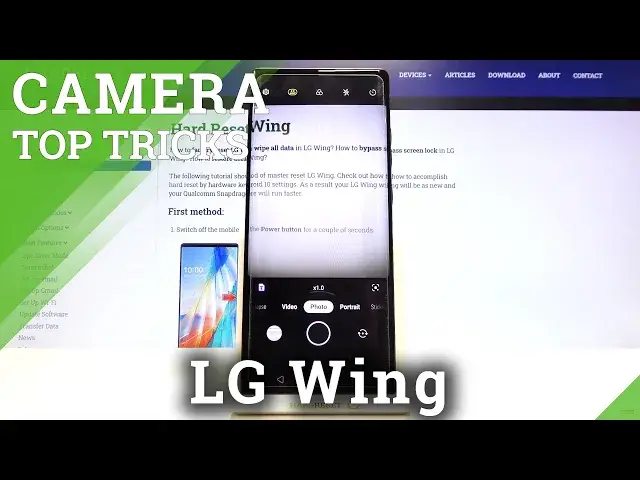
Are you looking for a way to take amazing pictures with LG Wing? If the answer sounds yes, then this video is perfect for you! Because from this guide, you'll find out this LG device Top Camera Tricks that will definitely help you. All you need to do is follow the steps shown above, open your Camera, and enjoy learning a bit more about your smartphone camera. So, let's get started!
How to use Camera Top Tricks for LG WING? How to Locate Super Camera Features in LG WING? How to Find the Best Camera Options in LG WING? How to Enable Camera Secret Options in LG WING? How to Use LG WING Easier?
Follow us on Instagram ► https://www.instagram.com/hardreset.info
Like us on Facebook ► https://www.facebook.com/hardresetinfo/
Tweet us on Twitter ► https://twitter.com/HardResetI
Show More Show Less View Video Transcript
0:00
Welcome here I've got LG Wing and I'm going to show you the top tricks of it camera
0:11
So let's start by tapping on the camera button to open it and for now we are in the standard photo mode
0:17
Let's see what we've got here. Let me start with this settings bar by going to the left or right
0:24
Here we can change the modes of this camera. We have the time lapse mode, standard video, photo, photo
0:29
Portrait, sticker and by going to the end of the right side we have more
0:35
So the night view panoramic, manual camera, manual video, slow motion, YouTube live and AR stickers
0:42
So this is a lot, I don't have much time to speak about all of these moves now
0:47
I suggest you to making experiments with that and just have a good fun
0:51
And in some modes, let me tell for example to the slow motion, we have really cool thing
0:57
Let's move to the left to this button. When we tap here, we get access to some short tutorial from the device about how to use this mode
1:07
So in more advanced modes you can read about its settings and how to use them
1:13
So this is really cool that we have this. Now let's go back to the standard photo mode and here let me start by tapping anywhere at the screen like that
1:22
Here we have access to this ring. This is the focusing ring so we can pick focusing area anywhere we need at our
1:29
picture and this is connected with the slider which appears here and by using it we
1:36
can adjust the exposure compensation so we can manage the light of our picture
1:41
As you can see we're going to the right we can make our photo more bright
1:45
By going to the left we can make it more dark. We can also tap here on MF to change the focusing from auto to manual
1:55
So this is also really cool thing like in the Pro mode. Now let's stay on Auto, so to go back to the auto settings we have to just simply tap anywhere at the screen again
2:06
And let's have a look at this button here at the center with one, two
2:10
As you can see, when we tap here, we can change it. So here we can manage the lenses of this camera
2:16
Now we are on the ultra-white lens. Then we go back to one, to standard one and get closer
2:22
So this is connected with Zoom. Also when we tap here a little bit longer, we get access to this
2:28
this slider and here we can easily use zoom and get closer to the subject also go back
2:34
We can also use zoom by two fingers like that, but I think that when we use this slider
2:41
we can be more precisely. So just tap here on this button with lenses a little bit longer and you can get access to it
2:50
Now let's stay on the standard lens and let's move to this settings bar here
2:55
Let me start from the right corner, the first one button here. is the camera timer so we cannot just the delay of taking picture
3:03
We can pick from 3, 5 or 10 seconds of delay. So let me pick now 3 seconds to show you how it works
3:10
And now let me take a picture. And here we have the countdown, as you can see
3:15
The picture was taken now with 3 seconds of delay. Let's tap again to the timer and turn it off from the left and let's move to this button
3:24
the second from the right. But I just want to up we get access to the flash Now this flash is turned it off At the center we can turn it on every time we take a picture Another tap to this button and when we go to the flash Now this flash is turned off At the center we can turn it on every time we take a picture Another tap to this button and when we go to the right corner now we can turn on flash on the auto
3:41
So the camera should recognize the bad conditions when it's too dark and use it to help us
3:51
Now let me keep this turn it off and let's move to the center to this button
3:55
Here we get access to the slide. access to the slider with the filters
3:59
And we can make our picture now just more beautiful before we take it
4:04
So you can pick whatever you like from this. You have also this slider with strength
4:10
So we can adjust here the intensity of the filter and this is how to use this
4:15
Now let's go back to the original filter. Let's tap here to turn it off and move to this button
4:22
When we tap here we can manage the aspect ratio of the camera. of the camera. Now we are in 4 and 3 ratio. From the left it's also 4 and 3 but with 64
4:32
megapixels the best possible quality of this camera. So we have our short access to the best
4:39
possible quality. Another tap here and we can also manage the ratio to 16 and 9 and the
4:45
background has changed it now to the longer one. When we tap here once again we can also
4:51
pick one and one, this is how it looks like. And all the background has changed it. And all
4:55
Also from the right in the settings we have the full aspect ratio
4:59
So this is how it works here. By just another tab, we can easily go back to 4N3 and now let's stay on this one
5:08
Let's move to the left corner to this button now. When we tap here, we can open the advanced camera settings
5:14
As you can see, we have a lot of them, let me show you a few
5:18
At first we have the auto-intelligent camera settings. So here by using these buttons, we can turn off or turn
5:25
on some settings that can help us with the auto-intelligent camera to taking better photos
5:33
So we have autosine optimizer, composition settings and dips. I suggest you to keep the stern-ed-on because this is help for us to taking really good pictures
5:44
Now let's slide a little bit down. Let me focus now on the safe options
5:48
At the first place here we have the photo size and here we can manage the aspect ratio
5:54
connected with the quality and the size. So we have some more advanced settings about the size of the picture we want to take
6:04
And this is connected with the ratio. So when we tap, for example, on 16 and 9 with 4 and 6 megapixels
6:11
here we can see the change in the preview. So this is kind of a more complicated way to change ratio
6:19
But here we can see more options with the quality. so I think this is important to know that we have this
6:27
Now let's move to HDR. Here we can turn it on the auto, which is now
6:32
We can turn it on every time we take a picture or turn it off when we don't need it
6:37
I suggested to keep this on the auto because the HDR helps to improve the details in the brightest and darkest areas at our picture
6:46
And it really helps to make our photos just more beautiful and lightful
6:50
And when it's on auto, the camera should rest. recognize the best possible settings to have this
6:56
Now let slide a little bit down to the useful features Let me start with the live photo But I just want to tap here on this button we can turn it on another tap to turn it off when we don need it And when we have this turn it on we can get two in one when we take a picture
7:13
So we can get the photo and a short video at the same time
7:17
Let me show you how it works. So let's go back to the camera and let me take a photo
7:22
This is my object. To see it, let's move to the left to this button
7:27
Here by just one tap we get quick access. up we get quick access to the gallery and this is our short clip and the picture
7:33
So this is the live photo. I think this is really cool
7:37
Let's go back to the camera, to the settings. Let's stay down again to the useful features
7:42
Now let me turn off the live photo and let's move to tracking focus
7:47
Here also by using this button we can turn it on and turn it off like that as we need
7:54
And this option is also one of my favorites because this is helpful when we want to take a
7:58
picture to something that is in move and we can track it. Let me show you how it works
8:03
This is my object. By tapping on the focus, it follows us when we move or when our object is moving at the picture
8:12
So this is really helpful to keep focused. Now let's go back to the settings, let me keep the turn it off and let me move to the grid option
8:22
By using this button, we can turn on the camera gridlines, another tap of course to turn them off. When we have
8:28
have the star net on, we can see these lines at our preview
8:32
As you can see, this is helpful when we want to use the role of third in photography or making
8:37
experiments with composition. Also remember that these lines are not visible at the real photo
8:43
When I take a picture and when I go again to the gallery to the left, we can see them at
8:49
the photo. So the grid lines are only to help us taking better photos
8:54
Of course, when we don't need them, we can tap again to the left corner, slide down
8:58
to the useful features, use this button, so for now the gridlines have gone here
9:03
Now let's stay on these settings from the left. Let's slide down again to the useful features
9:09
Another thing I want to show you here is the cheese shutter. But I just want up here we can
9:14
turn on some voice control to our camera. Another tap, of course, to turn it off. And when we
9:20
have this, we can take a picture without touching the screen by saying some keywords
9:25
like cheese, smile, whiskey, kimchi or LG. Let me try to use this, so let's go back to the camera
9:32
and now let me try to take a picture by saying loudly, cheese
9:38
And as you can see, this is how it works. The picture was taken. So let's go back to the settings to the left
9:44
Let's lay down again. Let me keep this turn it off now. And let's move to add watermark option here when we tap on it
9:51
We can add to our picture some watermark with signature. or shot on the LG wing
9:57
Let me pick now the signature Here we can add our own
10:01
watermark for example Let me write here wing and hard reset And here we have the
10:13
short preview how it looks like We can also pick the font of our watermark
10:19
So we have many options And we can pick whatever we like
10:23
Let's add it and let's go back to the camera to take a picture to see how this watermark look like at the real one
10:31
So let go again to the left to the gallery And this is it In the right corner at the bottom we have the watermark with signature wing hard reset Let go back to the camera to the left corner and let stay down again to the add watermark option
10:48
Here we have also shot on LG wing watermark. So the device one, let's stay on this now and when I take a photo in the camera and again go
10:58
to the gallery we can see that this is how it changes
11:02
And this is how the device watermark looks like shot on LG wing
11:07
Let's go back now again to the camera, then to the left corner, slide down
11:13
Let me turn off these watermarks. And another cool thing we have here is the scan care code option
11:20
By using this button, we can of course turn it off or turn it on. I suggest you to keep this turn it on because this is the easiest way to scan care codes at this device
11:29
When you have this you can put them inside your camera and you don't need any other app to do it
11:35
And now let's move to tag locations option. Also this button is useful when we want to turn it off or turn it on
11:44
And this option allows us to save the information about the place where we take a picture in the details about it
11:50
Also here the important information is that to make it work correctly when we want to save the actual location of our photo, we have to be connected
11:59
with the internet, for example with the Wi-Fi, and we have to turn on the location of this device
12:07
So remember about these two parameters to make it work. Now let me keep turn it on all of these settings
12:13
Let's go back to the camera and take another picture. To see it, let's move again to the left to this
12:20
button. And this is our photo to check it location, we have to just simply slide a little bit down
12:26
And as you can see, we have access to more details. We will have to see. We've got to check it location. We've the location with the map and the full address
12:33
So greetings from Krakow Poland. Now let's go back to the camera and at the end I want to show you one extra thing from the device we have here
12:43
So let's open this like that. And as you can see, now we can get access to some advanced video recording settings
12:55
We have the gimbal mode. Here we can change it also to the time maps
12:59
slow motion and dual recording. So hi here we can use also the front camera
13:08
And I suggest you also to make experiments with that. You have in each of this mode this button in the left corner
13:16
So by just one tap you can read the short tutorial and learn how to use that
13:23
I think this is really cool and done. And to use the gimbal mode we have to just use
13:29
play with this joystick like that. We can also tap here to reset this and go back to the straight view
13:40
And also here we have some short information about the voice recording
13:48
So I think this device gives us a lot of possibilities, especially when we want to record the video
13:55
And that's all. Thanks for watching, subscribe by our channel and leave the thumbs up