0:00
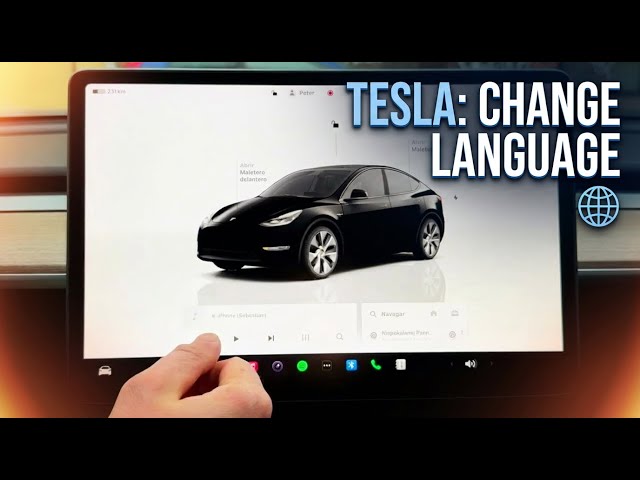
How to change the language of your
0:01
Tesla. Let's begin. All right. So, in
0:04
order to have access to the language of
0:11
all you need to do is open the car icon
0:13
is located in the left corner. So, let's
0:15
tap it. And then you've got access to
0:18
all available settings that you can use
0:20
on your vehicle. Let me choose here the
0:23
display. And under display, you need to
0:26
scroll down to see those two languages
0:29
settings that you can change. So you can
0:32
change the language of your touchcreen.
0:33
As you can see here, you've got the full
0:35
list of available languages that you can
0:38
use. So in my case, just for testing,
0:41
let me switch from English to, for
0:46
example, Spanish. Let me do it.
1:03
Changing the language will require to
1:05
restart. Let's tap okay to do it. And
1:08
let's wait until the car will be
1:10
reduced. But this time it will be ready
1:18
All right. As you can see here, we've
1:19
got the Spanish letter, the Spanish
1:21
words. So, in my case, let me go back to
1:24
English one. Let's choose here pantaga.
1:27
And from the following list, select
1:29
espanol and choose here English.
1:32
Tap English. Tap okay. Let's wait a
1:35
couple of seconds to show you that
1:37
everything will be back in English.
1:44
That's it. Now, let's tap the car icon
1:46
again. And let me choose here the
1:49
display one more time. Scroll down. And
1:52
it was our first changing language, the
1:54
language of a touchcreen. But let's go
1:56
to the next one. The voice recognition
1:58
language. I'm also using English. But if
2:01
I switch from English to Spanish now, if
2:04
I say something by using this command
2:07
button right here, as you can see, let
2:10
me tap here. This command button. You
2:21
It won't work. But now let me switch
2:25
from voice recognition language Spanish
2:29
to English. Now let's do it again.
2:37
And that's it. As you can see, just
2:39
switch from English to Spanish and back
2:42
from Spanish to English. And now your
2:44
commands works in English. All right.
2:48
Then let me also show you what else you
2:50
can change with languages. You can also
2:53
select the language of your navigation.
2:55
In my case, I'm using English, but you
2:57
can also use, for example, German or
2:59
Danish or any of the following
3:01
languages. Uh, and you can also use the
3:05
keyboards and choose the keyboard
3:07
languages. Here are all keyboard
3:10
languages that you can use. In my case,
3:12
let me don't use any of it. I think
3:16
that's it for this video. Now, you can
3:19
change any language you want from the
3:22
following list. As you can see, there
3:24
are a couple of uh settings to set up
3:26
with languages. So, that's it for this
3:29
video. Thank you for watching. Please
3:31
subscribe to our channel and leave