0:00
Hi, in front of me is OnePlus Nord 3 5G, and today I would like to show you how you can set up an alarm clock
0:15
First of all, you need to open clock app. Then choose alarm section at the bottom left corner of it
0:26
and click on this, sorry. And click on those three dots at the top right corner
0:35
Then hit settings. Now you can adjust all of those alarm options however you wish to
0:45
And when you finished, go back. To create your alarm, tap on this green button with a plus
0:56
Now set up an hour. If you wish for your alarm to only ring once, just make sure that ring once option is black
1:08
If you wish to select custom, tap on it. And pick days of the week
1:15
I will go with Mondays and Fridays. Then select alarm name. Label your alarm however you wish to, if you wish to, and click on ringtone and vibration
1:33
Hit allow. Tap on allow in statement of use popup. And select the best option for you
1:46
If you wish for your alarm sound to change depended on the weather, click on weather adaptive
2:00
If you wish to use music from your Spotify account, click on Spotify and log in
2:08
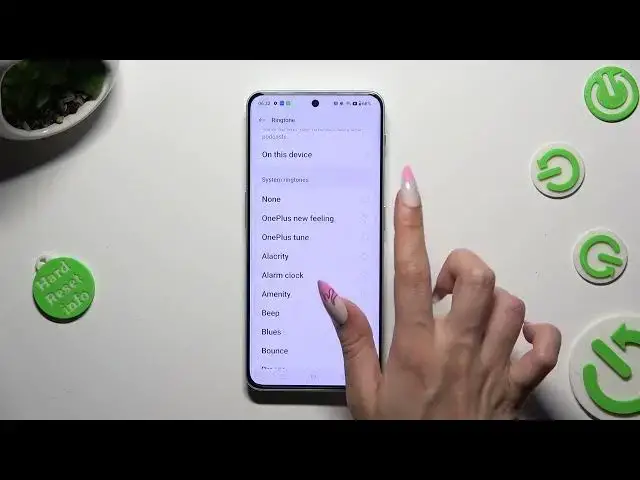
In order to use one of your songs from your smartphone, tap on on this device, tap on the song, and go back
2:21
You can also just tap on one of those system ringtones to apply the best one
2:28
Like blues. Lastly, tap on vibration section below weather adaptive. Synchronize your vibrations with ringtone thanks to this option
2:43
Disable them completely thanks to no vibration one. Or tap on one of those effects, like for example heartbeat
2:54
This way you will apply the best vibration pattern for your alarms
3:01
When you finished, just go back. Now to save your alarm, tap on this checkmark at the top right corner
3:13
Lastly, you can also adjust noise by tapping on it. Disable or enable it, and pick how many minutes it will take and how many times it will repeat
3:25
So when I go back and tap on the checkmark, I can see that my alarm was successfully created
3:35
To switch it off completely, tap on this switcher near the top right corner
3:42
To switch it off completely, tap on this switcher next to it
3:49
Then select one of those options. You can turn it back on the same way
3:59
If you want to delete it, just hold it and click on delete option at the bottom
4:08
As you can see, after that my alarm was removed. Thanks so much for watching, if you enjoyed this video, don't forget to leave a like, comment and subscribe