0:00
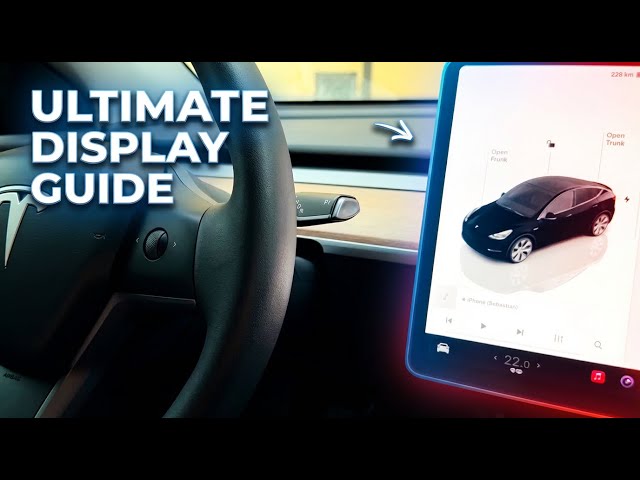
Hi, in this video I will explain you
0:02
every Tesla display settings that you
0:04
can change. Let's begin.
0:10
So first of all, let me show you how to
0:12
get access to those settings. Let's
0:14
start wherever you want. Let's use the
0:16
car icon in the left down corner from
0:18
the following list. You need to choose
0:20
display. It should be somewhere in the
0:22
middle of the list. Tap display. And now
0:25
you've got access to all display
0:26
settings that you can use. Those display
0:28
settings can different in every car but
0:32
in most cases are the same. Here I have
0:34
my Tesla Model Y and let me explain all
0:37
of them. So first of all appearance. You
0:39
can change from light to dark mode where
0:42
whenever you want or you can also set up
0:44
auto and now the device will decide for
0:46
you when it's the best time to use the
0:49
dark mode and when it's the best time to
0:51
use the light mode. The second useful
0:53
feature is reduce the blue light. I
0:55
recommend to have this feature enabled.
0:57
It will automatically adjust to warmer
1:00
colors at night. You can also choose
1:02
your brightness from zero to 100% or you
1:06
can choose also the auto. In my case,
1:08
let me disable auto and use the
1:11
brightest possible as you can see right
1:14
here. And also here you've got a really
1:17
important thing to enable the automatic
1:19
blind spot camera. Let's make sure that
1:21
you've got this feature enabled because
1:23
it's amazing feature that allows you to
1:25
see what's in your blind spot. Now, if
1:28
you turn your signal left or right, you
1:30
will see the following view as you can
1:33
see from right camera and from the left
1:35
one. And what's also really important,
1:37
you can change the position of this
1:39
camera. You can change it to here or you
1:42
can change it to here and go back to the
1:44
first place. So, there are three
1:46
possible position to locate your camera.
1:49
Let me disable the signal. All right,
1:52
let's go next. A really cool feature,
1:55
the screen clean mode. So, if you would
1:57
like to clean your screen, let's just
1:59
use this feature now. As you can see,
2:02
you can use some wipers to clean your
2:05
screen. Let me do it. All right.
2:09
And now you cannot touch anything right
2:13
here. So, it's really useful because you
2:16
don't accidentally uh touch your screen.
2:18
And if you would like to exit this mode,
2:20
let's hold here. As you can see, you
2:22
need to wait 3 seconds. Zero. And that's
2:24
it. All right, let's go. Next, you can
2:28
choose the scroll wheel function. So, if
2:31
you use your left scroll wheel uh
2:35
button, you can change, for example,
2:37
temperature. You can also change the fan
2:39
speed, you can fold mirrors, save dash
2:41
cam, etc., etc. You can defrost your
2:45
car. So, for example, in my case, let me
2:48
uh use the wiper speed. And now, if you
2:53
hold your left button on your
2:57
steering wheel, let me show you. Let's
3:00
hold it here. Let's push it.
3:03
You can change the wipers, as you can
3:05
see right here, from auto
3:08
to one of the following speeds. But you
3:11
can also change it to the temperature,
3:13
for example. And if you tap it here,
3:19
let's push it. You will activate the
3:28
That's it. Let me decrease the
3:34
let's go to the next display settings.
3:40
So here you've got also really important
3:43
features with your languages. You can
3:45
change the language of your touchcreen.
3:48
Here you've got the full list of
3:52
If you change the language of your
3:53
touchcreen, the system should reset
3:55
itself. You can change the voice
3:57
recognition language. Let me show you
4:00
how it works. For example, from English
4:01
to Spanish. And now if you say something
4:04
in Spanish, the car will not understand
4:06
it. So, let's use this button on your
4:15
Command not understood. But if you
4:16
change it from Spanish to English one
4:25
it should change the system to dark
4:28
mode. Let me go back.
4:31
Change to light mode.
4:41
Change to light mode.
4:45
And that's it. So, as you can see, this
4:47
is really useful to set your language to
4:50
use it properly. And let's go next. You
4:54
can also change other languages. So, you
4:57
can change the language of the
5:01
Here we've got also the full list of
5:03
navigation. Sometimes it could be really
5:05
useful to change it to hear your own
5:08
language. You can also choose keyboards
5:10
and use one of the following keyboards,
5:12
for example, Arabic, Greek, etc. And now
5:16
you've got formats. You've got formats
5:19
from the following countries. In my
5:22
case, I'm using from Poland, but for
5:24
example, let me switch to United States.
5:27
And what's what else? You've got the
5:29
text size. It could be large.
5:32
Let me show you how it looks with the
5:43
As you can see, this is the large size.
5:46
So, let's go back. Let's choose here
5:50
You can go back to standard if you would
5:51
like to. In my case, maybe I will use
5:53
the large size for a while. Let me check
5:56
if this is the best way for me. You can
5:59
also change the time. It could be 12hour
6:01
time or 24hour. It depends of your
6:04
preferences. As you can see, it's
6:06
changing here. Let me use, for example,
6:09
12 hour. You can also choose the energy
6:13
display. I'm using distance. As you can
6:15
see, I'm using distance in miles, but
6:17
let me change it to kilometers. And you
6:20
can also change from distance to
6:21
percentage. But what's also really
6:24
important to note that if you tap here
6:26
on the battery, you can change it from
6:28
percentage to kilometers by your own.
6:31
Let me go back and scroll down again.
6:35
All right. You can also change the
6:37
temperature from Fahrenheit to Celsius
6:39
and tire pressure from bar to PSI. Let
6:44
me use bar Celsius kilometers. And
6:46
that's it for me. Now I've got
6:49
everything properly seted up and I think
6:52
that's it for this video. I'll just show
6:55
you all display settings and features
6:57
that you can use on your Tesla. I hope
6:59
you like it and please subscribe to our
7:02
channel and leave thumbs up under the