0:00
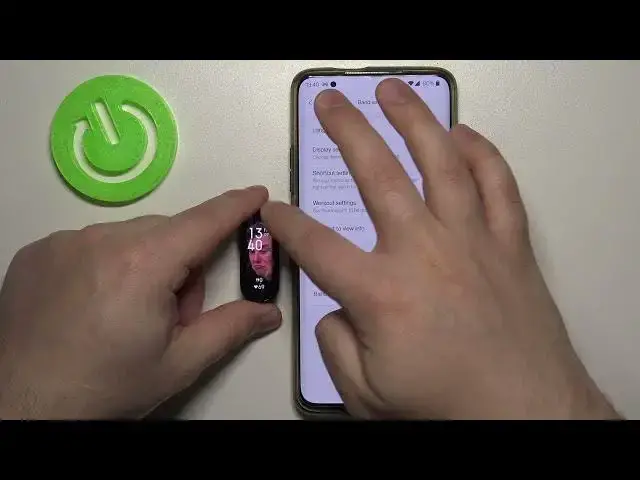
Hi, in front of me I have Xiaomi Mi Band 6 and I'm gonna show you how to customize the
0:11
workouts on this device. First, I'm gonna show you how to access the workouts on this device
0:18
So let's wake up the screen on our band. To do it, tap on the screen couple of times
0:23
Now we need to open the menu and to do it simply swipe up or down on the screen
0:28
Like this. Now scroll through the menu, find the option called workout and tap on it
0:34
And here we have the list of workouts. We have the main list, basically you have workouts like outdoor dance, treadmill and
0:42
at the bottom we have option called more. And this is the list, this is the rest of the list because you have more workouts on
0:48
this device but some of them are hidden because you can have only up to 11 workouts on this
0:54
main list. So let's tap on more and here we have even more workouts as you can see
1:00
And we can customize this list. So to do it we need to open the Mi Fit app on our phone
1:09
In the app we need to tap on profile. Here we need to select our Xiaomi Mi Band 6 from the list of devices
1:18
Mi Smart Band 6. Then tap on band settings. And here we have workout settings
1:26
Tap on it and as you can see we have the list of workouts and we have also list of more workouts
1:34
So we can have only 11 items on the main list of workouts
1:40
So for example you want to have gymnastics on it but you already have 11 items, you can't
1:45
add more. So we need to remove one. To do it simply tap on the minus button next to one you want to remove
1:51
For example I'm gonna remove treadmill. Like this. And now I can add my gymnastics by tapping the plus button right here next to it on the
2:03
more workouts list. Like that. And here we have it. And then I can tap save button to save my settings
2:13
And when I open the workout menu I will have my gymnastics right here on this list as you
2:20
can see. You can also move the items, reorder them basically, change the order of the list
2:28
To do it simply find the item you want to move. For example I want to move the gymnastics to the top of the list
2:34
To do it press and hold on this sort button next to the item you want to move
2:39
Right here on the right side. And drag it to the position you want it to be
2:46
And then release it like this. And then tap save of course to save the settings
2:51
And now when you open the workout the gymnastics are gonna be first
2:58
You can of course remove basically most of them. Let's say I want to have only a couple of the workouts
3:08
So let's remove all of them. Let's leave the gymnastics and tap save
3:12
And now I will have only the gymnastics on my workouts. And the rest is gonna be hidden in the more list
3:21
And that's about it basically. You can also add them. I think I already said it but you can add the workouts like that from the more list
3:31
to the main list like this. It's hard to hit the button actually
3:36
And then tap save to save it. And that's how you customize the workouts list basically
3:42
Oh, as you can see here it is. Thank you for watching
3:51
If you found this video helpful please consider subscribing to our channel and leaving a like