
0:00
Hello everyone, and welcome back to our
0:01
channel. In front of me I have
0:04
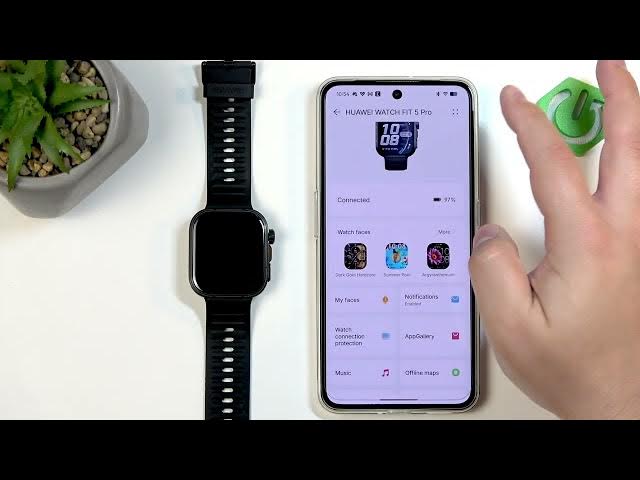
Huawei Watch Fit 5 Pro, and today I'm
0:06
going to show you how to enable the
0:08
phone notifications for this watch on
0:10
the Android phone. Basically, if you
0:12
want to receive the notifications from
0:14
your phone on your watch.
0:16
So, let's get started.
0:23
Before we start, if you want to receive
0:25
the notifications from your phone on
0:27
your watch, your watch needs to be
0:28
paired with your phone via the Huawei
0:30
Health application. And once the devices
0:33
are paired together, we can continue and
0:35
we can open the Huawei Health, tap on
0:37
devices, and here on the list of devices
0:40
we need to select our Huawei Watch Fit 5
0:43
Once you select the watch, it will open
0:45
the device page, the settings page for
0:47
it, and here scroll through this page,
0:49
look for the notifications,
0:53
and if the notifications are disabled,
0:57
And if you don't have the required
0:58
permissions allowed, you will see the
1:00
pop-up on the screen telling you that
1:02
you need to allow some permissions. And
1:03
what we need to do is to enable the
1:05
notification access for the Health app.
1:08
it will bring you to this page, find the
1:10
Huawei Health application,
1:12
tap on it, tap on the switch next to
1:14
allow notification access, tap on allow,
1:17
and once you allow the notification
1:18
access for the Huawei Health, you can go
1:21
and now the notifications will be turned
1:23
on, and here we can customize settings
1:26
for it. We can enable and disable the
1:28
options to unmute the notifications when
1:29
using the phone. So, basically, if the
1:32
screen on your phone is unlocked, it
1:33
will mute the notifications on your
1:36
And then you can enable and disable the
1:37
notifications for specific applications
1:39
on your phone. And how it works is
1:41
basically, if you enable the
1:42
notifications, let's say for Discord,
1:45
and you receive the notification from
1:46
Discord on your phone, that notification
1:48
will be also forwarded to your watch.
1:50
But if you disable it right here, it
1:51
won't be forwarded to your watch, it
1:53
will only be visible on your phone.
1:56
And that's about all. So, customize this
1:58
to your liking and then we can go back.
2:01
And at this point uh we should be able
2:03
to receive the notifications.
2:06
I'm going to send myself a message on
2:08
Discord just to test it out.
2:20
For some reason it didn't pop up, so
2:26
Okay, this time it popped up on our
2:28
phone. And if you go to your watch, it
2:30
should also pop up on your watch.
2:32
And you can check by swiping up on the
2:34
home screen. And here you have it. So,
2:38
And that's how you enable the phone
2:39
notifications for this watch on the
2:43
If you found this video helpful, please
2:44
consider subscribing to our channel and
2:46
leaving a like on the video. Thank you
2:48
for watching and see you in the next
