0:00
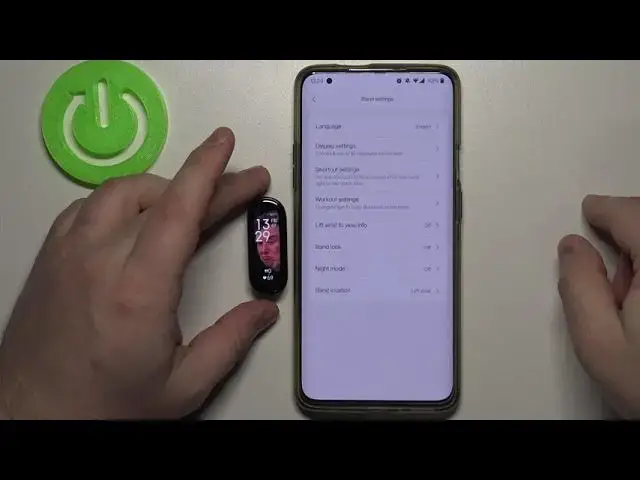
Hello! In front of me I have Xiaomi Mi Band 6 and I'm gonna show you how to
0:10
customize the workouts on this device. First let me show you how to access the
0:15
shortcuts on this device. So let's wake up the screen on our band. To do it tap
0:20
on the screen couple of times like this and now to access the shortcuts simply
0:24
swipe right or left on the screen like this. We have music control, weather
0:29
and I believe that's it for now. Yes we have only two and you can swipe left or
0:35
right to scroll through them like this. And we can customize this list. We can
0:38
add more shortcuts or remove the shortcuts. To do it we need to open the
0:42
Mi Fit app on our phone. So let's bring our phone right here and open the Mi Fit app
0:54
Let me close it and open it again like this. In the app you need to tap on
1:01
profile. Select your Xiaomi Mi Smart Band 6 from the list of devices by tapping
1:10
on it. And now select the band settings option. And here we have option called
1:18
shortcut settings. Tap on it and as you can see we have list of shortcuts right
1:22
here. Music, watch face, and weather. We can't do anything about the watch face
1:27
because this is gonna be like this one that you can't edit or remove it rather
1:31
You can move it I believe. Yes but you can't remove it by tapping on the minus
1:37
button. Others you can remove. For example let's remove the weather by tapping the
1:41
minus next to it. And now when I tap save to save the settings and go to my band I
1:46
will only have the music control. I won't have the weather. Okay let's go back to
1:51
shortcut settings. You can also add more shortcuts. For example let's add timer
1:59
stopwatch, and silent. Like this. And then tap save of course to save your settings
2:07
And now I have more. As you can see I have music, silent, stopwatch, timer, and
2:13
watch face. We can also change the order of the items on this list. So for example
2:20
let's say I want to have the timer right after the weather music. I want to
2:27
move music right after the watch face not before it. So if I swipe left on the
2:35
screen I will have the music here not timer because now the music is above the
2:40
watch face. So basically if you swipe right on the screen you will see the music as you can see. So let's move the music below the watch face. To do it
2:47
press and hold on this sort button next to the music. Like that. And then drop
2:52
drag it to the position you want it to be. And then tap save to save the settings
2:58
And now when I swipe left on the screen I will have music and if I swipe right I
3:03
will have the last item which is the silent. You can of course move something
3:07
else in front of the watch face. For example stopwatch, save. And now when you
3:13
swipe right on the screen from the watch face it's on the second position
3:19
you will have the stopwatch. Like this. And that's basically how you customize
3:25
the shortcuts on this device. Thank you for watching. If you found this video helpful please consider
3:36
subscribing to our Channel and leaving the like on the video