0:00
Hello everyone and welcome back to our
0:02
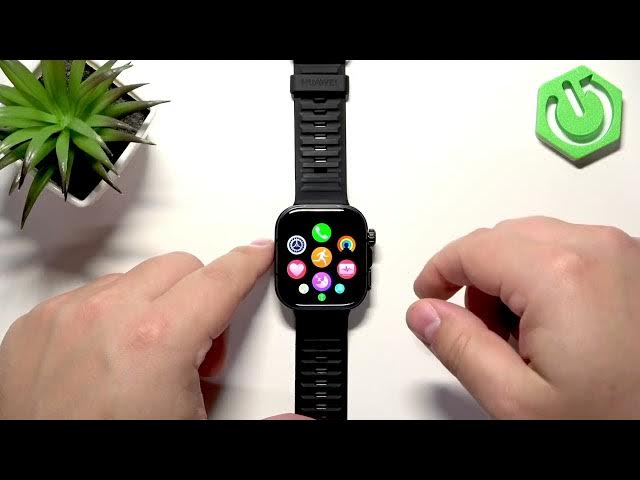
channel. In front of me I have Huawei
0:04
Watch Fit 5 Pro and today I'm going to
0:06
show you a few settings I recommend to
0:09
change on this watch. So let's get
0:17
And the first thing I recommend to
0:19
change is the screen brightness. And to
0:21
change the screen brightness, you can
0:22
wake up the screen by pressing the
0:23
Chrome button. Then you can uh open the
0:26
quick panel and if you want to increase
0:28
or decrease the screen brightness you
0:30
can swipe on the slider right here. As
0:32
you can see here we have this a icon or
0:36
letter on the icon of the screen
0:38
brightness. That means that the
0:39
automatic brightness is enabled. And if
0:42
you want to set the brightness to the
0:44
level, the specific level, and you want
0:46
the brightness to stay at that level,
0:47
you will need to disable the automatic
0:49
brightness because by default, it will
0:51
basically adjust the brightness
0:52
automatically according to the
0:54
surrounding light of your watch. And if
0:56
you if you want to set the brightness to
0:58
specific level and stay at the level,
1:00
you will need to go to settings and
1:02
disable that automatic brightness. And
1:03
to do that, uh, open the menu, find the
1:06
settings icon, and tap on it.
1:09
and go to the display and brightness and
1:13
then scroll down and here we have the
1:15
auto adjust brightness and you can
1:16
disable it and now you can adjust the
1:18
brightness to your liking by swiping on
1:19
the slider and the brightness will stay
1:21
at the level you set it to. You can also
1:24
now adjust the brightness by using the
1:25
quick panel as well. The A letter is
1:27
gone as you can see. And you can
1:29
basically adjust the brightness to your
1:33
And if you prefer to use the automatic
1:35
brightness, you can always enable it if
1:37
it's disabled by going to display and
1:39
brightness and of course tapping on the
1:41
auto adjust brightness. Another uh
1:45
screen setting I recommend to change and
1:47
check is the screen timeout duration. To
1:49
do it, open the menu, tap on the
1:51
settings icon, tap on the display and
1:53
brightness, and here we have sleep
1:56
option. By default, it will be on auto.
1:58
And you can tap on it. And here we have
2:00
durations like 10 seconds, 15 seconds,
2:02
20 seconds, and auto. So that's about
2:04
all. And basically uh what it does, it
2:06
turns off the screen after you stop
2:08
touching the screen or the buttons. An
2:10
automatic one does it automatically.
2:13
Sometimes it might be quite short.
2:14
Basically, it will quickly turn off. So
2:16
I usually change it on my watch. I
2:18
usually pick something like 10 seconds
2:20
and leave it at that. That's my uh go-to
2:23
and I recommend to check it out. Uh you
2:25
can also set something like 20 or 20 or
2:28
15 seconds, but be aware the longer
2:30
period of time will use more battery
2:31
life because the screen will stay on for
2:33
longer and that's why um uh you can
2:36
check it out if you're willing to
2:38
sacrifice bit of a battery life for
2:40
longer screen time mode. Go ahead, use
2:43
it. I'm just I just recommend something
2:44
like 10 seconds. And if you select it
2:47
now, my screen should turn off
2:48
automatically after 10 seconds of
2:50
inactivity. So if I won't touch the
2:52
screen or the buttons for 10 seconds, it
2:54
will turn off automatically to save the
2:56
battery life like this.
3:01
Another thing I recommend to check is
3:02
the sound volume and sound settings. To
3:05
do it, of course, open the settings on
3:08
Go to the sound and vibration.
3:11
And here we have ringtone, alarm volume
3:16
and broadcast volume. And we can adjust
3:17
the volumes for uh all of them for the
3:20
ringtone. So this is like uh ringtones
3:23
from calls and notification sounds I
3:27
believe and something like that.
3:29
Anything that basically makes the
3:30
notification sound. Then we have the
3:32
alarm volume. So this is for the alarm
3:36
And then we have the uh broadcast
3:37
volume. So this is for the workout
3:40
um this uh voice that tells you workout
3:42
started, workout ended and stuff like
3:44
that. And you can adjust each of the
3:46
volume to your liking and then you can
3:48
press the uh crown button uh to go back
3:51
to watch face if you want to. But
3:53
another thing I recommend to check and
3:55
change on this watch is the ringtone. So
3:58
go to the sound and vibration menu and
4:00
here we have the set ringtone option and
4:03
you can tap on it and here you have list
4:06
of ringtones you can choose from.
4:07
There's quite a few actually and you can
4:12
by tapping on rington.
4:16
So find the one you like
4:19
and then you can swipe right on the
4:21
screen to go back uh to watch face not
4:24
watch face but to settings like that.
4:28
So that's that's all when it comes to
4:31
sound and ringtones. Another setting I
4:34
recommend to check and use is the uh do
4:38
not disturb mode schedule. By default,
4:41
it will be turned off and I recommend to
4:42
use it. Especially if you prefer to
4:44
sleep with your watch on your wrist, you
4:46
can set up a schedule for your sleep uh
4:48
time. And what it does, it basically it
4:51
mutes all of the notifications on your
4:53
watch during the schedule, which is
4:54
quite useful if you're sleeping with
4:56
your watch, for example, on your wrist
4:57
or maybe at work, anything that requires
5:00
you to uh mute the notifications.
5:04
And to use the schedule, you open the
5:06
settings, go to the option called focus
5:10
and tap on it, and then tap on do not
5:13
And here, instead of like turning on do
5:15
not disturb mode normally, you scroll
5:17
down and here we have scheduled. And you
5:19
can set up schedule for your sleep time,
5:21
work, whatever you like. And to do that,
5:26
And here we have start time, end time,
5:28
and repeat. Start time is when the
5:30
schedule will be turning on. End time is
5:32
when it will be turning off. And repeat
5:34
is on which days it should basically be
5:36
active. And we can tap on start. Set the
5:38
timer to something we like. So come on,
5:42
stop going back. For some reason, I keep
5:46
doing something that makes it go back.
5:48
But basically you can swipe up and down
5:50
on hours and minutes to set the time.
5:51
Then tap on okay. And now we have the
5:53
time. Then we have the end time
5:55
something like 8:30 maybe.
6:01
And then the repeat option is like I
6:02
said before you choose the days on which
6:04
the schedule should be active. So let's
6:06
say Tuesday maybe uh Friday that should
6:10
be okay. And tap on okay. Now we have
6:12
our schedule. Tap on okay. And it will
6:14
be saved and turned on automatically.
6:16
So, my schedule will work uh or will
6:19
turn on at 10:30 p.m., turn off at uh
6:22
8:30 a.m. uh each Tuesday and Friday.
6:26
And you can set up multiple schedules if
6:28
you want to. You can uh turn them on and
6:30
off by tapping on the switch. You can
6:32
edit these schedules by tapping on the
6:34
current schedule you want to basically
6:36
edit. And here you can change the start,
6:38
end time, and repeat. You can delete the
6:40
schedule by tapping on delete. I really
6:42
recommend to check it out and set it up
6:47
if you need to, but I recommend using
6:49
it. And then we have the button
6:52
Uh basically, you can uh customize the
6:54
shortcut for the lower button. To do it,
6:57
you open the settings, go to the down
7:02
button, and here we have two shortcuts.
7:04
We have press once and press twice. Uh
7:06
the only one you can change is really
7:07
the press once because the press twice
7:09
works with the payment applications. So
7:11
if you want to use your watch to pay uh
7:14
wirelessly with basically with the watch
7:17
you can download and install the payment
7:18
application and once you have some
7:20
payment applications they will appear
7:22
right here on the list and you can
7:23
basically choose the application you
7:25
want to use and then to pay basically on
7:27
your watch you double press the uh
7:29
button it will open the app and you can
7:31
pay. But uh to use the uh press once
7:36
shortcut you can basically customize it.
7:38
You can tap on press once and here you
7:40
can scroll through the list of functions
7:42
you want to open or use with the
7:45
shortcut find the one you like and then
7:47
you can for example open the calculator
7:49
by pressing the button once like this.
7:53
So customize it to your liking. It will
7:55
make your watch more uh convenient to
7:58
use, more uh personalized I would say.
8:01
Uh and that's about all. So, if you
8:04
found this video any helpful, please
8:05
consider subscribing to our channel and
8:07
leaving a like on the video. Thank you
8:09
for watching and see you in the next