Up next in 10


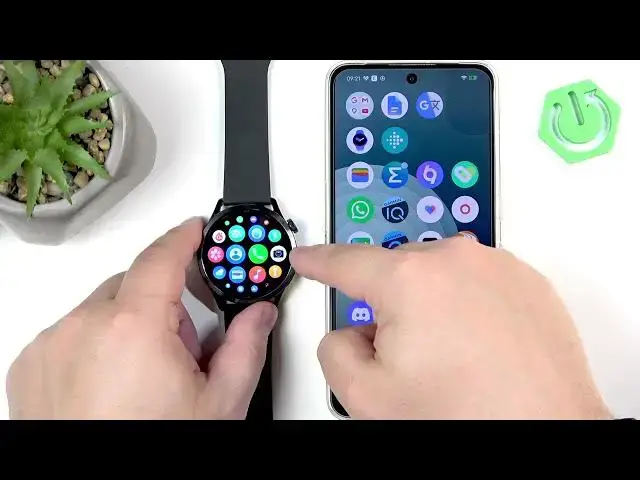
Learn 8 easy and useful tips for your XIAOMI Watch S5. In this video we cover how to quickly change watch faces, enable tap-to-wake, install and create custom watch faces with the Mi Fitness app, control music and your phone camera, set up quick gestures, and use the find device feature. These tricks are perfect for beginners who want to get more from their Xiaomi Watch S5 and make everyday use faster and more fun.
How to change watch face on XIAOMI Watch S5?
How to install custom watch faces on XIAOMI Watch S5 using Mi Fitness app?
How to control music and camera from XIAOMI Watch S5?
0:00 Intro
0:10 Quick way to change the watch face
0:50 Enable Tap to Wake (display settings)
1:16 Install additional watch faces via Mi Fitness app
2:36 Create and apply a custom watch face with your photos
5:02 Control phone music from the watch (permissions needed)
8:13 Use the watch as a remote camera shutter
9:21 Set up quick gestures and customize actions
12:44 Find your phone from the watch / find watch from phone
13:54 Outro & subscribe
#XiaomiWatchS5 #Xiaomi #SmartwatchTips #WatchFaces
Find out more:
https://www.hardreset.info/devices/xiaomi/xiaomi-watch-s5/8-tips-tricks-for-the-begginers/
Follow us on Instagram ► https://www.instagram.com/hardreset.info
Like us on Facebook ► https://www.facebook.com/hardresetinfo/
Tweet us on Twitter ► https://twitter.com/HardResetI
Support us on TikTok ► https://www.tiktok.com/@hardreset.info
Use Reset Guides for many popular Apps ► https://www.hardreset.info/apps/apps/
Show More Show Less View Video Transcript
0:00
Hello everyone and welcome back to our
0:02
channel. In front of me I have Xiaomi
0:04
Watch S5 and today I'm going to show you
0:07
a few tricks you can use on this watch.
0:09
So let's get started.
0:15
And the first thing I want to show you
0:16
is the quick way to change the watch
0:18
face on this watch. This watch face
0:20
allows you to quite quickly and quite
0:22
neatly change the watch face. You simply
0:23
wake up the screen on your watch, then
0:25
swipe left on the home screen to open
0:27
this menu. And now we can swipe up and
0:29
down on the screen to scroll through the
0:31
list of watch faces, find the one we
0:33
like. And once you find the watch face,
0:34
you can simply uh tap on it uh to apply
0:37
it like this. And that's a quite neat
0:39
way to change the watch face. Um and I
0:42
recommend to check it out. Next, we have
0:45
uh option to wake up the screen when you
0:47
tap on it. So if the screen turns off,
0:48
you can tap on the screen to wake it up.
0:50
First, you need to turn it on, though.
0:52
And to do it, you need to open the menu
0:55
and then go to settings. In settings,
0:58
you need to find the option called uh
0:59
display and tap on it. And then the
1:03
option tap to wake is right here. You
1:05
can enable it. And once you enable this
1:07
option and the screen turns off, you can
1:08
wake it up by tapping on it. Quite a
1:11
neat feature. If you uh like to wake up
1:14
the screen on your watch by just tapping
1:16
on it. Okay. Uh, another uh, interesting
1:19
thing I want to show you is the way to
1:21
install the additional watch faces on
1:23
your watch. Let's say you're bored of
1:26
the default ones and you want to
1:27
download something new. You can do that.
1:29
And to do that, of course, your watch
1:31
needs to be paired with a phone. And
1:32
once it is, you can open the um, Mi
1:36
Fitness application on the phone that is
1:38
paired with your watch, this app. And
1:40
once you open the app, tap on device.
1:44
Here you should see your Xiaomi watch S5
1:46
and in the app under the watch you will
1:49
see manage my uh manage watch faces and
1:51
you can tap on all to open the watch
1:53
face store. Here we have the online
1:55
store and you can browse through the
1:57
different categories of watch faces.
1:58
Look for something you like and once you
2:00
find the watch face you you like uh
2:02
let's say maybe bounce. Um then you can
2:06
tap on apply it will start downloading
2:08
and installing.
2:10
Uh, and after it's done, it will be
2:13
applied on your watch. And you can
2:15
install multiple watch faces, of course.
2:17
Um, and you can also check the watch
2:20
faces you installed already right here
2:22
in the local category. And if you run
2:24
out of space, you can always remove some
2:26
watch faces to free up the space and
2:27
then install something else. Okay. Uh,
2:30
another thing I want to show you with
2:32
also connected which is also connected
2:34
to watch faces is the custom watch face.
2:36
Basically, you can set up your own watch
2:38
face by using your own image or picture.
2:41
And of course, to do that, you need to
2:42
have a phone paired with your watch. You
2:45
need to open the Mi Fitness application.
2:47
Tap on device. And here you need to of
2:50
course open the watch face store and go
2:52
to local and check if you have a gallery
2:57
or custom watch face. Right? Here we
2:59
don't have it. So, we need to go to
3:00
online, tap on search, and type in
3:04
custom.
3:05
And as you can see we have custom
3:08
analog, custom diamond, custom elegance
3:10
and custom digitals. So basically four
3:13
types of watch face uh style. Uh select
3:16
the one you like. For example, let's
3:18
select diamond one.
3:21
And now we need to apply it. And after
3:24
it applies, you can then customize it.
3:36
Okay. And now we can tap on edit. And
3:39
here we can customize our watch face. We
3:40
can add a photo. Of course, that's the
3:42
point of it. So tap on plus. It will
3:45
open the uh photos for you. Find the
3:47
folder. Find the photo you want to use.
3:50
You can also select multiple pictures if
3:52
you want to. And once you're done, tap
3:54
on done. The pictures will be added to
3:56
your gallery to the gallery of the watch
3:59
face basically. And then you can go
4:00
back. And here we have a preview of our
4:02
watch face. Uh to customize the clock,
4:04
you can simply change some styles as you
4:07
can see. Uh there's also this funky one.
4:10
You can change the color of the font.
4:13
And
4:15
that's about all because if we tap on
4:17
style and color, it just shows us less
4:19
options. Okay. And once you're done
4:22
customizing the watch face, you can tap
4:23
on apply. It will basically start
4:26
sending the watch faces to your watch.
4:27
And once it's done applying, uh, it will
4:30
appear on on your watch. So, let's wait.
4:39
And here we have it. And if you have
4:41
multiple pictures as a watch face, you
4:42
can always tap on the current watch face
4:44
to basically switch between them. You
4:47
can also change the watch face or rather
4:49
the watch faces will cycle each time you
4:51
wake up the screen on your watch. So if
4:53
I turn it off, wake it up and um
4:56
basically it will show you a new watch
5:00
face each time you wake up the screen.
5:02
Okay,
5:06
another uh thing I want to show you is
5:08
also connected to a phone. Uh basically
5:11
you can control the music played on your
5:14
phone with your watch. And this could be
5:16
quite useful if you want to uh for
5:18
example work out and you have your phone
5:20
in your pocket but you're listening to
5:22
music on it. Uh of course like with a
5:25
headphones or something and you want to
5:26
control the music but you don't want to
5:29
take out your phone from your pocket.
5:30
You can just use your watch to control
5:32
that music on your phone. And to do that
5:34
your watch of course needs to be paired
5:35
with a phone. And also you will need to
5:37
allow specific permission for this to
5:39
work. And to allow that permission, you
5:40
simply open the uh app, the Mi Fitness
5:44
application.
5:45
Go to device page. There's a lot of
5:48
bucking. So don't go to this page. You
5:50
tap on device icon. And here you need to
5:52
go to notifications and calls. Tap on
5:55
app notifications. Turn on notifications
5:58
on. And if you see any pop-ups about the
6:00
required permissions, you need to allow
6:02
those. And once you allow those
6:03
permissions, you can even now turn off
6:05
the notifications if you don't want to
6:07
use them. But the permission needs to be
6:09
allowed. So that's that's the easiest
6:11
and quickest way to allow it because
6:13
otherwise you would need to go through
6:14
the settings and look for it there. This
6:16
will direct you directly to the setting
6:18
and you can just simply allow it there.
6:21
And once you're once you allow the
6:23
permission, it should be working. So
6:25
what we can do is to uh start playing
6:28
music on our phone. So let's open for
6:31
example Spotify.
6:33
And uh once you start playing the music,
6:42
that's actually that's actually quite
6:44
loud. Let's let me lower the volume.
6:46
Let's say you're playing your music on
6:48
your phone and you want to control it
6:49
with your watch. You grab your watch,
6:50
wake up the screen. As you can see, we
6:52
already have an icon on the watch face
6:54
that showing us that we're playing the
6:56
music on our phone and we can control
6:57
it. And you can tap on this icon to open
7:00
the music app. And here you can uh tap
7:04
on the play pause button to play and
7:07
pause. Of course you can increase or
7:09
decrease the volume by tapping on this
7:11
speaker icon. Um you can go next and
7:15
previous of course I can't go previous
7:18
here because free Spotify doesn't allow
7:20
to go previous song which is amazing
7:22
feature by the way. Anyway, and you can
7:24
also tap on more in and here we have
7:27
sources and we can change the source of
7:29
the music and you can change it directly
7:30
to the watch. So, we can use the watch
7:33
or the phone and then you can also
7:35
select the Bluetooth headphones. So, if
7:37
you're using your watch to listen to
7:38
music, you can always uh choose which
7:40
headphones should be used as a um
7:44
listening device. Okay, let's pause it.
7:51
And of course, I forgot to mention, if
7:54
you don't see this icon right here on
7:55
the watch face to open the music app,
7:57
you open the menu and then find the
7:58
music icon. Oh, my bad. Music icon and
8:01
then tap on it to open the music app.
8:04
Okay.
8:06
What else? Um,
8:09
all right. Um,
8:13
another thing I want to show you is also
8:15
connected to a phone which is basically
8:17
ability to control the phone's camera
8:20
and it also no it shouldn't require any
8:23
permission but I would recommend to
8:24
enable the same permission as we did for
8:26
the music control but basically you can
8:28
control the phone's camera with your
8:30
watch and this could be useful if you
8:32
want to take a picture with your phone h
8:35
but you want to be in a frame and it
8:37
does and you you don't want it to be
8:39
selfie You can simply position your
8:40
phone somewhere and then take your
8:42
watch, open the menu. Um, go to this
8:45
app, the camera app right here. And
8:48
basically, we need to open the phone's
8:49
camera. And now, uh, tap on got it. And
8:54
now we can control our phone's camera.
8:56
And if you tap on the shutter picture,
8:58
it should take a picture on your phone.
9:00
You can also uh tap right here to add
9:04
the countdown.
9:09
like this.
9:11
And that's about all. Oh, right. You can
9:13
also use the button to take a picture.
9:16
To go back, you press the lower button.
9:18
No, you just swipe right on the screen,
9:19
I guess. Okay.
9:24
Another thing I want to show you is the
9:26
quick gestures. Basically, this watch
9:28
has some gestures we can enable and it
9:30
could be useful if you want to use your
9:32
watch in um
9:35
basically maybe not quicker but yeah
9:38
more efficient way. And to use the quick
9:40
gestures we simply need to open the menu
9:44
and go to our settings.
9:47
Here we need to find uh gestures and uh
9:51
preferences and tap on it. And here we
9:53
have quick gestures. By default, the
9:55
gestures will be disabled, but you can
9:56
enable them. Uh, be aware though, it
9:59
will use more battery when you use this
10:00
feature, but it could be worth it. Tap
10:03
on the check mark to enable it. And here
10:05
we have some gestures we can customize.
10:08
We have snap fingers, shake wrist, and
10:14
rotate wrist. So, this is rotate wrist.
10:16
What was the shake wrist?
10:21
Show me the Oh, shake wrist. this
10:24
movement. Okay. And rotate is this
10:26
movement. Okay. Um and basically we can
10:29
customize what these uh shortcuts do. So
10:31
if we go to the menu again, oh my bad,
10:34
not here. Gestures
10:36
and tap on one of the gestures. For
10:39
example, snap fingers. Tap next. Uh and
10:43
we need to basically test it out for the
10:46
watch to recognize our uh gesture. So we
10:48
need to put watch on. Give me a second.
10:50
I'm going to strap it to my wrist and
10:53
we're going to perform some gestures to
10:55
make it recognize our gesture. Okay,
10:58
let's try again. So, here I have our
11:00
watch. Let me position it maybe like
11:03
this. Okay, I'm going to tap on snap
11:05
fingers. And now I'm going to start
11:08
snapping fingers for it to detect my
11:10
gesture.
11:12
Oh, we need to tap next.
11:20
Okay.
11:26
Okay. Now it's done. And now we can set
11:28
the action for it as you can see. And we
11:31
have quick action, start workout, open
11:34
app, um control other devices. So
11:38
basically you can either start some
11:41
workout, open some app with it or
11:44
perform some quick action or you can
11:46
also control other devices. But that's
11:49
for like Xiaomi smart hub and other
11:51
stuff. And to uh let's say open or quick
11:56
action we can take a photo.
11:59
Uh we can ignore calls, reject calls. Um
12:03
for the start workout you can basically
12:05
select specific workout to start. And
12:08
for the
12:10
uh
12:12
open up we can open some applications.
12:16
So let's try the open app. Let's say we
12:18
want to open stats. Okay. It's set now
12:20
as you can see. And now if we perform
12:23
the gesture it would open the stats for
12:26
us. So that could be quite useful if you
12:28
want to um make your watch more
12:31
versatile. reset key. I recommend to
12:33
check it out and maybe you will like it
12:35
and it's going to be the worth checking
12:37
out for you. Okay. And the last thing I
12:41
want to show you is the option to find
12:42
your device with another device.
12:44
Basically, you can use your watch to
12:46
find your phone or your phone to find
12:48
your watch. And that could be quite
12:49
useful if you misplace any of them. So
12:52
if you misplace your phone, you can
12:53
always go to your watch, wake up the
12:55
screen, open the control panel by
12:57
pressing the lower button, and then uh
13:01
tap on the find uh phone icon, tap on
13:04
search. The phone will start making
13:07
noise, start vibrating and stuff like
13:10
that. And hopefully that will help you
13:11
locate your device. And if you want to
13:14
use a phone to find the watch, you grab
13:16
your phone, you open the uh Mi Fitness
13:20
application on it. In the app, go to
13:22
device
13:25
and here was it in more. Yes. Uh no, not
13:31
in more.
13:32
Where was it? System.
13:38
Oh, it's in security. My bad. And here
13:40
we have it. We have find device and we
13:42
can tap on find device. The watch again
13:45
will start make noise. It will start
13:47
vibrating and hopefully it will help you
13:49
locate your watch if you ever misplace
13:52
it. Okay, and that's about all. If you
13:55
found this video any helpful, please
13:57
consider subscribing to our channel and
13:59
leaving a like on the video. Thank you
14:00
for watching and see you in the next
14:02
one.
Science