0:00
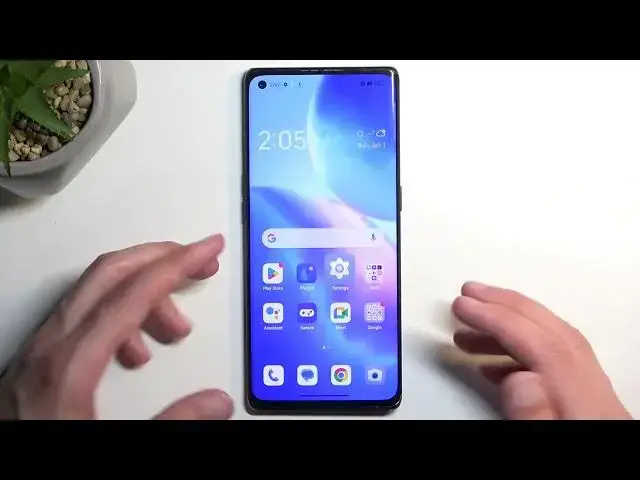
Welcome and follow me. I have the Oppo Find X3 Neo and today I will show you a couple tweaks and tricks you can do on this device
0:13
So let's begin by opening up our settings and I'm going to start off with the display and brightness section right here
0:23
I'm also going to lower down the brightness just a little bit. There we go
0:27
So right here we have the light and dark mode which you can swap permanently between one of those
0:33
and on this device it will look pretty nice just because of that AMOLED display
0:37
Additionally you do have the schedule mode below that and when enabled it will automatically choose
0:43
the sunset to sunrise option but you can also change it to the custom time so you can set the
0:48
start and end time or start for light mode and start for dark mode and that will therefore allow
0:55
you to have both modes enabled basically at the same time that will switch between each other
1:01
depending on the time and the reason this might be interesting to people is because during the
1:07
night time you probably don't like to get flash banked by your device at least I would hope so
1:13
and during the daytime for instance like during summer right now when it's super sunny outside
1:19
it will be a little bit harder to see the display when it's in dark mode so light mode will be a
1:24
little bit more preferred and this will basically give you both of these modes at the same time
1:29
Fantastic. Now moving on to the next option it's going to be the wallpaper and style
1:38
Allow whatever it wants there we go and here we have a couple different things
1:42
So we have wallpaper which no one really cares for as an option. We have always on display so
1:49
here you can customize your always on display and you can also toggle it on if you want to use it
1:54
Then below that we have fonts so you can set your system fonts which is also pretty nice
1:59
customization. Icons which will allow you to choose between different icon that you have
2:04
installed icon packs specifically also increase decrease the sizes of them show or hide name tags
2:10
I change the art like uniform art which doesn't really work here there we go and also shrink or
2:21
increase the app name basically still the text but obviously if you hide the text there is nothing to
2:27
shrink or increase in size. Anyway a little bit further down we have a couple more options like
2:34
colors this allows you to choose your color palette for all the different toggles that
2:40
are visible throughout the system and you have just kind of images right here that will demonstrate
2:45
uh this default one as you can see right here we also have a wallpaper colors this will use your
2:53
wallpaper that you have set right now on your device and create a custom color palette that
2:59
is based off of your wallpaper so this will actually look pretty nice with some specific
3:05
wallpapers where it just adapts to them really well and yeah it's a really nice option to give
3:12
you a little bit of customization over your device now that being said I do have a little
3:16
bit of a problem that I want to point out to people by default as you can see all these
3:22
toggles right here are different colors just give you a little bit of more flair so it doesn't look
3:27
as blend but if we change it to wallpaper one even if I pick one that is just has couple colors
3:34
or a couple of shades of it even go with this one which has a little bit more diverse colors
3:40
if we go back you can see that now all these toggles are the same exact color and this will
3:46
also proceed right here as well so it might look a little bit bland at the moment so I just kind
3:52
of wanted to point that out to people so they are aware now there was a couple additional options
3:58
in there so you can go through them and customize them to fit your preferences but moving on into
4:04
next options it's going to be the home screen and lock screen and here we have somewhere hopefully
4:15
there we go a swipe down on the home screen by default this is set to shelf I personally don't
4:21
like it so by clicking on it it also gives you a couple of additional options like global search
4:27
or notification drawer I personally like the notification drawer as an option this will then
4:32
allow me to swipe down on my home screen anywhere even from the bottom as you seen to gain access to
4:38
my notifications and my toggles without needing to actually go all the way from the top and swiping
4:43
down which is very convenient option and I personally do like it a lot and
4:53
scrolling down here where we have you might also be looking for we have system and navigation
5:00
now by default I think by default it's enabled in gesture navigation so if you want to use button
5:06
navigation you can swap it right here I'm going to stick with the gestures but there's one thing
5:11
that I'm going to change right here which is the hide gesture guide bar when enabled it just gets
5:16
rid of this bar at the bottom and gives you a more aesthetically pleasing cleaner look to the device
5:22
it still functions the same way it didn't really change anything you just remove the bar and give
5:26
you a cleaner look which personally I do like now one last thing that I didn't mention is the
5:36
refresh rate which we can find under display and brightness and we can just scroll down and have it
5:41
right here system or screen refresh rate so here we have two different options we have the high and
5:47
standard so we have also animation right here that shows you how they differ between each other
5:54
so keep in mind the standard animation right here is severely exaggerated this is not how it
5:59
will look like so you can see this is basically the animation I'm going to demonstrate how it looks like
6:09
so you can see it's not as egregious as it is on the animation
6:16
so I just want to point that out just because let me get back to the settings and we get display and brightness and screen refresh rate
6:25
and the reason I'm pointing this option out is because some people might be interested in preserving their battery life as much as they can when it comes down to screen on time
6:33
you will get a better battery life with the standard option which will allow the device
6:38
to run at maximum 60 hertz refresh rate so it will preserve a little bit of battery life while
6:44
the high will run max at 90 so it's a little bit faster and also will consume a little bit more of
6:52
your battery life though keep in mind this is referring to the maximum refresh rate of 90
6:59
which presumably based on that statement it will also drop down to 60 so when the screen
7:06
isn't moving it might drop down to 60 and just to kind of check that out I'm gonna enable the
7:11
developer options and demonstrate if that is the case right here or not for people that might
7:16
be actually interested in it so we're gonna go into about the device and then
7:24
I'm looking for build number there we go so there we go we have enabled the developer options and now let's find it
7:35
there we go and here we're gonna be looking at least I'm gonna be looking for
7:41
show refresh rate there we go so right now it is at 90 and will it drop down to 60
7:55
nope so it looks like it's permanently oh no there we go 60 so it does lower down the refresh rate
8:03
lower down the refresh rate when there's nothing moving on the screen to give you a little bit of a
8:08
better battery life now the moment I start doing anything on the screen so I'm gonna start swiping
8:14
you can see that it instantly switches to 90 though it takes it a moment to swap to 60
8:20
So there we go now anyway with this being said this would conclude the tweaks and the tricks
8:24
that I want to show you so if you found this very helpful don't forget to hit like subscribe and