Up next in 10

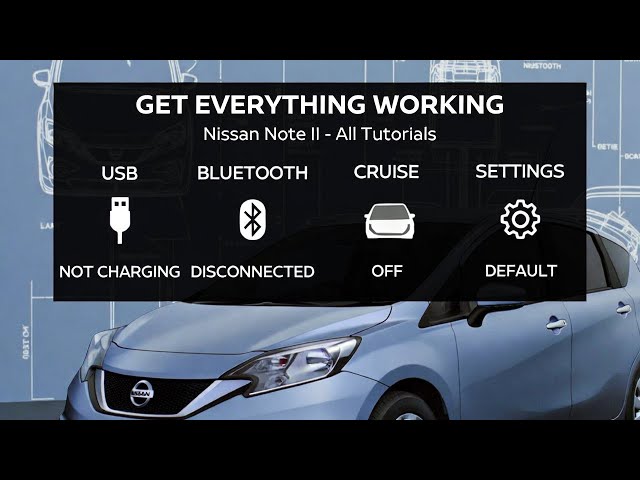
Nissan Note II – All Tutorials You Need (USB Port, Bluetooth, Cruise Control, Settings)
Jan 22, 2026

In this Nissan Note II tutorial compilation, you’ll learn the most useful everyday functions and hidden settings in one place. I show where key ports and sockets are (USB, AUX, power outlet, OBD2), how to pair your phone with Bluetooth, make calls, play music, and use voice assistant. You’ll also see how to manage radio options (band, source, presets, TA, AF), adjust trip computer data (range, trip A/B, average speed, fuel consumption), and use driving features like cruise control, speed limiter, Eco mode, start stop, and traction control. Plus, quick guides for lights, wipers, AC/climate controls, navigation settings, and system display tweaks—perfect if you just bought a used Nissan Note II or want a fast “how it works” walkthrough.
How to find the USB port in Nissan Note II?
How to pair a phone with Nissan Note II Bluetooth and play music?
How to enable cruise control and speed limiter in Nissan Note II?
0:00 USB port location (glove box)
0:36 Engine air filter location
1:08 OBD2 socket location
1:42 Range on instrument cluster
2:06 Reset Trip A / Trip B
2:39 Change radio area
3:04 Fuse box in engine compartment
3:50 Change radio band
4:19 Change radio source
4:58 Use cruise control
7:44 Adjust side mirrors
9:37 Make phone calls via Bluetooth
15:46 Pair phone with Bluetooth
20:49 Traction control on/off
Show More Show Less View Video Transcript
0:02
Hello. Today I'm in a Nissan node. In this video, I'll show you where is the
0:07
USB port. In the beginning, take a look in the
0:12
center of the car. And now open the glove box.
0:20
USB port is located right here. Thanks to USB port, you can listen to music or
0:26
watch videos from your external device or update the system.
0:31
If you find this video helpful, please leave like, comment, and subscribe.
0:38
In front of me, I've got Nissan note. In this video, I'll show you where is the air filter location.
0:47
In the beginning, take a look at the back of the engine compartment. And the air filter is located right here. In
0:54
order to access it, you have to unlock these two gloves.
1:03
If you find this video helpful, please leave like, comment, and subscribe.
1:10
So, in front of me, I've got Nissan Node. In this video, I'll show you where is the ODB2 socket.
1:18
in the beginning. Take a look under the steering wheel and the ODB2 socket is
1:24
located right here. Thanks to the ODB socket, you've got
1:31
access to cars computer. If you find this video helpful, please
1:36
leave like, comment, and subscribe. Hello. Today I'm in Nissan Node. In this
1:43
video, I'll show you how to find range.
1:49
In the beginning, take a look at the instrument cluster and navigate through using this button.
1:55
Press this button until you see range. [snorts] And that's basically it. If you find
2:02
this video helpful, please leave like, comment, and subscribe.
2:08
Today, I'm in Nissan Node. In this video, I'll show you how to find and reset trip A and trip B info.
2:17
In the beginning, take a look at the instrument cluster and trip A and B are
2:23
here. Press the trip button. To switch between trip A and trip B. To reset it,
2:28
press and hold trip button. If you find this video helpful, please
2:33
leave like, comment, and subscribe. Hello. Today I'm in a Nissan Node. In
2:41
this video, I'll show you how to change radio area. In the beginning, take a look at the
2:47
screen display. And now go to settings. Go to general radio area and select
2:54
between l between areas located on the list.
2:59
If you find this video helpful, please leave like, comment, and subscribe.
3:05
Hello. In front of me, I've got Nissan note. In this video, I'll show you where is the fuse box in engine compartment.
3:16
In the beginning, take a look at the back of the engine compartment. And the fuse box is located right here.
3:45
If you find this video helpful, please like, comment, and subscribe.
3:52
Hello. Today I'm in Nissan Note. In this video, I'll show you how to change radio
3:57
band. In the beginning, take a look at the screen display.
4:03
Go to radio and tap band.
4:15
If you find this video helpful, please leave like, comment, and subscribe.
4:21
Hello. Today I'm in Nissan Node. In this video, I'll show you how to change radio source.
4:30
The beginning, take a look at the screen display. And to change radio source, go to menu
4:35
and select between radio disk, Bluetooth,
4:40
R, USB, AV in, DVR, SD, F USB, DAB,
4:48
DVBT. And that's it.
4:54
If you find this video helpful, please leave like, comment, and subscribe.
5:00
Hello. Today I'm in a Nissan node. In this video, I'll show you how to enable
5:05
and disable cruise control. The beginning, take a look at the right
5:10
side of the steering wheel. Right here, we've got this panel. To enable cruise control, firstly press this button.
5:17
Now, accelerate to desired speed and tilt this knob downwards.
5:25
You can now let the acceleration pedal go. To increase the speed, tilt this knob upwards. To decrease it, tilt it
5:32
downwards. To pause, press cancel. To start it over from current speed, tilt
5:38
it to set. To start it over from first set speed, tilt it to rest. To disable
5:44
cruise control, press this button again. If you find this video helpful, please leave like, comment, and subscribe.
5:54
Today I'm in Nissan Node. In this video, I'll show you how to change radio
6:01
station. In the beginning, take a look in the center of the car.
6:09
Go to menu and radio.
6:15
You can select radio station from presets. You can skip to next radio station
6:23
or tune manually.
6:32
If you find this video helpful, please leave like, comment, and subscribe.
6:39
Today I'm in Nissan Node. In this video, I'll show you how to adjust headlamps position.
6:47
In the beginning, take a look at the left side behind the steering wheel. Right here, we've got this lever, this
6:53
panel to adjust headlamps position. Twist this knob between mode zero, one,
7:01
two, and three. If you find this video helpful, please
7:07
leave like, comment, and subscribe. Hello. Today I'm in Nissan Node. In this
7:15
video, I'll show you how to change screen.
7:21
In the beginning, take a look at the screen display. And to change screen, go to menu. Sorry,
7:28
go to menu and tap this button. Thanks to this button, you can change screen
7:33
wallpaper. If you find this video helpful, please
7:39
leave like, comment, and subscribe. Today I'm in a Nissan note. In this
7:46
video I'll show you how to adjust side mirrors position.
7:53
The beginning take a look at the left side behind the steering wheel. Right here we've got this panel. Firstly
7:59
select side mirror by switching this button left or right. And now to adjust the position press arrows on the spanel
8:06
below.
8:13
And that's basically it. If you find this video helpful, please leave like, comment, and subscribe.
8:21
Hello. In front of me, I've got Nissan Note. In this video, I'll show you how to change seat position.
8:29
In the beginning, take a look at the driver's seat. And right here, we've got this lever,
8:36
thanks to which you can fold the back of the seat. Under the seat, we've got the second
8:42
lever. Thanks to which we can change distance from the steering wheel.
8:49
If you find this video helpful, please leave like, comment, and subscribe.
8:56
Hello. Today I'm in Nissan Node. In this video, I'll show you how to find and
9:02
manage navigation interface settings.
9:07
In the beginning, let's go to navigation.
9:13
Enter menu settings and interface.
9:18
Here you can check change interface skin. You can hide buttons, hide menu,
9:27
and enable or disable show scroll bar. If you find this video helpful, please
9:33
leave like, comment, and subscribe.
9:39
Hello. Today I'm in Nissan Note. In this video, I'll show you how to make phone
9:45
calls via cars system. In the beginning, take a look at the
9:52
screen display. Make sure that your smartphone is connected with the car via Bluetooth and go to Bluetooth.
9:58
Now you can dial any number manually then press green button or you can select numbers from your phone book
10:07
and that's basically it. If you find this video helpful please leave like, comment and subscribe.
10:14
So today I'm in sunnote. In this video I'll show you how to enable and disable
10:19
navigation GPS. In the beginning take a look at the
10:25
screen display. And now go to navigation and menu. Enter
10:31
settings and switch this button to enable or disable GPS.
10:39
If you find this video helpful, please leave like, comment, and subscribe.
10:45
Hello. In front of me, I've got Nissan note. In this video, I'll show you where
10:50
are the VIN numbers of your car and what does the VAN number stands for.
10:58
The vehicle identification number is unique code assigned to every vehicle.
11:04
It serves to provide the access to vehicle history and equipment. The first
11:10
VIN number you can locate is behind the passengers doors
11:16
on this sticker. Second VIN number
11:21
is located under the hood on the firewall in the back.
11:30
And the last possible location of the VIN number is on the front windshield.
11:37
Now let's take a look at the VIN number itself.
11:45
First three characters typically denote the car manufacturer. Characters from the fourth to the ninth or 10th position
11:52
describe the model and type of the vehicle. 10th character represents the vehicle production year. Subsequent
11:59
characters may indicate the car's place of manufacturer. Remaining characters form unique serial number for
12:04
identification. In some cases, the VIN includes details about the engine and body. But there are also additional
12:11
informations we can get from VIN number such as vehicle trim level, engine type
12:17
and size, body style, safety features, production plant, plant plant specific
12:22
features, check digit number, market and destination and series informations.
12:28
All of those informations you can get from manufacturer or dealer, online services, vehicle history, government
12:35
agencies and that's basically it. If you find this video helpful, please leave like,
12:41
comment, and subscribe. Hello. Today I'm in a new note. In this
12:48
video, I'll show you how to play music from smartphone via cars system.
12:54
In the beginning, make sure that your smartphone is connected with car via Bluetooth.
13:00
And now take a look at the screen display. Go to menu, Bluetooth,
13:05
audio. And now you can play any music you want from your smartphone via car system.
13:23
And that's basically it. If you find this video helpful, please leave like, comment, and subscribe.
13:32
Hello. Today I'm in Nissan Node. In this video, I'll show you where is the power
13:38
outlet. In the beginning, take a look in the
13:43
center of the car. And the power outlet is located right
13:50
here. Thanks to the power outlet, you can charge your devices or connect dash cam
13:56
to the car. If you find the video helpful, please leave like, comment, and subscribe.
14:04
Hello. Today I'm in Nissan Note. In this video, I'll show you how to activate and
14:10
manage speed limiter. In the beginning, take a look at the right side of the steering wheel. Right
14:16
here, we've got this panel. To activate speed limiter, press this button. Now,
14:21
to start it, twist tilt the knob downwards. As you can see, speed limit
14:28
is set on 30 km. Push this knob upwards
14:33
to increase the speed limit downwards to decrease it.
14:39
To disable speed limiter, press this button. If you find the video helpful, please
14:44
leave like, comment, and subscribe. Hello. Today I'm in Nissan Node. In this
14:51
video, I'll show you how to find and reset average fuel consumption.
14:58
In the beginning, take a look at the instrument cluster and navigate through it using this button.
15:06
Here is the average fuel consumption. To reset it, press and hold this button.
15:11
If you find this video helpful, please leave like, comment, and subscribe.
15:18
Hello. Today I'm in a node. In this video, I'll show you how to enable disable TA function for radio.
15:27
At the beginning, take a look at the screen display and go to radio.
15:33
Go to menu options and tap ta to enable or disable this function.
15:41
If you find this video helpful, please leave like, comment, and subscribe.
15:47
Hello. Today I'm in a Nissan Note. In this video, I'll show you how to pair
15:53
smartphone with car via Bluetooth. In the beginning, take a look at the
15:59
screen display. And from the menu, select Bluetooth.
16:05
Tap plus. And now on your smartphone, enter Bluetooth settings.
16:14
Make sure that Bluetooth on your smartphone is turned on.
16:40
and now select your smartphone from the list. Tap pair
16:51
and confirm on the smartphone.
17:07
Enter password.
17:21
Usually
17:32
it's four zeros or 1 2 3 4
18:01
and it's done. If you find this video helpful, please like, comment, and subscribe.
18:09
In front of me, I've got Nissan Note. In this video, I'll show you where is the
18:14
engine oil level. In the beginning, take a look.
18:20
on the front of the engine. And the dipst stick is located right here. Pull
18:25
it to take it out. If you find this video helpful, please
18:31
leave like, comment, and subscribe. In front of me, I've got me some note.
18:38
In this video, I'll show you how to disable and enable back passenger airbag.
18:45
In the beginning, let's open the glove box. Prepare
18:50
the car key and insert it into this switch. Switch it between on and off to enable
18:57
or disable passenger airbug.
19:04
If you find this video helpful, please leave like, comment, and subscribe.
19:10
So, today I'm in Nissan Node. In this video, I'll show you how to enable and
19:18
disable interior airflow circulation.
19:24
In the beginning, take a look in the center of the car. And to enable or disable this function, simply twist this
19:30
knob between left and right. On the right side is interior and on the left
19:37
side is exterior airflow. If you find this video helpful, please leave like,
19:42
comment, and subscribe. Hello. Today I'm in Nissan Node. In this
19:48
video, I'll show you how to use voice assistant. In the beginning, take a look at the
19:55
screen display. Make sure that your smartphone is connected with your car via Bluetooth. Go to Bluetooth
20:04
and now tap voice assistant button. What's the weather like tomorrow?
20:16
And it's done. If you find this video helpful, please leave like, comment, and
20:21
subscribe. Hello. In front of me, I've got the sun node. In this video, I'll show you where
20:28
is the washer fluid reservoir. In the beginning, take a look at the
20:34
left side of the engine compartment. And the washer fluid reservoir is located right here.
20:44
If you find this video helpful, please leave like, comment, and subscribe.
20:51
Hello. Today I'm in Nissan Node. In this video, I'll show you how to turn
20:56
traction control off and on. In the beginning, take a look behind
21:02
left side of the steering wheel. Right here, we've got this panel. Simply press off button and hold to disable traction
21:11
control. Press it again to enable it back. You can see that traction control is enabled or disabled by this icon
21:17
right here. If you find this video helpful, please
21:22
leave like, comment, and subscribe. Hello. Today I'm in Nissan Note. In this
21:30
video, I'll show you how to unlock and lift up the hood.
21:36
the beginning. Take a look under the steering wheel. And now simply pull this lever.
21:43
Now when the hood is unlocked, we have to find second lever
21:51
to lift it.
22:00
The second lever is located right here. Simply push it left. And now we can lift up the hood. If you find this video
22:07
helpful, please leave like, comment, and subscribe.
22:13
So today I'm in a sun note. In this video, I'll show you where is the aux
22:18
jack. At the beginning, take a look in the center of the car. Now open the glove
22:27
box. AU jack is located right here. Thanks to the AUJ jack, you can listen
22:33
to music from your own external device via radio.
22:39
If you find this video helpful, please leave like, comment, and subscribe.
22:44
Hello. Today I'm in Nissan Node. In this video, I'll show you how to find and manage map settings.
22:53
Beginning take a look at the screen display. And now go to navigation.
22:59
Go to menu settings and map.
23:05
Here you can enable or disable turn map according to drive
23:13
direction or look on the north.
23:18
Next, you can change scale and zoom
23:25
or enable or disable automatic zoom. Next,
23:30
you can enable fluent scaling
23:39
runs alser
23:50
movement. Then you can manage models, scale,
23:56
map tilt, position, reset, timer,
24:02
and more. If you find this video helpful, please
24:08
leave like, comment, and subscribe. So, today I'm in
24:16
Nissan Note. In this video, I'll show you how to change display brightness.
24:23
In the beginning, take a look at the screen display. And now go to settings.
24:28
Go to video brightness setup and select between night, dark, normal, and brightness.
24:37
If you find this video helpful, please leave like, comment, and subscribe.
24:43
Hello. Today I'm in a Nissan Note. In this video, I'll show you how to find
24:48
and manage alerts settings. In the beginning, take a look at the
24:55
screen display. And now go to navigation.
25:01
Go to set, go to menu, settings, alerts.
25:07
And here you can adjust speed penalty, speed limit settings,
25:12
speed cam alert, and selecting speed cam types.
25:19
If you find this video helpful, please leave like, comment, and subscribe.
25:26
Hello. Today I'm in Nissan note. In this video, I'll show you how to change
25:31
display brightness and contrast.
25:36
In the beginning, take a look at the screen display. Go to menu and settings.
25:42
Go to system and scroll all the way down. Here you can adjust navigation brightness
25:51
and contrast. If you find this video helpful, please leave like, comment, and subscribe.
26:00
Hello. Today I'm in Nissan Note. In this video, I'll show you how to change bug
26:07
view mirror mode. In the beginning, take a look at the
26:13
screen display. And now go to settings. Enter video and tap on back view mirror.
26:21
Thanks to this function, you can switch back view mirror mode between mirrored or normal.
26:27
If you find this video helpful, please leave like, comment, and subscribe.
26:33
Hello. Today I'm in Nissan Node. In this video, I'll show you how to change
26:40
Bluetooth pin password. In the beginning, take a look at the
26:46
screen display. And now go to Bluetooth. Go to settings, enter pin password, and
26:53
input new pin password. If you find the video helpful, please
26:58
leave like, comment, and subscribe. Hello. Today I'm in Nissan Node. In this
27:06
video, I'll show you how to enter and manage navigation.
27:11
In the beginning, take a look at the screen display. And to enter navigation, you can press this button here or this
27:17
button right here.
27:28
Now you can zoom the map in or out. and change map layout between 2D and 3D.
27:35
Next, you can go to menu. Firstly, let's select language.
28:04
Unfortunately, we can't change language is in this type of the navigation. But I
28:11
will show you where we can change what. So in the menu we can start navigation
28:19
route by finding the address, closest placed, points of interest, history, favorites,
28:27
location or on map or we can set destination and create trip.
28:35
Then we can go to settings and here we can manage map settings
28:42
where you can change the zoom scale
28:48
aliasing
28:53
models on map.
29:01
Reset the location. Next, we can check saved navigations
29:08
map. We can change our vehicle,
29:15
enable or disable, unpaved roads,
29:20
paid roads, fairies.
29:27
We can manage tips
29:33
and then we can change interface.
29:42
And that's basically it. If you find this video helpful, please leave like, comment, and subscribe.
29:50
Hello. Today I'm in Nissan Node. In this video, I'll show you how to change regular mode for
29:57
radio. At the beginning, take a look at the screen display.
30:03
And now go to radio. Go to menu and tap local. Now you can
30:10
switch radio mode between local and distance.
30:15
If you find this video helpful, please leave like, comment, and subscribe.
30:21
Hello. Today I'm in Nissan Note. In this video, I'll show you how to change GPS
30:28
navigation SD card path.
30:34
In the beginning, take a look at the screen display. And now go to settings,
30:40
general, scroll down, GPS path setup, and select
30:47
GPS path. If you find this video helpful, please
30:52
leave like, comment, and subscribe. Hello. In front of me, I've got Nissan
30:59
note. In this video, I'll show you where is the sticker with recommended tire pressure.
31:06
In the beginning, take a look at the driver door jump. And the sticker is
31:12
located right here. Thanks to this sticker, you can learn
31:18
what wheels and tires will fit in your car in the front and rear
31:24
and also the tire pressure for the amount of passengers.
31:30
If you find this video helpful, please hit like, comment, and subscribe.
31:37
Today I'm in Nissan Node. In this video, I'll show you how to turn start stop
31:42
function on or off. the beginning. Take a look at the left
31:48
side behind the steering wheel. Right here, we've got this panel. Simply press this button to disable start stop
31:55
function. Press it again to enable it back. Unfortunately, this function can't be
32:01
disabled permanently and you have to do it each time you start your car. If you find this video helpful, please leave
32:08
like, comment, and subscribe. Hello. Today I'm in Nissan Node. In this
32:16
video I'll show you how to find phone book.
32:21
The beginning take a look at the screen display. And now go to Bluetooth. Make
32:26
sure that your smartphone is connected with your car. Go to phone book. And here is the full list of all of your
32:32
contacts. Don't forget to download the contacts before.
32:38
If you find this video helpful, please leave like, comment, and subscribe.
32:45
Hello. Today I'm in Nissan Node. In this video, I'll show you how to assign radio
32:51
station to preset. In the beginning, take a look at the
32:57
screen display. Go to radio. And here we've got the presets P1, P2, P3, P4,
33:02
P5, and P6. Firstly, adjust the radio station manually.
33:09
or select registration from memory.
33:26
Now press and hold buttons from one to six to save radio station.
33:33
[snorts] If you find this video helpful, please leave like, comment, and subscribe.
33:40
Hello. Today I'm in a sun node. In this video, I'll show you how to find and
33:46
reset travel time. At the beginning, take a look at the
33:51
instrument cluster and navigate through using this button.
34:00
Here is the travel time. Press and hold the button to reset it.
34:06
If you find this video helpful, please leave like, comment, and subscribe.
34:12
Hello. Today I'm in the Nissan note. In this video, I'll show you how to unlock
34:17
the gas. In the beginning, take a look under the
34:22
steering wheel. And the only thing you have to do to unlock the gas flap is simply pulling this lever.
34:31
And now the gas flap is unlocked. If you find this video helpful, please leave like, comment, and subscribe.
34:40
Today I'm in a new mode. In this video, I'll show you how to enable and disable radio be.
34:47
In the beginning, take a look at the screen display of the radio. Go to menu,
34:52
settings, general, and tap on beep to enable or disable this function.
35:00
If you find this video helpful, please leave like, comment, and subscribe.
35:06
Hello. Today I'm in Nissan Node. In this video, I'll show you where is the map
35:11
USB port. In the beginning, take a look in the
35:17
center of the car. And now, open this cover.
35:22
Right here, we've got the mini USB. And thanks to this USB port, you can
35:28
update the map. If you find this video helpful, please leave like, comment, and subscribe.
35:37
Hello. Today I'm in a new sun node. In this video, I'll show you how to enter
35:43
and manage equalizer. In the beginning, take a look at the
35:49
screen display. And now go to menu radio
35:55
options and equalizer. Here you can change equalizer preset
36:01
or you can adjust it manually. Next you can change balance and fader.
36:10
If you find this video helpful, please leave like, comment and subscribe.
36:17
Hello. Today I'm in a sun note. In this video, I'll show you how to find time and date settings.
36:26
In the beginning, take a look at the screen display. Now go to menu settings time
36:35
and now you can change date change time mode you can change time
36:51
desk timer zone or you can enable or disable power off
36:57
timer. If you find this video helpful, please leave like, comment, and subscribe.
37:05
Hello. Today I'm in Nissan Note. In this video, I'll show you how to change airflow temperature.
37:14
In the beginning, take a look in the center of the car. And to change airflow temperature, simply twist this knob. On
37:21
the right side, we've got warmer temperature. And on the left side, we've got colder temperatures.
37:28
If you find this video helpful, please leave like, comment, and subscribe.
37:34
Hello. Today I'm in Nissan Node. In this video, I'll show you how to enter and manage system settings of the
37:41
navigation. In the beginning, take a look at the screen display. Go to navigation menu
37:49
and settings. Go to system and here you can enable disable GPS
37:59
correct system clock using GPS time update time zone manually automatically
38:05
keep power on while the application is active.
38:11
Turn off sound. Keep volume and you can adjust brightness of the system and
38:17
contrast. If you find this video helpful, please leave like, comment, and subscribe.
38:26
Today I'm in Nissan Note. In this video, I'll show you how to change airflow
38:31
power. In the beginning, take a look in the center of the car.
38:38
To change airflow power, twist this knob.
38:46
And that's basically it. If you find the video helpful, please leave like, comment, and subscribe.
38:57
T I mean a Nissan note. In this video, I'll show you how to find and reset
39:02
average speed. In the beginning, take a look at the instrument cluster and navigate through
39:08
it using this button.
39:14
Here is the average speed. Press and hold this button to reset it. If you
39:19
find this video helpful, please leave like, comment, and subscribe.
39:25
Hello. Today I'm in Nissan Node. In this video, I'll show you how to change airflow direction.
39:33
In the beginning, take a look in the center of the car. And to change airflow direction, twist
39:41
this knob. You can switch it between face, leg and face, legs,
39:50
front windshield and legs and only front windshield. If you find this video helpful, please
39:56
leave like, comment and subscribe. Hello. Today I'm in Nissan Note. In this
40:05
video, I'll show you how to perform screen display calibration.
40:11
the beginning. Take a look at the screen display. And now go to menu and settings
40:17
general and tap on calibration. Confirm. And now calibrate the touch display.
40:44
And it's done. If you find this video helpful, please leave like, comment, and subscribe.
40:51
Hello. Today I'm in Nissan Note. In this video, I'll show you how to enable and
40:56
disable Bluetooth. In the beginning, take a look at the screen display and go to Bluetooth.
41:04
Go to settings and switch this button to enable or disable this function.
41:10
If you find this video helpful, please leave like, comment, and subscribe.
41:16
Hello, today I'm in Nissan Node. In this video, I'll show you how to change instrument cluster brightness level.
41:25
In the beginning, take a look at the instrument cluster. Right here, we've got this knob. Simply twist it left and
41:31
right to adjust the brightness level of the instrument cluster. If you find this video helpful, please
41:38
leave like, comment, and subscribe. Hello. Today I'm in Nissan Note. In this
41:45
video, I will show you how to enable and disable fog lights.
41:50
In the beginning, take a look behind left side of the steering wheel. Right here, we've got this lever. To enable fog lights, firstly enable deep beam.
41:57
And now, twist the middle part of the lever once upwards. And now, fog lights are enabled. You can see that by orange
42:03
icon right here. To disable it again, twist the lever. If you find the video
42:08
helpful, please leave like, comment, and subscribe. Hello. Today I'm in a Nissano node. In
42:16
this video, I'll show you how to change steering wheel position.
42:22
In the beginning, take a look under the steering wheel. Right here, we've got this lever. Push it to unlock the
42:29
steering wheel. Now, you can change steering wheel height. Unfortunately, we can't change steering
42:36
wheel distance. If you want to lock the steering wheel position, pull the lever.
42:41
If you find this video helpful, please leave like, comment, and subscribe.
42:48
Hello. Today, I'm in Nissan note. In this video, I'll show you how to enable
42:55
and disable deep beam. The beginning, take a look behind left
43:00
side of the steering wheel. Right here, we've got this lever. To enable deep beam, switch the top part
43:06
of the lever twice upwards. To disable it, set it to off position.
43:12
Thanks to this lever, you can also enable position lights, high beam, and fog lights.
43:17
If you find this video helpful, please leave like, comment, and subscribe.
43:24
Hello. Today I'm in a new note. In this video, I'll show you how to change
43:29
suburer filter. In the beginning, take a look at the
43:35
screen display. And now go to menu. Enter settings, sound, subwoofer filter,
43:42
and switch between 80 hertz, 120 Hz, 160 Hz or flat.
43:50
If you find this video helpful, please leave like, comment, and subscribe.
43:56
Hello. Today I'm in a new sun note. In this video, I'll show you how to enable and disable high beam.
44:05
In the beginning, take a look behind the left side of the steering wheel right here. We've got this lever. To enable high beam, first enable deep beam and
44:12
push this lever forward. Now, high beam is enabled constantly. You can see that by this icon right here.
44:19
Pull the lever to disable it. Pull the lever like this to blink high beam.
44:26
If you find this video helpful, please leave like, comment, and subscribe.
44:32
Hello. Today I'm in Nissan Note. In this video, I'll show you how to change system language.
44:40
In the beginning, take a look at the screen display. And now go to settings.
44:45
Go to general language and select new language from the list.
44:58
If you find this video helpful, please leave like, comment, and subscribe.
45:04
Hello. Today I'm in Nissan note. In this video, I'll show you how to enable and disable position lights.
45:12
The beginning, take a look behind left side of the steering wheel. Right here, we've got this lever. Simply twist the
45:18
top part of the lever once upwards to enable position lights. To disable it, set it to off position.
45:25
Thanks to this lever, you can also enable deep beam and fog lights and high beam.
45:31
If you find this video helpful, please leave like, comment, and subscribe.
45:38
Today I'm in Nissan Node. In this video, I'll show you how to find odometer.
45:46
In the beginning, take a look at the instrument cluster. And the autometer is located right here.
45:53
This is the standard location in this car. It will be always displayed on the
45:59
right display on instrument cluster. If you find this video helpful, please like, comment, and subscribe.
46:07
Hello. Today I'm in Nissan Note. In this video, I'll show you how to change time on the instrument cluster.
46:16
In the beginning, take a look behind left side of the steering wheel. Right here we've got this lever, this panel.
46:21
Press the clock button and hold it.
46:28
When the hour is starting, started has started to blink. Press it to adjust the hour.
46:39
Wait. Now you can adjust minutes. Wait again.
46:46
And it's done. If you find this video helpful, please leave like, comment, and subscribe.
46:54
Hello. Today I'm in Nissan Node. In this video, I'll show you how to change units
47:00
via navigation. In the beginning, take a look at the screen display. Go to navigation.
47:09
And now go to menu. Enter settings.
47:14
Regular settings. Scroll all the way down and here you can change units for length, speed,
47:22
coordinates, address number, azimut, elevation, altitude, depth, and area.
47:30
If you find this video helpful, please leave like, comment, and subscribe.
47:36
Hello. Today I'm in Nissan note. In this video, I'll show you how to manage root
47:43
preferences. In the beginning, take a look at the
47:48
screen display. Go to navigation.
47:54
Go to menu settings and navigation.
47:59
Select your vehicle. And now you can enable or disable
48:06
unpaved roads, paid roads, and fairies.
48:13
Next, you can change timer of the tips,
48:20
automatical switch between day and night,
48:28
and automatic trip adjustment after
48:35
redirection of 100 m. And that's basically it. If you find
48:42
this video helpful, please leave like, comment, and subscribe.
48:48
Today I'm in Nissan Node. In this video, I'll show you how to find current fuel consumption.
48:55
In the beginning, take a look at the instrument cluster and navigate through it using this panel panel.
49:01
Press the button until you see this display. This is the average fuel
49:07
current fuel consumption. And that's basically it. If you find this video helpful, please leave like,
49:13
comment, and subscribe. Today I'm in Nissan Node. In this video,
49:21
I'll show you how to navigate through instrument cluster display.
49:26
In the beginning, take a look behind left side of the steering wheel. Right here, we've got this panel. Simply press
49:32
this button to switch menu on the instrument cluster and press and hold it to reset the
49:38
instrument cluster data. You can find current fuel consumption, average fuel
49:44
consumption, range, average speed, trip timer,
49:51
and that's it. Also, you can change hour. And in the end, you can switch between
49:58
trip A and trip B and reset it. If you find this video helpful, please leave
50:04
like, comment, and subscribe. Hello. Today I'm in Nissan note. In this
50:12
video, I'll show you how to lock and unlock all the windows.
50:17
In the beginning, take a look at the driver's doors. Right here, we've got this panel. Simply press this button to
50:24
lock all the windows. Press it again to unlock them. Thanks to this function, only driver can lower and rise side
50:31
windows. If you find this video helpful, please leave like, comment, and subscribe.
50:38
Hello. In front of me, I've got Nissan note. In this video, I'll show you where is the coolant reservoir.
50:46
In the beginning, take a look at the right side of the engine compartment and the coolant reservoir is located right
50:54
here. Remember not to open it when the engine and coolant are still hot.
51:00
If you find this video helpful, please leave like, comment, and subscribe.
51:07
Hello. Today I'm in a Nissan node. In this video, I'll show you how to enable disable loudness function.
51:16
In the beginning, take a look at the screen display. Go to menu, settings, sound, and tap on
51:25
loud to enable or disable this function. If you find this video helpful, please
51:32
leave like, comment, and subscribe. Hello. In front of me, I've got Nissan
51:39
note. In this video, I'll show you where is the brakes fluid reservoir.
51:46
In the beginning, take a look at the back of the engine compartment. And the brakes fluid reservoir is located right
51:54
here. And that's basically it. If you find
51:59
this video helpful, please hit like, comment, and subscribe.
52:05
Hello. Today I'm in Nissan Node. In this video, I'll show you how to enter and
52:11
manage dashboard in a navigation. In the beginning, take a look at the
52:17
screen display. Enter navigation and menu. Go to settings,
52:24
dashboard. And here you can check average speed, max speed, mo, moving, average speed, autoometer, moving time,
52:30
stopping time, time of day, sunrise, and sunset. You can reset the gouch or reset
52:36
all gouges. If you find this video helpful, please leave like, comment, and subscribe.
52:45
Hello. Today I'm in Nissan Node. In this video, I'll show you how to change map
52:51
language. In the beginning, take a look at the screen display. Go to navigation and
52:58
menu. Now go to settings and regal settings.
53:04
Now you can select interface language and map language. Also, you can change voice of the
53:11
language of the navigation. If you find this video helpful, please
53:16
leave like, comment, and subscribe. Hello. Today I'm in a Nissan note. In
53:23
this video, I'll show you how to enable and disable parking video.
53:29
In the beginning, take a look at the screen display. And now, go to settings. Enter video parking and tap to enable or
53:37
disable this function. Thanks to this function, whenever you
53:43
park, you will get the image on the screen display. If you find this video helpful, please
53:49
leave like, comment, and subscribe. Hello. Today I'm in Nissan Node. In this
53:58
video, I'll show you how to turn radio on and off and how to change radio volume.
54:05
In the beginning, take a look in the center of the car. And to turn radio on and off, press and hold this knob.
54:25
To change radio volume, twist this knob. And that's basically it. If you find
54:32
this video helpful, please leave like, comment, and subscribe.
54:38
Today I'm in Nissan Node. In this video, I'll show you steering wheel buttons function.
54:45
Beginning, take a look at the left side of the steering wheel. Right here, we've got the panel, thanks to which we can change radio source,
54:52
radio station or track. Here you can increase or decrease radio
54:58
volume, answer and end the calls, and activate voice assistant. On the right side, we've got the panel
55:04
things which you can activate speed limiter and cruise control and manage it. And that's basically it. If you find
55:12
this video helpful, please leave like, comment, and subscribe.
55:18
Hello. Today I'm in Nissan note. In this video, I'll show you how to enable front wipers.
55:26
In the beginning, take a look behind the right side of the steering wheel. Right here, we've got this lever. To enable front wipers, you can push the lever
55:33
upwards to enable them in mist mode. Downwards to enable them in constant mode that you can also adjust by
55:39
twisting this part of the lever. Again, downwards to enable in fast and the fastest mode.
55:46
To disable front wiper, set it to off position. If you find this video helpful, please leave like, comment, and
55:52
subscribe. Today, I'm in Nissan Node. In this
55:58
video, I'll show you how to enable and disable front sprinklers.
56:05
In the beginning, take a look behind right side of the steering wheel. Right here, we've got this lever. To enable
56:13
front sprinklers, pull and hold the lever.
56:18
Let the lever go to disable this function. If you find this video helpful, please leave like, comment, and
56:24
subscribe. Hello. Today I'm in Sunnote. In this
56:29
video, I'll show you how to create navigation profile.
56:36
In the beginning, take a look at the screen display. And now go to navigation.
56:41
Go to menu settings and profiles.
56:48
Add and select name for your profile.
56:55
And that's it. If you find this video helpful, please leave like, comment, and subscribe.
57:03
Hello. Today I'm in Nissan Note. In this video, I'll show you how to find list of
57:09
saved radio stations. In the beginning, take a look at the
57:15
screen display. And now, go to menu and radio. Go to menu again and memory. Here
57:23
is the full list of radio presets.
57:29
If you find this video helpful, please leave like, comment, and subscribe.
57:36
Hello. Today I'm in Nissan Note. In this video, I'll show you how to lock and unlock all the doors.
57:44
In the beginning, take a look at the driver's doors. Right here, we've got this panel. To lock or unlock all the doors, press this button on the top or
57:51
on the bottom.
57:57
On the top is locking and on the bottom is unlocking. If you find this video helpful, please
58:03
leave like, comment, and subscribe. Hello. Today, I'm in a new sun note. In
58:10
this video, I'll show you how to disconnect your smartphone from the car's Bluetooth system.
58:17
the beginning. Take a look in the center of the car and go to menu and Bluetooth.
58:24
Go to your smartphone and select delete.
58:30
If you find this video helpful, please leave like, comment, and subscribe.
58:37
Hello. Today I'm in a Nissan node. In this video, I'll show you how to manage
58:43
disk videos settings.
58:48
In the beginning, take a look at the screen display. And now go to settings. Go to disk. And here you can save set
58:57
password. Change rating level. Change DVD audio language. Subtitle,
59:05
subtitles, language, disk menu language, and change aspect ratio for video.
59:13
And that's basically it. If you find this video helpful, please leave like, comment, and subscribe.
59:21
Hello. Today I'm in a Nissan node. In this video, I'll show you how to download phone book.
59:30
In the beginning, make sure that your smartphone is connected with car via Bluetooth and take a look at the screen display. Go to Bluetooth.
59:38
Go to settings and select phone book download. And it's done. Now the car
59:44
system will automatically download the phone book. If you find the video helpful, please leave like, comment, and
59:50
subscribe. Hello. Today I'm in Nissan Note. In this
59:56
video, I'll show you how to enable rear sprinklers.
1:00:03
In the beginning, take a look behind right side of the steering wheel. Right here, we've got this lever. Push this
1:00:09
lever and hold to enable rear sprinklers.
1:00:15
Let the lever go to disable this function. If you find this video helpful, please leave like, comment, and
1:00:21
subscribe. Hello. Today I'm in a Nissan node. In
1:00:26
this video, I'll show you how to enable and disable echo mode.
1:00:32
In the beginning, take a look in the center of the car. And to enable or disable echo mode, simply press eco
1:00:39
button. You can see that eco mode is enabled by this icon right here and blue backlight
1:00:46
on the instrument cluster. If you find this video helpful, please leave like, comment, and subscribe.
1:00:55
Hello. Today I'm in Nissan Node. In this video, I'll show you how to enable rear wiper.
1:01:03
In the beginning, take a look behind the right side of the steering wheel. Right here, we've got this lever. To enable rear wiper, twist the top part
1:01:10
of the lever once upwards. Now, they are enabled in auto mode that you can also
1:01:15
adjust right here and twist it again to enable it in constant mode.
1:01:21
To disable bra wiper, set it to off position. If you find this video helpful, please leave like, comment, and
1:01:28
subscribe. Hello. Today I'm in a Nissan note. In
1:01:33
this video, I'll show you how to enable and disable AC.
1:01:39
In the beginning, take a look in the center of the car. And to enable or disable AC, simply press this button.
1:01:49
The airflow power must be set on at least first level in order to AC to
1:01:54
work. If you find this video helpful, please like, comment, and subscribe.
1:02:02
In front of me, I've got Nissan note. In this video, I'll show you where is the interior fuse box.
1:02:09
In the beginning, take a look under the steering wheel and prepare screwdriver with flathead to open this
1:02:18
cover. Remove it. And the interior fuse box is located right here.
1:02:26
If you find this video helpful, please leave like, comment, and subscribe.
1:02:33
Hello. Today I'm in a new sun note. In this video, I'll show you how to enable and disable AF function for radio.
1:02:43
In the beginning, take a look at the screen display.
1:02:48
Go to menu radio options and tap on AF to enable or
1:02:55
disable this function. And that's basically it. If you find this video helpful, please leave like,
1:03:02
comment, and subscribe. Hello. Today I'm in Nissan Node. In this
1:03:09
video, I'll show you how to enable and disable Bluetooth auto answer function.
1:03:16
In the beginning, take a look at the screen display. Go to menu Bluetooth
1:03:25
settings and switch this button to enable or disable this function.
1:03:30
If you find this video helpful, please leave like, comment, and subscribe.
1:03:36
Hello. Today I'm in Nissan Node. In this video, I'll show you how to manage
1:03:42
volumes settings. In the beginning, take a look at the
1:03:47
screen display. Go to Bluetooth. Go to menu. Go to settings volume. And here you can change
1:03:54
media volume, radio volume, Bluetooth volume, AVIN volume, and DVBT volume.
1:04:02
If you find this video helpful, please leave like, comment, and subscribe.
1:04:08
Hello. Today I'm in Nissan Node. In this video, I'll show you how to enable and
1:04:13
disable Bluetooth autoconnect function. In the beginning, take a look at the
1:04:19
screen display and go to Bluetooth. Go to settings and switch autoconnect between on and off to enable or disable
1:04:26
this function. If you find this video helpful, please leave like, comment, and
1:04:32
subscribe.
#Autos & Vehicles
#Nissan