0:00
Welcome. In front of me is a Huawei MatePad T10 and today I'll show you how to capture
0:12
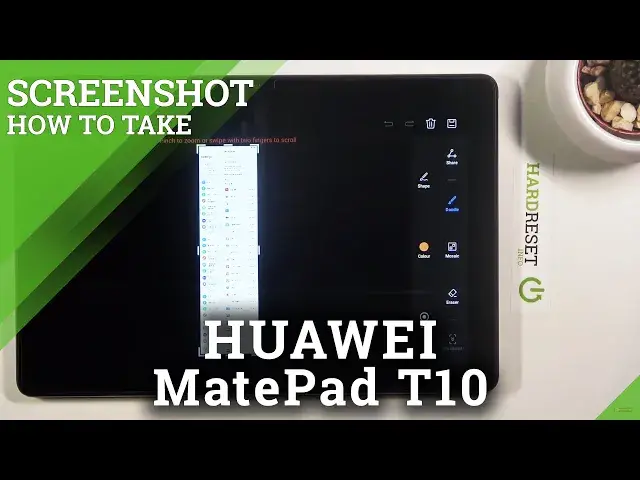
a screenshot on this device. And I'm going to open up settings as an example. So in your
0:19
case you want to open up the content that you wish to capture. Once it's open all you
0:24
need to do is press power key and volume down. Hold it for a second and it will bring up
0:29
this little image right here. So swipe up to share, swipe down for a scrollable one
0:34
and also swipe to the side to just simply get rid of it from the screen. And talking
0:39
about scrollable we do need to be in this kind of mode to actually capture a scrollable
0:44
one so just do this and flip it over. Come on. There we go. So it flipped. Now it might
0:53
not work on here. This is a possibility. Let me see if I can open up something that actually
0:57
has even more scrollable content to it. There we go notifications. So from here let me try
1:05
So swipe down for a scrollable, allow and yeah it is working as you can see. So it will
1:12
basically do this in like several parts till it gets to the end and then it's just going
1:16
to stop. And there is the scrollable screenshot. Flip it back over. There we go. Let's also
1:30
make it normal. Come on. There we go. So as you can see there is the scrollable screenshot
1:39
It is way longer than it normally would be on the screen and on the tablet you can only
1:46
capture a scrollable screenshot in the portrait mode. In landscape it will not allow you to
1:52
So if you try it it will just bring you up to basically put the device into portrait
1:57
mode and then you can try it. And also you do actually have to have a scrollable content
2:01
Now I did open up the app right here just for that purpose because if you open up anything
2:09
else like this it scrolls on this side only. This is the part that it considers scrollable
2:15
and not this one even though it is also scrollable. So keep that in mind. Now the best candidate
2:20
for scrollable screenshots probably will be like a web browser where you have scrollable
2:24
content or Instagram where you can infinitely scroll. But anyway that is basically how you
2:30
capture these screenshots on here. And there is also sometimes another way of capturing
2:35
it through the notification panel which you do have a toggle right over here. You press
2:41
on it. It does the same thing as holding the keys. And sometimes there is also a three
2:46
finger screenshot which also happens to be the case in here. So basically three fingers
2:50
swipe down and it captures the screenshot. Now once you capture the screenshot it can
2:55
all be found in your gallery applications. So there we go. Now as you can see they are
3:01
divided into photos right here. So today I chose them in recent but you can also go to
3:06
albums and find them quickly under screenshots. And in here we have the two different screenshots
3:12
of the home screen and then the scrollable screenshot from the settings. But that is
3:19
how you would capture them. And if you found this video helpful don't forget to hit like
3:23
subscribe and thanks for watching