0:00
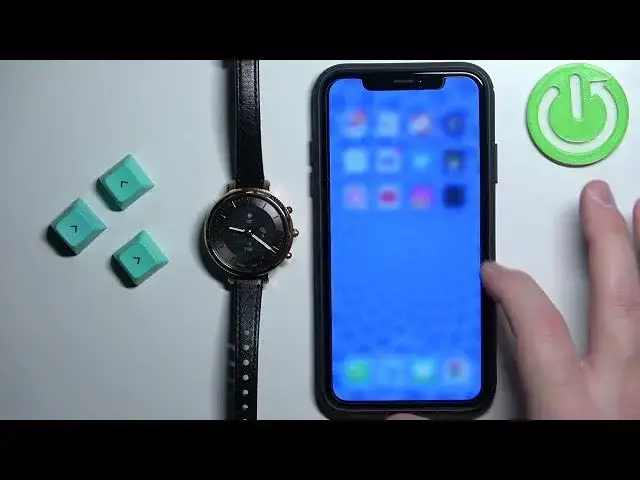
Welcome! In front of me I have Fossil Hybrid HR, Minro, and I'm gonna show you
0:05
how to enable the phone notifications for this watch on the iPhone. Basically
0:10
if you want to receive the notifications from your iPhone on the watch
0:17
Before we start, if you want to receive the phone notifications on your watch or
0:22
notifications from your iPhone on your watch, your watch needs to be paired with
0:26
your iPhone via the Fossil Smartwatches application. Once the devices are paired
0:31
together we can continue. And now we need to make sure that the required
0:35
permissions are allowed for the Fossil application and the iPhone to send the
0:40
notifications to our watch. So let's open the settings on our iPhone. In settings
0:47
let's scroll down to the list of applications and on this list find the
0:52
Fossil Smartwatches application. Once you find it tap on it and here make sure
1:00
that the Bluetooth is enabled, contacts is enabled and tap on notifications
1:07
and enable the allow notifications. After you enable all three options go back to
1:12
the main page of settings, scroll all the way up and tap on the Bluetooth option
1:17
And here you should see the Fossil Hybrid HR on the list of my devices. Tap
1:23
on the info icon next to it and make sure that the share system notifications
1:28
option is enabled. Once it is we can close the settings and now we can open
1:33
the Fossil Smartwatches application on our iPhone that is paired with our watch
1:40
of course. In the app you can scroll through this category called for you
1:47
find the option called my preferences or set up notifications. If you don't see
1:53
the setup notifications you can tap on my preferences and tap on notifications
1:58
And here we can customize the settings for our notifications. We have two
2:06
categories apps and contacts. In the apps category you can enable and disable
2:13
the notifications for specific apps but as you can see the list is empty for now
2:18
This list will fill in after you install the application and receive some
2:22
notifications on your iPhone. So for example I'm gonna send myself message on
2:27
discord right now. We should receive the notification on our iPhone
2:56
We got it. Okay so we got the notification and now once you got the notification
3:01
from the app it should appear on the list so we're gonna reopen the
3:05
application and tap on preferences notifications. As you can see discord is
3:14
here right now because after we install the app we receive the notification from
3:17
discord and basically the app will appear right here. So we need to wait
3:21
until this list fill in and if you don't see the notification rather the
3:25
application right here on the list wait until you receive the notification from
3:29
it and it should appear right here. And once it appears you can enable or
3:33
disable the notifications for it by tapping on the switch. Like that. And for the
3:38
contacts you can basically enable the notifications for every call and messages or for calls and messages from everyone or you can disable this option
3:48
and select specific contacts on your iPhone to receive the notifications from
3:55
Okay and once you're done customizing the settings you should be able to
3:59
receive the notifications on your watch. So I'm gonna send myself another message
4:15
As you can see we got it on our iPhone and also on our watch. And that's how you
4:23
enable the phone notifications for this watch on the iPhone. Thank you for
4:28
watching. If you found this video helpful please consider subscribing to our
4:32
channel and leaving the like on the video