0:00
Welcome, and follow me as I Google Pixel Fold, and today I will show you how you can go through
0:05
the setup process of your brand new device. So when you boot it up for the very first time, you will be presented with the same
0:14
screen that you can see right here, the welcoming screen. And starting off, you most likely want to select your desired language if it's not already
0:22
selected by default. I'll be using English, which was already selected, so I didn't really need to change anything
0:29
Now below that we have accessibility, so you can enable some accessibility features
0:33
like vision settings and setup with your voice so you can just talk to your device
0:38
I'm gonna just get to it in a normal fashion. Next we have connect to mobile network by inserting a SIM card, you can do so by popping
0:46
one right here at the bottom. So I'm gonna be skipping this
0:51
Additionally, going actually back, we do have the option to also use an eSIM if that is
0:56
something that you have been utilizing. Moving on, we have the Wi-Fi connection page
1:02
Here you can connect to your network if you want to. Now this isn't actually a requirement, so you can skip this if you want to
1:09
And the only difference if you skip this is that when you're going through the setup process
1:12
you won't have a Google login page show up. And additionally, date and time will be set most likely incorrectly, because it's not
1:21
going to be set automatically. I'll be skipping it. Continue. Next, we have the Google services like location scanning and sending user and diagnostic data
1:31
Now if that is something that you don't like, you can disable these
1:35
There we go. And scroll down and select accept to go to the next page
1:40
Here we have limited warranty, so we have some info for different countries
1:45
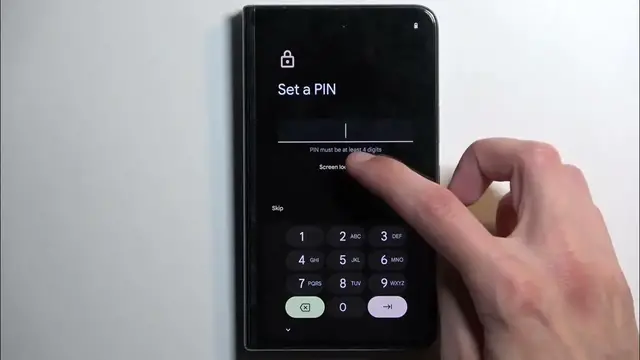
I'm just gonna skip through this. And next, we have the option to select a screen lock
1:51
So you have by default the pattern or a pin, I meant to say, as a default way
1:59
You can change that by selecting screen lock options right over here
2:03
And you have also option between pattern, pin or password. So choose whichever one you like
2:09
I'm not gonna be selecting, actually no, I'm gonna choose pattern right here
2:13
So anyway, let's draw the pattern. Next. Repeat it. Confirm. And it's now all set
2:20
The device automatically also prompts me to select a screen lock or fingerprint more precisely
2:25
for my screen lock as well. Now if you're planning to use a fingerprint sensor, you will also be forced to select
2:31
a screen lock on top of that anyway. And the reason for that is if something would happen to your finger, you would lose access
2:38
to your device without an actual screen lock, a physical one. Anyway, let's select more and more and up to you what you want to do
2:49
I don't really want to use the fingerprint, so I'm gonna select no thanks
2:56
Swipe to navigate. Here we have the option to select gesture navigation
3:01
I personally like gesture navigation. You can select try it to actually test it out
3:05
And it tells us to swipe up to go home. Moving on
3:10
We have a swipe to go back. So from either side. As you can see, it shows you the arrow
3:15
And then next one is the swipe up and the hold to go to recent
3:19
And there we go. And it's all set, so we can now swipe up to go home
3:28
And there we go. The device is now all set. So if you found this video helpful, don't forget to hit like, subscribe, and thanks