0:27
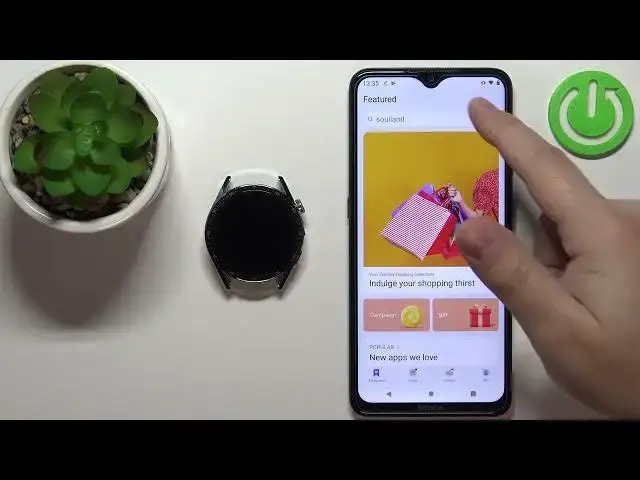
I to wait until the watch turns on
0:32
After the watch turns on, you should see or you might see the list of languages on the screen
0:38
You can scroll through this list by swiping up and down on the screen, find the language you'd like to use on your watch and then tap on it to select it
0:46
And once you select the language, you can see that we need to download and install the Huawei Health application on our phone
1:24
huawei.com type in this address and tap search
1:37
and it should redirect you to this page now on this page
1:43
tap on this icon in the top left corner then tap on install app gallery ... ... ... ... ... ..
2:01
Because if you install the Huawei Health application from the Play Store it won work For some reason it not up to date So we need to download the Huawei App Gallery download the Huawei Health application from there to pair the watch with the phone
2:18
So let's tap on the download anyway to download the installation file
2:22
And once done downloading, you can tap on Open or open the menu in your browser, tap on Downloads, and you should have your downloaded file right here
2:32
Tap on to open it. And you might get the pop-up about the security
2:39
basically app not being able to install the apps from unknown sources. Now tap on the settings option
2:46
And it should redirect you to the install unknown apps. Now tap on the switch to allow from the Chrome, from the source
2:53
And go back to the browser. Oh, my bad. Now you can tap on the downloaded file again
2:58
Tap on install. i start instalować aplikację i once the app gallery is done
3:10
instalować, you can tap on open to open it then tap next, agree
3:18
and you can allow ordin id permission for the phone tap on ok
3:24
and now in the app gallery tap on search Type in Huawei Health
3:35
And tap Search. You should see this application right here. Huawei Health
3:40
Tap on the Install button. You might get again the pop-up about the permission to install the apps from the unknown sources
3:48
You need to tap on Settings. Allow the installation from unknown sources from the App Gallery
3:53
By tapping on the Switch. i go back to App Caleri, and then tap on install again
3:59
Now the app should start downloading and installing. I'm pretty sure you won't be able to access the watch faces and app gallery and stuff like that
4:41
For example, I'm going to select the United Kingdom instead. So let's find the United Kingdom right here
4:46
Then tap next. Then here tap next. Agree. You can allow or deny the permissions
4:56
I'm just going to deny it. And once you're done with the permissions, you should see the health page of in the app
5:02
Now tap on the devices icon. tap on Add button, tap on OK, allow permission for the location
5:10
and the app should start looking for the nearby devices. And as you can see it found our Watch GT3
5:17
You can tap on the link button next to it. And now you will need to log in into a Huawei ID account
5:26
So let's tap right here, enter the email address and tap right here and enter the password
5:32
So give me a couple of seconds. Okay, and once you log in
5:44
you need to... The app will basically reopen for some reason. I don't know why
5:49
We can then tap on devices again. Tap on add. Wait for the app to find our watch
5:59
Okay, now it found it. Tap on the link. Zobaczcie, czy nie
6:04
Zobaczcie, czy nie? Zobaczcie, czy nie? Zobaczcie, czy nie? Zobaczcie, czy nie
6:12
Zobaczcie, czy nie? Zobaczcie czy nie Zobaczcie czy nie Zobaczcie czy nie Zobaczcie czy nie Zobaczcie czy nie Zobaczcie czy nie Nie ma tap on retry link Allow permission I don know why it required but apparently it is
6:27
And now we can tap on pair. Tap on the check mark on the watch
6:36
And as you can see pairing successful now. We can check the boxes to download the updates automatically and install them
6:42
automatically if you want to. i to tap continue. And as you can see, we have the info about the update already
6:49
I'm just going to tap on install updates manually, then tap on done
6:54
and tap on continue. And here we can also enable the phone notifications for the watch
7:02
So if you want to receive the notifications from your phone on your watch, you need to tap on enable
7:06
and then continue with the required steps. But if you don't care about the notifications
7:12
you can tap on cancel and then tap on Done and OK to confirm
7:16
I'm just going to enable them, so I'm going to tap on Enable, tap on the screen
7:21
Now it should open the notification access page, select the Huawei Health app, tap on the switch
7:28
tap on Allow and go back to the app. And at this point the notifications should be enabled
7:34
And you can customize the settings for the notifications. Basically you can enable or disable the notifications for specific apps
7:41
Once you're done, tap on Done. Tap on OK. We need to allow the permissions for the notifications
7:49
If you want to use the notifications, you need to allow the permissions, unfortunately
7:54
Tap on OK. Once you're done with the permissions, you should see the device page of your Huawei Watch GT3
8:03
That's how you pair the watch or this watch with the Android phone
8:08
Thank you for watching