0:00
Hi everyone! In front of me I've got Samsung Galaxy M13 and let me share with
0:11
you how to add the fingerprint to this device. So first of all let's enter the
0:15
settings and here we have to find biometrics and security. Now let's tap on
0:20
fingerprints which should be on the second position. Let's tap and here if
0:26
you've got any kind of screen up currently set then as you can see you will have to
0:30
enter it in order to confirm the whole step. If not your device will ask to add
0:34
new ones so you will have to have the backup pattern pin or password whatever
0:40
It is very important because if for some reason the fingerprint sensor won't work
0:45
then you will still be able to unlock your device without the need to go
0:48
through the hard reset operation which will of course wipe out all of the data
0:53
So it's very important and you will not be able to add the fingerprint without a
0:57
backup screen lock. So just set it, set new one or enter the pattern or pin or
1:05
password whatever you have. And here we've got the information about the
1:08
fingerprints so you will be able to unlock your device, verify yourself in apps and so on and so on. So just tap on continue and here we've got the
1:17
information, we've got animation of what we have to do. So simply scan the
1:20
fingerprint, we have to put our finger on the sensor which is located
1:25
on the side of our device on the power button. So let me do it and as you can
1:31
see right now we have to do it multiple times in order to add the fingerprint
1:37
fully and try to catch every corner for better recognition of course
1:51
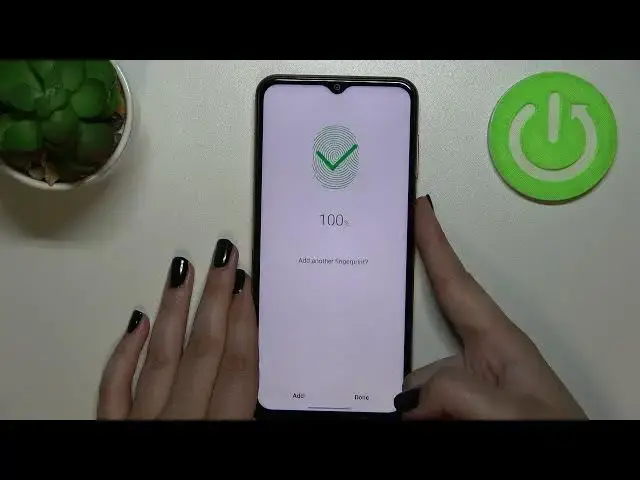
All right and as you can see it was quite easy fortunately in this device. So
1:58
if you want to you can add another if not just tap on done. And here we've got
2:03
the fingerprint settings. So this is the fingerprint we just added, we can tap on
2:07
it and here we can rename it so if we want to or not let's call it index and
2:13
we can remove it if you want to right here in the right upper corner. Just tap
2:17
on done as you can see it has been changed immediately. What's more we can
2:20
add the fingerprints. So I believe we can add up to five fingerprints and here if
2:26
we've got a lot of fingerprints added then we can check them. So let's tap on
2:30
check added fingerprints and after putting particular finger on the sensor your device will show you which fingerprint it is. So for example let me
2:38
use my pinky and as you can see there is no match. So it will just check your
2:45
fingerprints and here you can decide for what you want to use the fingerprint
2:49
for. So the fingerprint unlock and here the fingerprint always on which means
2:54
that you will be able to unlock your device just by touching the sensor
2:59
without the need to press it. Here you can decide also to use the fingerprint
3:06
to sign to the websites or to the Samsung account. Here you've got some
3:11
info about unlocking with biometrics it's up to you if you want to check it. Okay enough of talking and let's go back let me lock the device and let's check
3:19
if it is working. So let me put my finger on the sensor and as you can see the
3:23
device is unblocked which means that we just successfully added the fingerprint
3:27
to it. So actually this is it this is how to add the fingerprint in your Samsung
3:32
Galaxy M13. Thank you so much for watching I hope that this video was
3:36
helpful and if it was please hit the subscribe button and leave the thumbs up