0:00
Hi everyone, in front of me I've got Motorola Edge 30 Neo and let me share
0:04
with you how to add the fingerprint to this device. So first of all let's open the settings and here we have to enter the passwords
0:15
and, sorry not passwords and accounts, the security. Now let's enter the device
0:21
security, I mean find the device security and on the second position we've got the
0:25
fingerprint. So let's enter and here we've got actually the very first step
0:29
because right now we have to confirm it with our current screen lock. If you
0:34
do not have your screen lock currently set then your device will ask you to do it
0:39
right now. It is important because if for some reason the fingerprint sensor
0:43
won't work then you will still be able to unlock your device without the need
0:48
to go through the hardware set operation which will simply wipe out all of the
0:51
data. So be aware that you will not be able to add the fingerprint without the
0:59
adding this screen lock before. So just add the screen lock, in this case
1:06
if you've got the screen lock just enter it and here we've got the
1:11
information about the fingerprint so you will be able to unlock the device
1:15
authorize the purchases or sign in to apps. So let's tap on setup and as you
1:20
can see here we've got also the information about the screen projector because the sensor is located under the screen here so the screen projector may
1:29
simply affect the sensitiveness of the sensor. So let's tap on got it. As you can
1:34
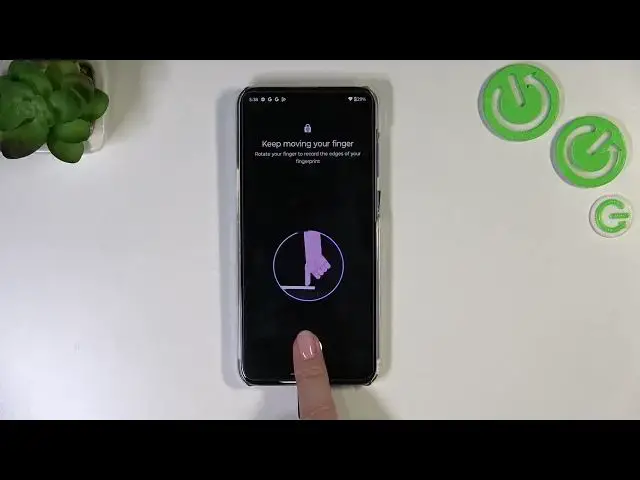
see right here we've got the sensor so all we have to do right now is to simply put our finger on it so use the finger which you will normally use for
1:41
unlocking and right now we have to do it multiple times so put the finger on the
1:48
sensor and release it and do it multiple times with changing the position of it
1:52
in order to add the fingerprint fully and try to catch every corner of course
1:57
for better recognition. Okay as you can see adding the fingerprint in this device is
2:08
quite easy and fast so now if you want you can add another probably you can add
2:12
up to five fingerprints or tap on done I don't know what happened oh no hello
2:21
all right so we accidentally turned off the whole whole thing but the
2:28
fingerprint has been added so let's go back here and this is the fingerprint
2:32
menu let's say so that's the fingerprint we just added we can remove it just by
2:38
tapping on the scratch bin I can or rename it if you want to just by tapping on it I can rename it because why not let's name it index you can add
2:45
the fingerprint as I said probably up to five here we've got also the animation
2:50
style so you've got the rate of radial waves you've got the boomerang and also
2:54
chroma dial and I will leave for example this one so make sure that the option
2:58
like to use is marked and go back okay enough of talking let's lock the device
3:03
and let's check if it is working so let's check if the sensor will appear
3:07
here oh so it doesn't really have to appear just put the finger on the place
3:13
where the sensor will well should be so somewhere here and as you can see the
3:20
device is unblocked which simply means that we just successfully added the fingerprint to it so basically that's all this is how to add the fingerprint
3:27
in your mozzarella edge 13 you thank you so much for watching I hope that this
3:32
video was helpful and if it was please hit the subscribe button and leave the