0:00
Hi everyone, in front of me I've got realme C31 and let me share with you how to add the
0:13
fingerprint to this device. So first of all let's enter the settings and here we have to scroll down to find security
0:21
In the device security section on the second position we've got the fingerprint, so let's tap
0:26
As you can see this is the very first step of adding the fingerprint which may seem quite
0:32
strange because here we have to choose the screen lock. It is very important because if for some reason the fingerprint sensor won't work then you
0:39
will still be able to unlock your device. So you will not be able to add the fingerprint without adding the backup screen lock method
0:47
You can pick the pattern pin or password, so regular screen lock options
0:51
Let me pick the pattern and right here we have to draw the pattern, tap on next, redraw
0:56
it and confirm. Right here we can decide what we want to display on the lock screen, so we can show all notification
1:03
content, show sensitive content only when unlocked or don't show notifications at all
1:09
It's of course up to you which option you'd like to use. I will pick this second one, just make sure that the option you'd like to have is marked
1:16
and tap on done. Here we've got the info about unlocking your device with the fingerprint
1:23
You will be able not only to unlock the device but also for example authorize the purchases
1:28
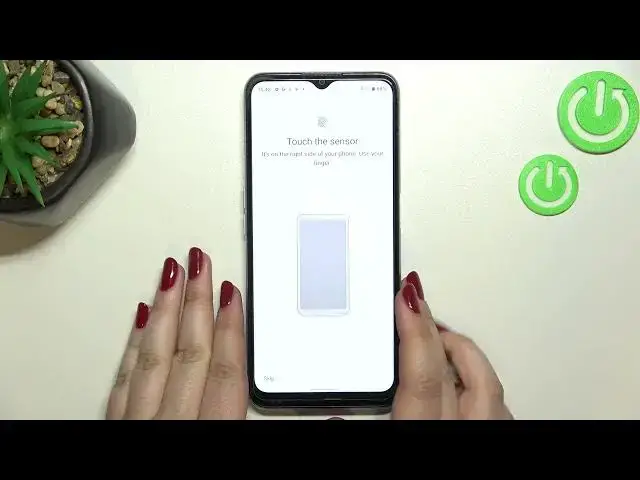
or sign in to apps. So let's tap on next. And right here we've got the actual step of adding the fingerprint
1:38
So here we have to touch the sensor, here we've got also the animation. So the sensor is located on the side of our device on the power button which is right
1:46
here as you can see. So all we have to do is to simply put our finger on the sensor and right now we have
1:52
to do it multiple times in order to add our fingerprint fully
1:56
So try to touch every corner, of course for better recognition too
2:23
Ok, and as you can see I've just successfully added the fingerprint to this device
2:28
So if you want to you can add another right now or simply tap on done
2:33
And here we've been transferred immediately to the fingerprint section. Here we do not have a lot of options
2:39
This is the fingerprint we just added after tapping on it. We can rename it if you want to
2:44
Just tap on ok. If you want to you can also remove it just by tapping on the touch screen icon or you
2:49
can add a new fingerprint right here. So let me go back, let me lock the device and let's check if it is working
2:58
So let me put my finger on the sensor and as you can see the device is unblocked actually
3:02
immediately, which means that we just successfully added our fingerprint to it
3:07
So actually this is it. This is how to add the fingerprint in your realme C31
3:13
Thank you so much for watching. I hope that this video was helpful and if it was, please hit the subscribe button and