0:00
Welcome, if I'm say Xiaomi Mi 10T Pro and today I'll show you how to enable and
0:12
set up the do not disturb mode and get started let's pull down the
0:16
notification panel and find a toggle somewhere in here now it looks like it's
0:23
not actually here so we can add it I believe by tapping on this square right
0:28
here with the pen and from here see it looks like we actually have it oh there
0:37
we go that's how I extend it wasn't really sure how I can extend it so as
0:41
you can see there it is so the DND tap on it and this will simply enable it now
0:46
you can also hold it and this will take you then to the settings so from here
0:52
just tap on the DND now I disabled it by mistake so that's why I enabled it right
0:57
now when it's selected that means that it is enabled as you can see by the moon
1:01
icon right here and when it's selected it gives you more options as you can see
1:06
right here compared to when it's off so from here we have things like allow
1:11
incoming calls from anyone contacts favorite contacts or no one then we have
1:17
a nifty little option right here notify about repeated callers so even though
1:22
right now it's set to none so in theory no one should be able to reach me or
1:27
give me any kind of indication that they're even trying to reach me with this being
1:31
enabled if they are basically persistent and call me twice within the 15 minute
1:36
period the second time around I'll be notified that specific person is trying
1:40
to get a hold of me now this option is good for emergencies usually people will
1:45
spam call so they should most likely fit in the 15 minute period and and this way
1:51
you'll be actually notified that someone is trying to get a hold of you probably
1:54
in an urgent situation then you have restrict loading notification so when
1:59
you're looking at the device will just restrict the banners and they won't be
2:03
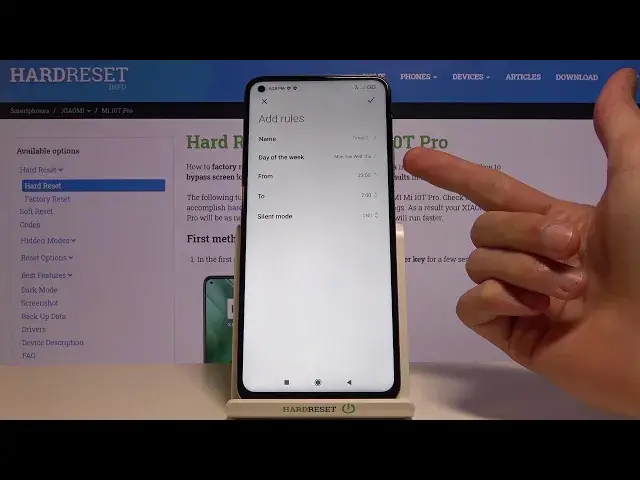
showing up and then we have also a schedule for the do not disturb mode so
2:07
we can go into here tap on add one and from here select a name if you want to
2:13
it doesn't really matter then we have days of the week so by default it's to
2:18
every day but we can change it to either weekend weekends weeknights and custom
2:24
which will allow us to actually select each individual day that we want wanted
2:29
to work in so from here if you don't want certain days simply deselect them
2:34
like so and up on okay and now it will be turning on from Monday till Thursday
2:41
and then choose a start time and end time so I just make it something like a
2:47
morning go 7 to let's go to 4 here we go and silent mode D&D so in silent
3:03
everything will be silent in D&D we actually have a little bit customization because that is what we were changing right at the start so I
3:11
would keep it at D&D and from there once everything is set simply tap on the
3:15
checkmark now I'm gonna do one more thing just able it so now if we tap on
3:20
checkmark it becomes enabled but I believe it didn't actually apply to it
3:26
right now so when the time reaches which oh it's already past that time that's
3:34
why I didn't enable so when the time reaches 7 in the morning again it did
3:40
not disturb mode would turn on automatically and then at 4 p.m. it will
3:44
automatically turn off again and it will be repeating for days in a row so
3:51
Monday till Thursday so that is the automatic one but again you can still
3:57
enable it at any time you want it by simply tapping on it and by enabling it
4:02
it will take the settings that we have customized right over here so yeah now
4:08
that being said just conclude the guide on the do not disturb mode and if you
4:13
found this video helpful don't forget to hit like subscribe and thanks for watching