0:00
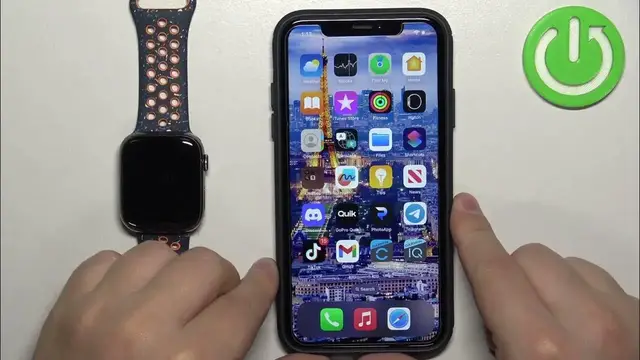
Welcome! In front of me I have Apple Watch 9 and I'm gonna show you how to change the watch face on this watch
0:10
First thing we need to do is to wake up the screen on our watch and you can do it by pressing any of the buttons
0:16
Once you wake up the screen you should see the current watch face, the home screen
0:19
And you can press and hold on the screen to open the watch face menu
0:23
Now you can scroll through the watch face menu by swiping left and right on the screen
0:29
Find the watch face you would like to use on your watch and once you find it tap on it to select it and apply it
0:37
You can also expand this list of watch faces. As you can see we have only two for now, but you can scroll all the way to the right
0:45
tap on new and scroll through the list of watch faces, find the watch face you would like to use
0:50
tap on the add button, customize it to your liking, because you can customize some stuff for it
0:58
And once you're done customizing the watch face, you can press the crown button to apply the changes. And now you can tap on the watch face to apply it. Like this
1:14
You can also change the watch face through the phone application. So I'm gonna bring my iPhone that is paired with this watch
1:23
Zoom out the camera so you can see the whole screen of the iPhone. On the iPhone we can open the watch app and in the app you should see my faces category and on it you should see the watch faces added to your watch
1:36
And you can tap on them to select them, then you can customize them if you want to
1:41
And once you're done customizing you can tap on set as current watch face to apply it
1:48
And if you want to add more watch faces through the app, tap on face gallery, scroll through the list, find the watch face you want to use
1:55
tap on it and tap on add. It's gonna be added to the list of watch faces
2:02
Okay, and that's how you change the watch face on this watch
2:06
Thank you for watching. If you found this video helpful, please consider subscribing to our channel and leaving a like on the video