0:00
Welcome and follow me is a Samsung Galaxy Tab A from 2019 and it's the 8-inch
0:12
version and today I'll show you how to enable and also set up the do not
0:16
disturb mode. Now to get started let's pull down the notification panel. There
0:24
we go. Not very reactive to touch. So once you pull down the notification you
0:29
should see somewhere do not disturb toggle which means we're right over here
0:33
So once you find it you can either tap on it to turn it on however it is set by
0:38
default or you can also hold it and this will take us to the settings where we can customize it. So we have duration you can set the duration now we have a
0:47
couple options we have one hour ask every time. Now the one hour also allows
0:51
you to add more hours so basically whatever you set it right here that will
0:56
be always the amount of time it's gonna turn on when you tap on the toggle from
1:00
the notifications. Now the ask every time is basically the best option because
1:04
once you choose it it will bring up this window every time and you can from here
1:08
also add the hours that you want it to run. Now besides that we also have the
1:15
turn on a schedule which will allow you to set up a schedule basically so it
1:20
will turn on and off at a given time and day of the week. And also we have
1:26
notification options so you can select what kind of notifications will show up
1:31
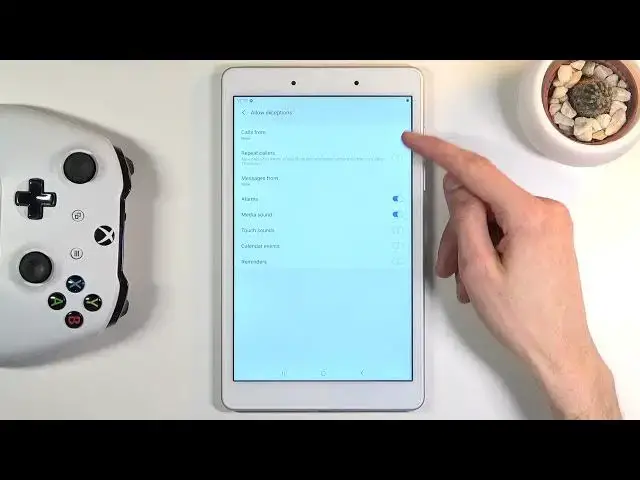
during this mode. And allow exceptions which is the most control we will have
1:36
over this so calls and messages you can allow who can call you and who can
1:41
message you during the do not disturb mode. Now in terms of the calls now also
1:47
if you're wondering how our calls included in here if this is just a
1:51
normal Wi-Fi version and not the LTE it also refers to calls like a messenger or
1:58
what's up being able to call you. So apart from the calls from no one you do
2:04
have a repeated caller option which basically if you enable this if someone
2:08
calls you twice within a 15 minute period which is quite a lot of time they
2:14
will be able to reach you basically bypassing the option above. Now outside
2:19
of that you also have different kind of sounds and just interruptions that you
2:24
can turn on or off if you are running do not disturb mode. And from there once
2:29
everything is set in here you can simply leave this and never come back to it
2:33
assuming you don't want to change anything and all you need to do is simply tap on a toggle and turn it on and there we go it's right now enabled
2:39
Now if you went with the route of turning it on manually without a timer
2:45
then you will need to go back to it and turn it off yourself again otherwise it will be always on and if you went with the timer option well then just wait
2:53
there the time that you want and it will turn off automatically or if you want to
2:57
end it prematurely again you can do the same thing as normally tap on it again
3:02
to turn it off. Now that being said this is how you would use the do not disturb
3:06
mode and if you found this video helpful don't forget to hit like subscribe and