0:01
Welcome. In front of me, I have the
0:03
Infinix Note 60 and today I will show
0:06
you how you can enable and also set up
0:09
your do not disturb mode.
0:18
So to get started, you'll want to swipe
0:20
down from the top of your screen like
0:23
so. Just make sure you do it from the
0:25
actual right side of the screen as
0:28
that's where our toggles are. left side
0:29
gets us notifications. So, somewhere in
0:32
here, once you pull it down, you will be
0:35
able hopefully to find do not disturb
0:36
mode. I can already see it. Looks like
0:38
this right here. But if you can find it
0:41
anywhere in this list, you can click
0:43
right here on this icon right above the
0:46
and then scroll down. And here you'll be
0:48
able to find a bunch of different
0:49
toggles. Toggles that were in the
0:51
visible in that list. These are ones
0:53
that are just not showing up and we can
0:56
add them. So, let's say uh if NFC is one
0:59
that I wanted to add. I'll just click on
1:00
the plus. And apparently I reached the
1:02
maximum number. So, you know what? I'm
1:04
going to just remove a couple of them.
1:06
There we go. I'm going to attempt this
1:07
again. So, NFC can add it. As you can
1:10
see, it gets put in here. And I can just
1:12
click on done. And it stays addited now.
1:15
So, from here, once you have your do not
1:17
disturb mode, you can hold it first time
1:19
around. I do recommend doing that and
1:21
select more settings. This will take you
1:23
to the settings though relatively
1:26
limited settings. As you can see,
1:27
there's not much in here. We can change
1:30
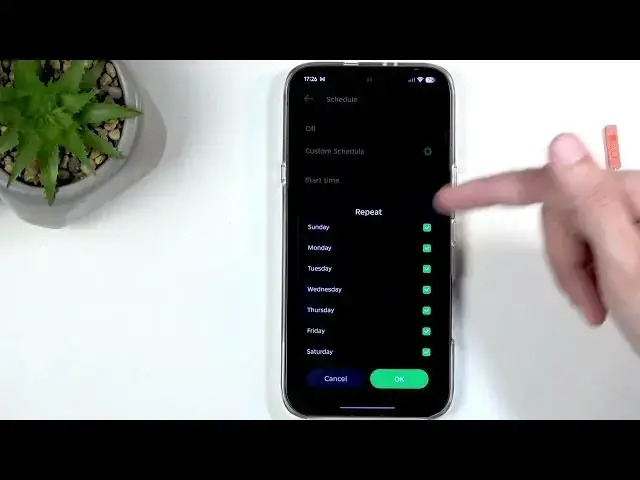
things like schedule. So, if we turn
1:33
that on, we can only unfortunately have
1:35
one schedule. Again, like I said,
1:37
limited. So, we can set whatever
1:39
schedule you want. Uh set whatever uh
1:42
day of the week you want to uh repeat at
1:46
and start and end time. So, at that
1:50
point, if this is toggled on, which it
1:52
is right now, as you can see right here,
1:54
it shows me the time. So, it means that
1:55
it will automatically turn on at 10 p.m.
1:59
So, it still has some time to go. And
2:01
then it automatically turns off at 7:00
2:03
a.m. Now, obviously, I can change this
2:04
to whatever I want, but I can only have
2:06
one schedule, unfortunately.
2:08
Now, below that, we have calls. Uh, so
2:10
you can be notified about calls from
2:13
anyone, everyone contacts. Sorry, no
2:16
one, everyone, contacts and favorite
2:21
And we also have options for
2:23
notifications. So you can select which
2:25
application can still be annoying you
2:27
even when this mode is enabled. Along
2:29
with the last option, allow repeated
2:31
calls. So if someone calls you twice
2:33
within a 15minute period with this being
2:36
on it whoever is trying to reach you and
2:40
basically does the double colon 15
2:42
minutes they will bypass whatever we
2:44
have selected right here. So at that
2:46
point whatever it's here doesn't really
2:49
So those are all the options in here.
2:51
Now I do want to point out one thing. Uh
2:54
for people that won't be using schedule
2:56
you can actually utilize it for your
2:58
benefit. I find it that I usually turn
3:00
on uh the do not disturb mode and then
3:03
forget to turn it off. If you have
3:05
similar tendencies, what you could do is
3:07
go in here and turn it on that schedule
3:11
and set it to sometime at the end of the
3:14
day. I would say that's what I find to
3:16
be useful. And uh you know what? 10 p.m.
3:20
seems like great time, but I'm going to
3:23
change the end time for it to also 10.
3:29
and okay. And what this will do is at
3:33
1000 p.m. if I forget to turn off this
3:35
mode because I manually turned it on. At
3:38
10 p.m. schedule rolls around, tries to
3:41
turn it on, it's on. So nothing really
3:43
happens. Minute later, it says that it's
3:45
supposed to be off. So minute later,
3:48
it's going to turn it off. So when I
3:49
forget to turn it off, the phone at
3:51
10:01 actually turns it off at the end
3:53
of the day. and I'm basically good to go
3:55
uh next day with this mode being
3:57
disabled again. So, it gives you just a
3:59
little bit of peace of mind that this
4:01
mode won't be running indefinitely in
4:03
the background as by default if you turn
4:06
it on like so, you will also need to
4:09
remember to turn it off. Otherwise, it
4:11
will just continuously run. And you can
4:14
turn it off if you remembered by tapping
4:15
on a toggle once again like I just did.
4:19
So, with that being said, I hope you
4:22
found this video helpful. And if you
4:24
did, don't forget to hit like,
4:26
subscribe, and thanks for watching.