0:00
Hello everyone and welcome back to our
0:02
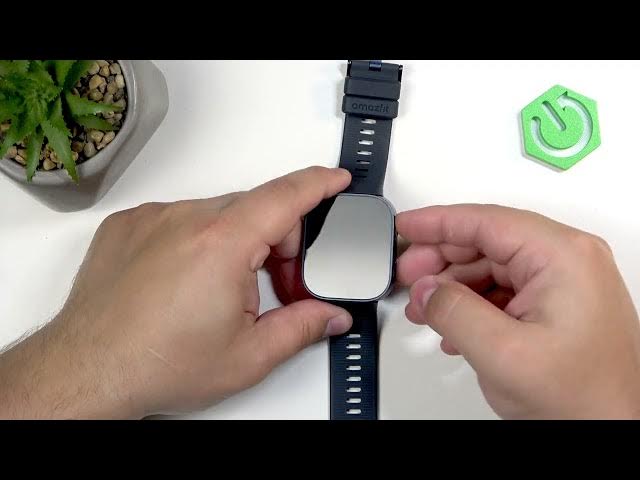
channel. In front of me I have amazed
0:04
BIP Max and in today's video I'm going
0:06
to show you a few settings I recommend
0:08
to change on your watch. So let's get
0:18
And the first thing I recommend to check
0:19
and change is the screen brightness. To
0:22
change the brightness, you simply wake
0:23
up the screen, then swipe down from the
0:24
top of the screen like this. Swipe again
0:27
to open the list of icons. And here on
0:30
the list, you should see the brightness
0:32
icon. You can tap on it. And right here,
0:34
we can adjust the screen brightness for
0:35
our watch by swiping on the slider. You
0:38
can also turn on or off the auto
0:40
brightness by tapping on this A icon.
0:43
And if the auto brightness is enabled,
0:44
your watch will adjust the brightness
0:46
automatically according to the
0:47
surrounding light, which could be quite
0:49
useful if you don't want to bother with
0:52
uh manual changing each time, for
0:54
example, you enter the sun or you enter
0:57
some dark place and the watch will
0:59
basically adjust the brightness
1:00
automatically for you. So you can enable
1:02
it and if you prefer the brightness to
1:04
stay at the specific level, you just set
1:06
it manually and it will stay at this
1:08
level until you change it yourself. So,
1:11
pick the option you like and once you're
1:13
done, you can uh press the uh upper
1:17
button to go back to watch face. Next
1:19
thing I recommend to change is the
1:21
screen timeout duration. Basically, how
1:23
quickly the screen turns off after you
1:24
stop touching the screen or pressing the
1:26
buttons. To do it, swipe left to open
1:28
the menu. Find the settings icon and
1:30
then tap on it. In settings, find the
1:32
option called display and select it.
1:36
Now, find the screen on duration. Tap on
1:38
it. And as you can see, we have general,
1:41
workout, and watch face. Basically,
1:42
three states uh of the watch. General is
1:45
when you're using your watch normally.
1:47
Workout is when you're uh tracking a
1:49
workout, you have activity on on your
1:51
watch. And then we have the watch face.
1:53
So, basically, if you're on the watch
1:55
face, uh directly on the watch face on
1:58
your watch. Um and as you can see, we
2:00
can change them separately. We can tap
2:02
on general and pick something like 5
2:04
seconds, 8 seconds, 15, 20, and 25. Oh,
2:07
there's also 30. So, pick the one you
2:10
like. Be aware though, longer periods of
2:12
time will use more battery life because
2:13
the screen will stay on for longer. Uh,
2:16
but I recommend something like 8 or 15
2:18
seconds. That's nice sweet spot. And
2:21
then we have the workout and you can use
2:23
follow general or pick separately.
2:27
Follow general is nice because you can
2:30
basically set it here and here on the
2:31
watch face as well. And then you can
2:33
just control all of them by changing the
2:35
general. You don't need to bother with
2:37
them separately. But you have also
2:39
option to do this separately. You can
2:41
tap on workout and for example select
2:46
make it uh basically you can customize
2:49
it up to your liking. You don't need to
2:51
uh do everything the same way basically.
2:54
So set it set this to the way uh set
2:57
this way you want it to be. I'm going to
2:59
just follow the general because I prefer
3:01
it it to be that way. And once we're
3:06
we can press the upper button. And now
3:08
my screen should turn off automatically
3:09
after 15 seconds of inactivity. So if I
3:11
won't touch the screen or buttons for 15
3:13
seconds, it should turn off uh to
3:16
basically save power on our watch. And
3:25
Uh another thing I recommend to change
3:27
or check and change is the shortcut
3:29
buttons or buttons shortcuts. Uh we can
3:33
customize the uh shortcuts for our
3:35
buttons right here. To do that, open the
3:37
settings. Go to the preferences
3:42
and here we have shortcut buttons. Tap
3:44
on it and we have press upper button,
3:47
press it once, press and hold the upper
3:48
button, press lower button and double
3:51
press lower button. So we can customize
3:53
these shortcuts by tapping on one and
3:55
scrolling through the list of functions.
3:57
Find the one we we want to assign. For
3:59
example, no settings is going to be
4:02
let's open the workout menu, I guess,
4:04
like this. With the long long press,
4:07
let's use the offline voice.
4:11
Uh, with the press lower button, let's
4:13
open I don't know, maybe
4:17
music. And with the double press,
4:20
let's open the alarm. Okay. And now my
4:24
shortcut should be working. So if we go
4:26
to watch face, as you can see,
4:35
So that's how you change the shortcuts.
4:37
I really recommend to check it because
4:38
it could make your watch more convenient
4:41
to use, more uh personalized. So I
4:45
recommend to check it out. Next, we have
4:47
the sound volume. Basically, uh how loud
4:51
certain things are on your watch. can
4:52
adjust the sound to be quieter or louder
4:55
for different things. And to adjust the
4:57
sound volume, you wake up the screen,
4:59
swipe down from the top of the screen
5:00
again to open the quick panel, open it
5:02
further, and here we have this speaker
5:04
icon with the cog on it, and you can tap
5:06
on it. And right here, we have the
5:07
volume menu, and we have different types
5:09
of volume. We have alarm, media,
5:11
workout, system, and voice assistant. If
5:14
you're not sure what they do, you can
5:15
tap on the check mark right here, and
5:17
you have a description. Alarm basically
5:19
works for the alarm clocks and timers
5:21
and stuff like that. Then we have the
5:22
media music voice memos and stuff like
5:28
Workout changes the broadcast voice
5:30
volume. System adjusts the volume for
5:33
the calls, notifications and stuff like
5:35
that. And then voice assistance changes
5:37
the uh volume of the voice assistant
5:39
voice. And you can adjust them
5:41
separately by tapping on one and using
5:43
the slider to adjust the volume. quite
5:50
like this. And once you're done, you can
5:52
press the upper button. Of course,
5:54
another thing I recommend to change is
5:56
the uh settings for the do not disturb
5:58
mode schedule. By default, the schedule
6:00
is disabled. And I recommend to enable
6:02
it and use it, for example, if you
6:04
prefer to sleep with your watch on your
6:05
wrist. You can set up a schedule for
6:07
your sleep time and you won't be
6:08
disturbing disturbed during the sleep
6:10
basically. Or maybe when you don't want
6:12
to be disturbed at work, you can set up
6:14
the schedule for your work time. It
6:16
could be used in many ways. I recommend
6:18
to change it and use it. And to do it,
6:20
open the settings, of course. Find the
6:24
uh permiss preferences and tap on it.
6:27
Then tap on do not disturb. And here we
6:29
have auto enable. And we have manual.
6:32
That's the default one. Then you have
6:34
scheduled. We can create our own
6:35
schedule. And smart DND turns on turns
6:38
on the mode automatically. If you're
6:40
wearing your your watch on your wrist
6:43
during the sleep and the watch detects
6:44
that you're sleeping, it will turn on
6:46
the DND and if you wake up, it's it's
6:49
going to turn it off. I don't know how
6:50
well it works. So, you can test it out
6:55
I always like to use the schedule, the
6:58
the basically manual schedule. I I like
7:00
to set it up for myself and use it. I
7:03
use it on my phone, on my watch, and
7:05
it's quite nice. And as you can see now,
7:07
my do not disturb mode will be turning
7:08
on at 10:30 p.m. and turning off at 8:30
7:12
a.m. So I won't be disturbed during the
7:14
sleep. Um, you can al also turn it off
7:17
the schedule by tapping on the manual
7:19
option as well. Okay.
7:22
And last thing I recommend to check and
7:24
change is the um color style and themes
7:28
for our watch. To do it, open the
7:30
settings, of course, find the display
7:32
option, tap on it, and here at the
7:34
bottom, we have screen color style and
7:36
theme style. First, let's tap on screen
7:38
color time. And by default, it will be
7:40
on vivid. Basically, you have more um
7:43
saturated colors, more poppy colors, but
7:45
you can also select natural if you
7:47
prefer that. So, we have two styles.
7:49
Select the one you like and tap on it.
7:54
theme style. You can also change the
7:56
style of the icons. And as you can see,
7:58
we have quite a few of them. We have
8:00
vibrant, business, and default. Select
8:02
the one you like by simply hovering on
8:04
it and tapping on it to select it. And
8:06
now I have different styles of icons as
8:10
you can see. Okay, and that's about all.
8:13
So, if you found this video helpful,
8:15
please consider subscribing to our
8:17
channel and leaving a like on the video.
8:19
Thank you for watching and see you in