0:01
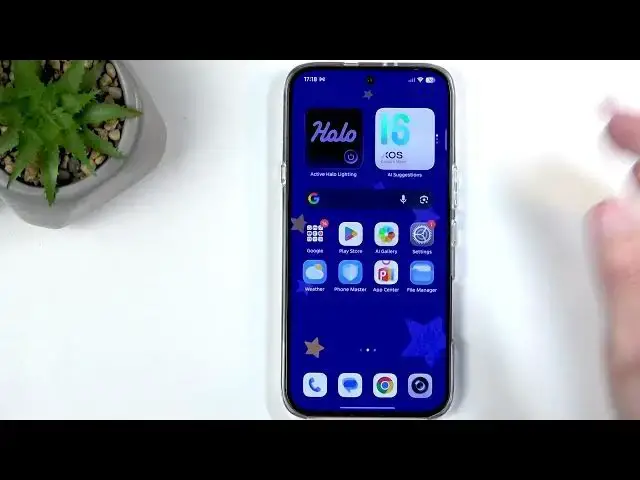
Welcome. Inomi is an Infinix Note 60 and
0:05
today I will show you how you can enable
0:08
and also set up your portable hotspot.
0:17
So to get started, you will want to
0:20
swipe down from the top of your screen
0:22
to be more precise, top right side of
0:24
your screen as that's where our toggles
0:26
are. and somewhere in here. You should
0:29
hopefully be able to find your hotspot
0:33
Now, if you're struggling with it or
0:35
have no freaking clue how it looks like,
0:37
we can actually click on the editing
0:39
button right here, which I will do. And
0:42
this will also show us the labels for
0:44
them. So, let's see if it's actually
0:50
Oh, yeah, it is. So, it looks like this.
0:53
So uh if you can't find it in this list,
0:56
you will be definitely able to find it
0:58
in this list right here. And when you
0:59
see it, you just simply click on the
1:01
plus for instance like this one. It gets
1:03
added and when you go back, this taggle
1:05
would stay added in here. So once we
1:09
have it here first time, I recommend
1:11
holding it and then selecting more
1:13
settings. Obviously, this will take you
1:15
to the settings and the reason for
1:17
navigating in here is so we can select
1:19
settings right here and change the
1:21
password. There is going to be a
1:23
randomly generated password for you. And
1:26
um obviously by the looks of it, you
1:28
could see that this password isn't any
1:30
great, at least not when it comes on to
1:33
typing it in. So I remove mine and I
1:36
usually set one that is very simple, 1
1:38
through eight. It will need to have at
1:40
least eight characters in length. And
1:42
you can use letters, numbers, both,
1:45
doesn't really matter. So
1:48
once the password is changed, uh, and if
1:50
doesn't mean that's the only thing you
1:51
want to change, make sure you click on
1:52
the check mark right here to save it.
1:55
But before I do so, I also want to
1:56
quickly touch upon a couple other
1:57
things. So name, Infinix Note 60. It's
2:00
going to be always the name of the
2:01
device. Uh, and it's going to change
2:03
based on whatever device you use for
2:05
your hotspot. Obviously, this is the
2:07
Note 60, hence why the hotspot name is
2:10
that. You can change that if you want
2:12
to. I'm just going to keep it as it is.
2:14
Moving on, we have security. And this
2:15
ensures that you actually have a
2:16
password. I wouldn't recommend changing
2:18
that. Below that, we have the AP band,
2:22
which apparently we can change.
2:25
Yep. Okay. That's that's just locked.
2:28
Cool. Uh so it looks like we don't have
2:31
a choice here. So 2.4 it is, I guess.
2:34
Okay. And then we have hide this
2:36
network. Again, I don't recommend
2:38
utilizing this, but I will explain what
2:40
it does. So, if you were to enable this,
2:42
it would mean, let me just grab my phone
2:44
to showcase what it means.
2:47
Uh, I'm going to open up Wi-Fi setting
2:49
or Wi-Fi on my phone. So, in here, you
2:53
can see typically if you have this
2:55
turned off and I enable this. So, I'm
2:58
going to actually demonstrate this. Turn
3:09
appear right here. Now, if I were to go
3:14
and just turn that off for the moment,
3:18
go in here and toggle it on.
3:22
What will happen now is for me to
3:25
connect to this hotspot, I won't be able
3:28
to see it in this list. I would need to
3:30
select add network. Network name.
3:34
Network name. I would need to type that
3:36
in exactly as it's right here. And then
3:38
obviously password, put that in. If
3:42
everything tracks, if it's correct, if I
3:43
selected the correct security uh and
3:46
typed in everything right, I would
3:48
connect to it. But without this, I will
3:51
not be able to find this network. So
3:54
that's why I don't recommend messing
3:55
around with this. It's just annoying.
3:59
Now, if we go back to the main uh
4:01
settings page right here. So before we
4:04
go into the hotspot settings, we had
4:06
some other options in here like the
4:07
toggle manage connections and also turn
4:10
off hotspot automatically when no
4:13
devices are connected for more than 10
4:14
minutes. It's a great option to keep on.
4:17
This ensures that once you're done using
4:19
it and uh you just move on and forget to
4:21
turn it off, your phone after 10 minutes
4:22
will turn it off which will preserve
4:24
your battery life. Hotspot does consume
4:26
more of it. So this is pretty great
4:28
feature. And then in manage connections,
4:30
you can actually check out who is
4:32
connected to your device and also ban
4:34
them from it. If someone manages to
4:36
guess uh something like my very secure
4:39
password, I could just come in here and
4:42
just straight up boot them out.
4:44
Actually, let's demonstrate this as
4:47
So, I'm going to enable this.
4:52
So, wait for the hotspot to show up.
5:02
So, I'm now connected to it and you can
5:04
see it right here. Now, what I can do is
5:06
just go boop here and add to blacklist.
5:09
Boop. Add. And you can see I just
5:11
straight up got ye heated out of
5:13
connections and I'm now attempting to
5:15
connect to it and nothing happened
5:17
because this phone, this hotspot is just
5:19
straight up blocking me from doing so.
5:21
So I can also go back in here and manage
5:23
these uh block list right here. Uh you
5:26
have other options in here as well as
5:28
for instance maximum uh devices
5:30
connected. So you can set something more
5:32
reasonable than 10 like two or one that
5:35
you're probably not running a server of
5:37
your phone. So having it set to 10 is a
5:42
Um and last thing is one time data
5:46
limit. If you have a cap on your mobile
5:49
data per month, I would recommend
5:51
utilizing this or another option that
5:53
would allow you to also set a limit to
5:55
it. I will touch upon both of them. Uh
5:58
so in here, this is just one time and
5:59
this is strictly for hotspot only. So I
6:02
can go in here and set two gigs or
6:05
whatever I want. Nice thing about this
6:07
specific one is actually I can type that
6:09
in. Some devices just have like this uh
6:11
scroll wheel kind of option and the
6:13
intervals are things like 500 megabytes,
6:19
5, 10. So these intervals are very kind
6:23
of vast and when it comes down to like
6:27
mobile network you usually have
6:28
something like 2 GB or five. So, if you
6:32
can go from only one or five, that means
6:34
that you can assign all of your
6:36
bandwidth for the entire month to to the
6:40
hotspot that you're going to use for one
6:41
day, for instance. Um, this on the other
6:45
hand side gives you the option to change
6:46
this on your own and set a specific
6:50
number. You can go into megabytes or
6:52
gigabytes as you can see, which is
6:54
pretty nice. And if you have something
6:57
like 5 GB of data per month, I would
6:59
recommend changing it to something maybe
7:01
along the lines of 3 GB. This is one
7:04
time though, keep that in mind. So every
7:07
time you reenable your hotspot, it again
7:09
allows you to use the full limit. So
7:12
adjust this accordingly to your
7:15
frequency of usage and uh and your data
7:21
And on top of that, you can utilize this
7:23
along with let's close. By the way, if
7:26
you want to have this on, make sure you
7:28
toggle this thing on here. So, uh, for
7:31
even better kind of safety, security, or
7:35
precaution, we can go into the settings.
7:37
And in here, we're going to go into SIM
7:39
and network settings. And we're going to
7:41
select our mobile SIM card. So, this one
7:44
is right here. There's SIM one and SIM
7:46
two. Only have one card. And from there,
7:52
is I think it's in here
8:05
No, it wasn't. Sorry. Uh, so in this SIM
8:08
and the network settings, we're going to
8:10
scroll down and here we have it. Data
8:11
usage. This is what we're looking for if
8:35
what the hell is this?
8:38
This looks a little bit different than
8:52
bear with me while I'm trying to find
8:56
I'm pretty sure it's here. We do have
8:58
decent amount of options right here. So,
9:01
see, maybe sim settings.
9:03
Nope. I'm going to pause the video and
9:06
try to find it. Hopefully, I succeed. If
9:08
not, I will come back showing you
9:15
Okay, so I did find it. Uh, we're going
9:17
to go into the SIM and network settings.
9:20
We're going to then navigate to data
9:21
usage. I was actually in correct place.
9:24
I just somehow didn't see it. And then
9:26
we're going to scroll down and select
9:29
And here it's a bit weird. So,
9:33
and we have uh data usage warning level
9:37
And we have in percentage. I'm not sure
9:40
how the phone knows exactly how much you
9:42
actually have in total per month. So
9:44
that is something that is completely new
9:47
to me and the kind of way it's designed
9:49
but can utilize that. Hopefully it will
9:52
work for you. And below that we have
9:54
when data plan is used up. You have
9:57
couple options. So you have either warn
9:59
and turn off mobile data, warn only or
10:02
basically don't do anything. Uh if you
10:05
do have a cap on your mobile data per
10:06
month, set this up to the first one. So
10:08
it actually warns you and also turns it
10:14
uh let's see what else we got here. So
10:16
it looks like that's about it. Usually
10:19
you would have this separated. You would
10:21
have the warning with a separate uh
10:24
limit and the actual turn off with
10:26
another one. Uh it looks like it's
10:28
actually going to do both of them at 80%
10:31
right now unless you change that. And
10:33
what you can do right here is when you
10:35
reach that 80% and the phone turns it
10:37
off. Uh this gives you just a safety
10:39
net. Uh so you can later on come back
10:41
here change that maybe to 90 or 100 and
10:44
you would again have for the remainder a
10:47
little bit of uh extra data till you get
10:52
And uh that would be basically one of
10:55
the kind of things that you could do.
10:59
Now, as you've seen me before, to turn
11:00
on and off your hotspot, because that's
11:02
all this video was about, you can find
11:04
the icon and click on it whenever you
11:06
want to turn it on or off. And you don't
11:08
need to wait for the phone to, you know,
11:11
count that 10 minutes and turn it off
11:12
for you. You can just do that yourself
11:14
when you're done using it, assuming you
11:19
So, anyway, with that being said, I hope
11:20
you found this video helpful. And if you
11:22
did, don't forget to hit like,
11:23
subscribe, and thanks for watching.