0:00
So, in this video, I'll show you how to
0:02
fix your battery uh draining fast on a
0:12
Okay, so as you can see, I have the
0:14
watch right in front of me, and the
0:16
first thing is to reduce your brightness
0:20
on the watch. Uh that may help. So, in
0:23
order to do it, it's worth going to the
0:31
display and brightness.
0:34
Go to brightness, and you can either
0:35
enable auto brightness, so it'll
0:37
automatically adjust to that, or you can
0:40
disable it. And then, set it just to a
0:44
low level, not the highest one.
0:47
Mhm. The highest one is going to drain
0:49
more battery. I like the 40% uh it's all
0:53
right for me, but uh you can also set
0:55
the auto brightness. And it'll also be
0:57
all right. And then, uh if you have
1:00
always-on display enabled, you can see I
1:08
uh watch face even if you're not if the
1:13
like technically off, it'll still be on
1:16
you know, display it. Um
1:19
I'll show you that. So, I'll act like
1:23
I'm putting it on because otherwise, it
1:26
it won't really do anything. Yeah, you
1:28
can see it is displaying the time
1:38
Yeah, it is. Uh you can't see it on
1:39
camera, but it is showing the time like
1:43
slightly. You can see that. You can see
1:45
that. I see it in a person, the camera
1:52
And I can like check the time and
1:58
always on display. Uh so, you might want
2:01
to disable that. You might also want So,
2:04
let's go to the settings.
2:06
Go to AOD, disable that.
2:08
Now, uh the next thing is that I'd
2:10
recommend going to display and
2:12
brightness and also disabling uh raise
2:18
Now, when you raise your watch like so,
2:21
it won't wake and that reduces battery
2:27
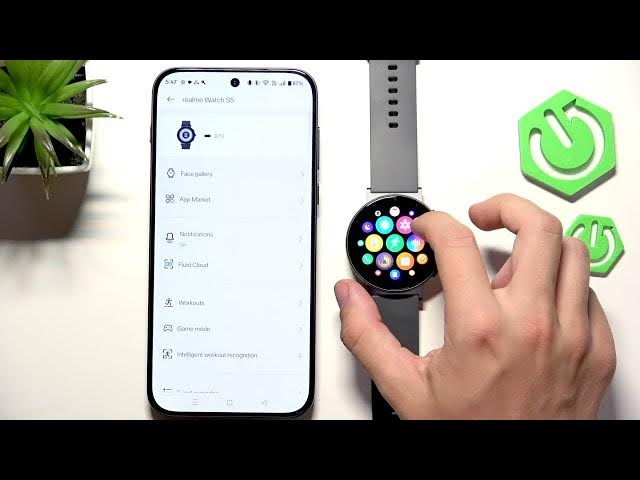
Now, you can also go to the app to the
2:29
Realme Link app, select your watch here,
2:33
and just disable notifications from the
2:35
app that you don't need notifications
2:37
Uh you can also go to uh the next part,
2:44
24-hour HR monitoring, and you can
2:47
disable that, the continuous heart rate
2:49
measurement, but that may actually
2:53
uh be useful to leave it enabled for you
2:57
if you want to receive high heart rate
2:59
or low heart rate alerts if you have
3:01
them enabled. And if you want if you
3:04
just want to have your heart rate
3:06
monitor at all times. Um and uh one last
3:10
thing is battery saver mode that you can
3:13
uh set up. Um you can't really enable it
3:16
here, can you? No. Okay, so let's go to
3:19
the settings, and then you can go to
3:22
battery. Then you can find uh
3:25
power saving mode and enable it.
3:28
You can press and hold to exit power
3:30
saving mode, and now it basically shows
3:34
Uh when I click, it just turns on and
3:37
off. So, if you need just the time for a
3:40
longer period of time, that will be
3:43
I'll press and hold Okay, I need to
3:45
press and hold for longer.
3:49
Now, it's off, and you can also go to
3:53
uh customized one. So, like customized
3:56
power saving mode, and um
4:00
do it, and then you can
4:02
set the functions that can be used in
4:04
customized power saving mode. I'll
4:05
enable exercise, heart rate can be
4:08
enabled or disabled based on your
4:10
preference, stress level, SPO2, like
4:13
whatever you want, it can be enabled or
4:17
Now, [snorts] I'm in the customized
4:20
saving mode, or I can press and hold to
4:23
leave it. And I hope that this video was
4:25
helpful. Don't forget to like and
4:26
subscribe, and I'll see you in the next