Up next in 10


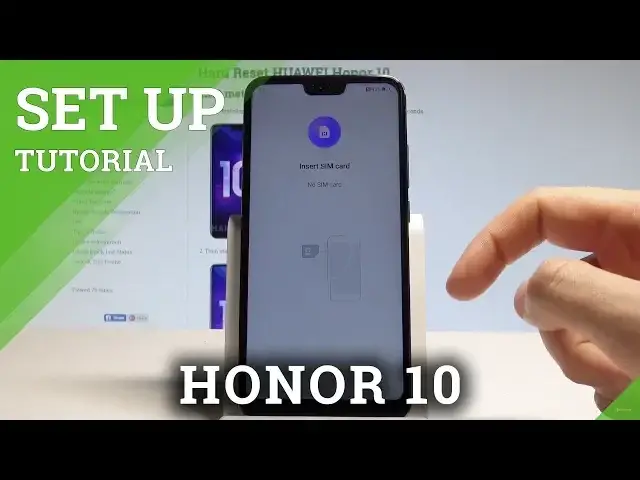
The step by step instruction of activating the Honor 10. Check out how to choose desired language, add Wi-Fi connection, sign into Google Account and more.
How to activate Honor 10? How to configure Honor 10? How to initialize Honor 10?
Read More:
http://www.hardreset.info/devices/huawei/huawei-honor-10/hardreset/first-method/
Show More Show Less View Video Transcript
0:00
Here I have Honor 10 and let me show you how to setup this device, so let me show you how
0:11
to go through the initializing setup process on the following smartphone. At the very beginning let's start by using your home screen
0:18
Here you've got the full list of available languages that you can use on this device
0:23
so in my case let me use the English. Here I have English, then you need to choose your region, in my case it could be for example
0:31
the United States, so let me find it right here. Alright you may also here use the emergency to have some emergency calls, you can also
0:40
change some vision settings, sorry, here for example you can change the phone size
0:46
If you are ready let's choose next. You can insert sim card right here or you can activate your device without the sim card
0:56
so let me tap skip in my case. Let's accept terms and conditions by tapping agree
1:10
Let me tap agree again. Here you can join into the improvement project, in my case let me tap later
1:21
Let me disagree to the service declaration right here. Tap later. Sorry I have to agree right here if I would like to go next
1:33
Now let me agree to the following service permissions, let me agree to WiFi plus service
1:37
feature and the weather service. Here you can connect your device to a WiFi, it's not necessary but I usually recommend
1:47
this step because you can do more with your internet connection. So let me connect my device, let me choose the WiFi, it's time to enter the password
2:01
Let's tap connect right here. Let's choose next. The device is looking for an available update, now you have to decide either you would like
2:13
to use a copy or you can set up your phone as a new with a fresh start
2:18
Let me do it, tap set up as a new. And here you can sign in into the Google account, it's also not necessary, you can bypass this
2:28
step by tapping skip, but Google accounts enables some options, so let me sign in
2:34
And you can do it in two ways, you can create a new account by using a blue link or you
2:39
can use the existing Google account. So let me use the existing one, let's enter the email
2:46
Alright tap next, it's time to enter the password, let me do it
2:57
If you are ready, let's choose next right here. Let me tap agree to the following terms of service
3:16
Here you can enable or disable a couple of Google services, for example you can enable
3:21
and disable backup to Google Drive, help apps find your location, improve location accuracy
3:26
and send system data. Let me leave all of these features enabled, tap more and agree
3:33
So here you can protect your device by using some kind of the screen lock, let me do it
3:38
later, skip anyway. You can also sign in into the Huawei account, but let me skip it
3:47
Let me also skip the data transfer, tap ok, choose not now to the cloud
3:53
Here you've got also the option to add the fingerprint, face unlock and some kind of
3:58
the password, in my case let me tap skip. Let me agree to the following information
4:05
Here you can get some popular apps, you can choose it and install, in my case let me don't
4:11
install anything right now, let's just tap next without this app, I just want to show
4:17
you the following thing, let me tap cancel. Tap skip the Google Assistant and choose get started
4:26
As you can see the home screen pops up, so it means that now you can use your device
4:30
everything went well, thank you for watching, please subscribe our channel and leave thumbs
4:34
up under the video
Mobile Apps & Add-Ons
Science