0:00
Welcome and for now is a NEFAS X20 and today I'll show a couple of tweaks and tricks that I can do on this device
0:11
so we're going to start off with hiding a notch now not everybody likes that little drop down now this is fairly elegant but you can still hide it if you would like to
0:22
and to do it you would go into the settings and from settings let's scroll down under to the display
0:28
and find where is it there it is
0:37
so show screen and notch now if you disable that it just kind of gets all the black background
0:42
around it so it doesn't like get in your face with it just sticking up there
0:49
that's the first thing now I'm going to disable that actually now moving back
0:55
another thing will be lift to wake display now it's just a nice thing if you don't really want to press a button and you have the
1:03
phone laying you can basically pick it up and see what it's happening and put it back down and it
1:09
will automatically wake the display so you can see and to enable that it's also going to be under
1:15
the display and see where it is um lift the wake right here and now if i were to lock the device
1:26
let me just place it i think there's like a couple seconds that it needs to wait before it actually reacts so
1:32
there it is so it automatically wakes up the display it's a simple feature but just
1:38
allows you to without any press of a button up with the display so you can see your notifications or time okay so moving on we going to go into hiding password Now this is one of the things that is kind of infuriating that basically it always on
1:55
or, well, showing the password is always on. And what I mean, I'm going to go into this place where I can actually demonstrate what I am
2:03
talking about. So in Wi-Fi, where I actually would have to put in a password, and it doesn't apply only to Wi-Fi
2:09
It basically applies to any place where you put in a password, and normally
2:13
it has those dots. When you start typing away the password, you can see that there is always a latest letter
2:18
that you have pressed shown on a screen. Now, if someone is really content and looking over your shoulder
2:23
they can basically gather your entire password because, well, uniquely providing them
2:27
in a sequence your entire password. So that is super annoying, in my opinion
2:34
And there's a way to actually disable that. So you'll go into the settings
2:40
And from settings, we're going to go into security I guess or if I can find it okay so it's gonna be right here under a
3:01
screen lock fingerp and security and from here scroll down and you have the
3:07
show password so disable that go back and now as a demonstration I will
3:12
go back to the password where i get to type in a password and you can see that now there's no more
3:19
letter visible it still shows up the letter that is under your finger but when you're holding for
3:24
instance doing something like this it's way harder for someone to see your entire password
3:30
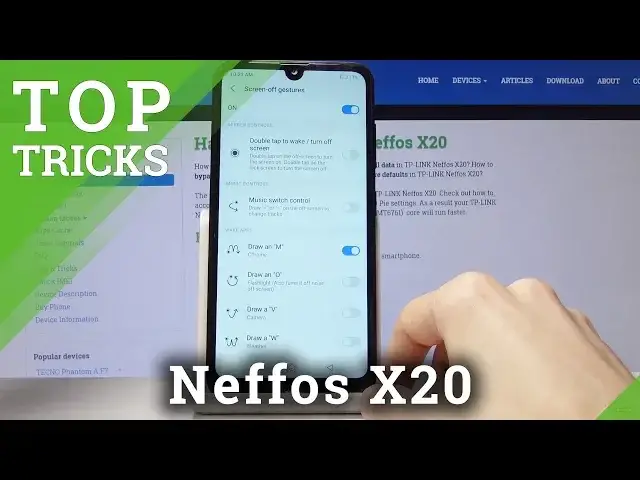
that is just kind of like randomly letters appearing so in my opinion this is a must turn on feature Now moving on we going to go into the screen of gestures
3:43
which let's go into the settings first, and then go into the gestures and smart assistants
3:49
So it's right here. And then you have the screen of gestures
3:56
Now to start of you, we'll have to enable them, and it will give you a bunch of..
4:01
options. So you can see each one that what it does. So music's switch controls and provides
4:07
it would have to draw to control it, draw M to play music. I'm not, me check something because I believe
4:15
yep, you can change it. So each one of them can be actually changed to something else. So
4:20
if you want to set up for instance instead of having music under M you want to have Chrome
4:25
then you can press that and now if I like the device and draw an app
4:31
m hopefully it will work otherwise i'm just showing nothing you know let me just first uh go over them and try that
4:48
later on uh so one another thing that i like here is the double top to wake so enable that i
4:54
would say and now also you can do the double tap to wake up the screen so you don't actually have to
4:59
lift it anymore if you're more of a fan of that let me see try that again there we go so you
5:14
have to go all the way basically to the bottom and you can see that it launched chrome so the gestures are i guess a little bit of to get used to but I bet once you get how they supposed to be drawn as going to be more natural So moving on we
5:33
going to go into the system navigation and this will just allow you to change the
5:37
system navigation. Now this will be located under basically system nav. It gives you
5:44
the option to switch the buttons between if you like that. So if I switch
5:49
the back will be on the opposite side, which right now back button is located on the left
5:55
Previously it was on the right, as you can see. You also have the gesture navigations, a feeder like that
6:03
And it gives you a guide on how to use it so you can scroll through it
6:09
And this is the full gesture, so it has basically the back. Back from the side gives you that
6:19
tiny arrow if I can move my finger. So this will basically act us back
6:24
Then you have lift and hold to go into reset. And also just swipe up to go home
6:32
Now keep in mind that right now it might look like it's not working very well
6:37
but it's because the phone is on a tray and it's a little bit harder to get the finger from
6:41
flicking it up from all the way to the bottom up. So that is more of a problem with how the phone is positioned than really
6:49
the gestures itself. But yeah, jistures are super cool. So that would basically
6:55
conclude the tweets and tricks that I'll share. And if you found any of them helpful
6:58
don't forget to hit like, subscribe. And thanks for watching