0:00
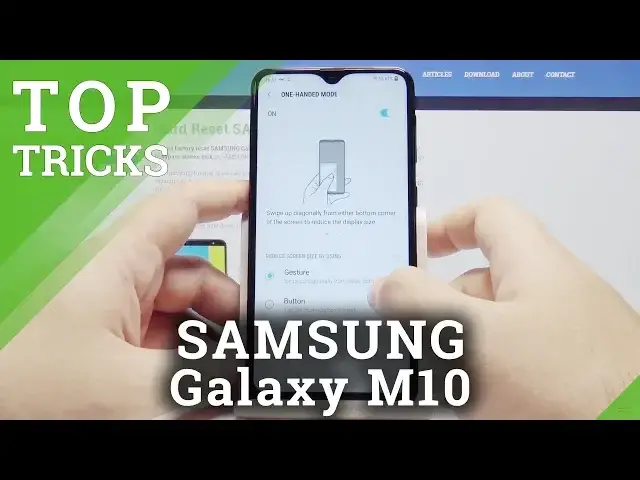
Hello, today will show you top tricks you can do with your Samsung Galaxy M10 phone
0:13
Let's start by unlocking the device by pressing the power key and swiping up
0:18
Now first let's go into the camera and see a nice little thing you can do
0:23
Now go into the settings menu and swipe up until you find the floating camera
0:29
camera button option and turn it on. And just like that, you now have another camera button on your screen
0:37
You can put it anywhere you like and it'll stay there. And now if you are ever holding your phone and trying to take a photo and it's too hard
0:47
to reach this button, this button will work just like that. You can press it and take a photo from anywhere you like
0:57
Simple as that and really helpful. Now another thing you can do is go to the Settings menu and go into device maintenance
1:06
This mode checks how well your device is working. And right now it shows our device is working 100% well, so it's excellent but if you ever have
1:18
it below 100, you can always select optimize this button here and the device will optimize
1:26
your experience so it will work better. You also have different modes here
1:31
You can go into the battery and select what are the usage patterns of the battery so which applications or what takes up most of your battery life
1:42
You can select a power saving mode to be turned off, medium or maximum
1:47
application power monitor, which apps aren't monitored and which apps are always slipping
1:53
You can also go into the storage menu and here it will check how much of the space
2:01
is being taken up by trash or cash fires or other unnecessary data and if it ever finds
2:08
anything you will not need with your phone you can always select up here clean and the
2:16
phone will just delete it all just like that you can also go into the memory and here the
2:25
phone will check what takes up most of your phones memory, the one needed to run applications
2:35
And if it finds some applications are not being used but might be turned off, you can always
2:42
clean now and it will simply turn off all of these applications so you have more memory
2:49
space for yourself and the phone will work much faster. Another one is the device security and this is a very important part
3:00
If you select scan phone the phone will scan the device for any possible malware or viruses or applications that might be risky to use You can also see stuff like anti ultimate protection for a mobile life
3:19
the easier, safer way to access your digital world, all kinds of applications that let you keep and stay safe
3:27
And also you have a ultra data saving. This is a service that tries to put some of your data on the Samsung servers
3:36
so you have more of the space of your phone just to yourself
3:42
So if you ever need that, you can use it too. So these are some of the nice features of your phone
3:50
Now go to the settings once again and go into advanced features
3:55
And here we have another one, a one-handed mode. You can also tap on it and once it's turned on
4:02
you can say if you want to open it by pressing a using a..
4:06
gesture or pressing a button. Let's say I'll choose the home button to be tapped three times
4:14
And once you do that and if you ever have problems using your phone to reach all the way here
4:21
for example, you can simply press the home button quickly three times and the window will just like that
4:30
move to a smaller sized one and you can now easily access it
4:35
Of course the phone works as always it simply in a smaller window and if you ever want to go back to the big window simply press anywhere in this open space Just like that A really great feature Now let go to the settings once again and advanced features and select multi
4:57
This allows you to split the screen when viewing something. So when you are viewing something and want another application to be open
5:10
you can simply press and hold this button and it will allow you to go into a multi-window mode
5:21
So as you can see in this application here stayed open. For example, I can put a YouTube video here and for example I can have another window open
5:32
Here some applications sadly can be used with this but the ones that can be you can always select
5:38
for example a camera. And as you can see I have a
5:43
settings menu up here to see and the camera here. Or of course I can browse the web and watch some YouTube video all at the same time
5:56
And if you ever want to leave this you can always simply hold and press this button to go back
6:05
So I really hope you liked all of these nice tricks you can do with your Samsung Galaxy m10
6:11
And if you did, please leave a like and subscribe