0:00
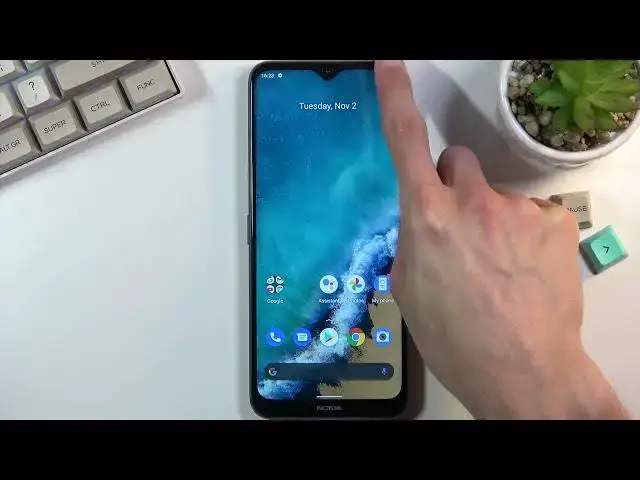
Welcome, Infoomone, I say Nokia G50, and today I will show you a couple tweaks and tricks you can do on this phone
0:12
So these will be relatively simple ones for people that might be interested
0:16
Now we're going to begin with dark mode which can be found under your display settings
0:22
Right over here you'll have as it's called a dark theme but it's basically this
0:29
same thing. When you enable it, as you can see, it turns on dark mode, which extends to default
0:34
applications as well, like messenger or messages, dialer, and so on. Additionally, in there, you'll find
0:43
a little bit of a deeper settings if you click on it, which allows you to simply set it up as
0:50
a schedule. So this will turn on and off dark mode at basically scheduled intervals. So what this will
0:59
virtually allow you to do is for instance have light mode during the daytime and the dark mode during the night time giving you basically best of both worlds because let be honest during night time you don want to be blasted with pure white light and during the daytime dark mode is a little bit harder to see especially on a display like this which isn necessarily the best one out there or the brightest so anyway moving on to the next one I going to go to the split option which you can access basically on any application
1:26
by going into the recent, and tapping on the icon of it, and selecting split-screen, and there you go
1:33
So from here you can select any other application that you want to split-screen that is in your recent applications
1:39
or you can simply swipe to go home and choose another application from basically your list
1:46
And there we go. You can also resize that if you want to. Now, best case scenario for this would be having something like YouTube on top
1:54
This will simply allow you to play music well, for instance, browse the web
1:59
And even when you swipe up to go home, as you can see, this would stay open. So that means that if YouTube was open at the top, it would continue to play whatever was turned on in there
2:10
Anyway, moving on to the next option, it's going to be the navigation, the system navigation
2:16
By default the device comes with gesture navigation, which personally I do prefer it
2:22
but I know there are other people that rather have their typical buttons at the bottom
2:26
And to get those back, all you need to do is navigate back into your settings
2:30
From here, scroll all the way down to system, gestures, and system navigation
2:37
where you will find the three button navigation And as can see you just got it back But because I prefer the gestures I going to switch back to them
2:49
Moving on to the next option, it is the white balance. Now this is just a little bit of a novelty for people
2:55
that, for instance, as an example, read books on their phone. This might give you a little bit of a more pleasant look to that
3:03
because you can set up any kind of white background. Let me just actually turn on, turn off the, there we go, the dark mode because this will give you a better understanding of how it will affect it
3:15
So additionally, again, it's under the display white balance. And right here you have a choice between cold and warm
3:22
It's somewhere in the middle, but as an example, if you start to slide it towards the warm, it will start changing the temperature to a little bit of a more kind of yellowish kind of paper-like look
3:33
And obviously if you go to the cold, it will be bluish. So, to be perfectly honest, the difference on the camera that I'm seeing is not as severe as it is on the display itself
3:47
On the camera it looks, for instance, like right here, this barely looks like it changes match, while for me this change is quite drastic
3:55
Just keep that in mind. But obviously, there is a difference. And some people might prefer it a little bit warmer which gives that image a little bit more of a tonedown feel to it and not as harsh to the eye as well
4:09
Now anyway, moving on to the last option, which I wanted to show, it is the removal of animation
4:15
So anything that you do is basically animated. You can see swiping away, opening applications
4:20
they zoom in, out, slide away, do this kind of animation that you just seen
4:25
So if you want to remove animations just so you can access applications quicker or maybe you don't like the stuttering look of them because the phone is quite slow
4:35
What you can do is simply remove them by going into your accessibility, scroll down envelope
4:42
and you will have a remove animation. And now whatever you will do will basically be without any kind of animations as you can see
4:53
Although this was for some of the number. reason this is still animated but majority of them as you just seen were removed now
5:04
anyway this would conclude that tweaks and tricks that I want to share with you and
5:08
if you found this very helpful don't forget to have like subscribe and thanks for watching