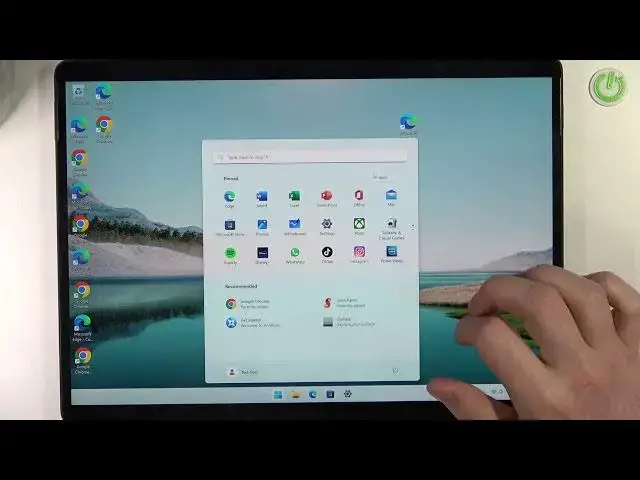

Microsoft Surface Pro 8 - How To Enable & Disable Nearby Sharing
Jul 24, 2024

Check more info about Microsoft Surface Pro 8 :
https://www.hardreset.info/devices/microsoft/microsoft-surface-pro-8/tutorials/
To enable or disable the Nearby Sharing feature on the Microsoft Surface Pro 8, follow these steps:
Open the "Settings" app on your Surface Pro 8.
Go to the "System" section and select "Shared experiences".
In the "Shared experiences" settings, make sure the "Nearby sharing" switch is turned on or off.
When the "Nearby sharing" switch is turned on, the Surface Pro 8 will be able to share files and information with other devices that are nearby and have the Nearby Sharing feature enabled.
When the "Nearby sharing" switch is turned off, the Surface Pro 8 will not be able to share files and information with other devices using the Nearby Sharing feature.
You can also click on the "Change" button under the "Choose who can share with you" section to customize the settings for sharing with other devices.
You can select to allow or block sharing with specific devices, or with all devices that are nearby.
Keep in mind that the Nearby Sharing feature on the Surface Pro 8 allows you to share files and information with other devices that are nearby, using Bluetooth and Wi-Fi connections. You can use Nearby Sharing to transfer files, photos, links, and other content quickly and easily, without the need for a physical connection or an internet connection. You should enable or disable the Nearby Sharing feature depending on your preferences and the situation, and make sure to customize the sharing settings to control who can share with you.
Show More Show Less #Consumer Electronics
#Networking
#Software