0:00
Welcome! In front of me I have diesel on axial watch and I'm gonna show you how
0:05
to take a screenshot on this watch. Before we start if you want to take a screenshot on this watch your watch
0:16
needs to be paired with a phone via the Wear OS application. Once the devices
0:21
are paired together we can continue. And now we can open the Wear OS application
0:26
on the phone that is paired with our watch. And once you open the application you
0:31
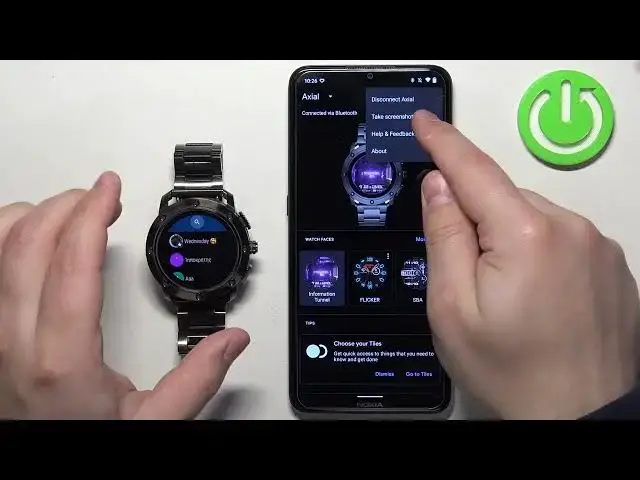
will see your axial watch right here on the page. Now let's go to the watch and
0:38
open the screen or rather go to the screen we want to capture. So we can for
0:43
example open the menu, open the contacts app and let's say I want to take a
0:47
screenshot of this page. To do it tap on the more button in the app in the Wear
0:54
OS app to open the menu. And here you should see the option called take a
1:01
screenshot of the watch. Tap on it. You will see message saying screenshot
1:06
request sent and then you will see the notification pop up about the ready to
1:12
send the watch screenshot. You can tap on this notification it will open this
1:17
menu right here and here you can send the app or rather select the application
1:21
with which you want to share the screenshot. And you can select multiple
1:26
applications or rather one of the applications like Maps, Search Image, Gmail
1:30
stuff like that. But if you want to save the screenshot on your phone instead of
1:36
like sending it through some app you can use some kind of file manager for
1:41
example Total Commander. Once you select it you'll be able to save the file. So I
1:47
can for example save it right here by naming it and tapping on OK. I need to
2:00
select different folder for example download files like that. And the file
2:05
will be saved. And if I go to the photos on my phone library you should see the
2:17
screenshot in the download folder. And if you want to send the screenshot for
2:21
example through this code you simply take the screenshot by tapping on the
2:30
more options icon tapping on screenshot or take screenshot tapping on the pop up
2:37
the notification then selecting this code it will basically allow you to do
2:42
send the screenshot through the discord if you want. Okay. And that's how you
2:49
take a screenshot on this watch. Thank you for watching. If you found this video
2:53
helpful please consider subscribing to our Channel and leaving the like on the video