0:00
Here I have Tesla Model Y and on this
0:03
example I will show you how to set up
0:05
sentry mode for the maximum protection
0:08
on every Tesla vehicle. So let's begin.
0:12
So at the very beginning let me show you
0:13
how to get access to those settings. All
0:16
you need to do is start by using your
0:18
normal screen. Then you use this car
0:21
icon in the leftown corner. Of course it
0:24
will open the settings of your car. Then
0:26
you need to find the safety tab right
0:29
here. As you can see here, you've got
0:31
all safety information that you can use
0:33
on your Tesla. And the most important
0:35
one is to enable the sentry mode. So, as
0:38
you can see here, you've got the
0:39
switcher. You can enable or disable the
0:41
sentry mode. Now, I have my sentry
0:43
remote enabled. So, when I leave the
0:45
car, the car will automatically turn on
0:48
the sentry mode. So, I will be watched
0:51
by the sentry mode. If anything happens,
0:53
I will have the recording of this. So
0:55
this is like really useful situation
0:58
here. You can also enable the auto
1:00
enable send remote in park. I recommend
1:03
to have this enabled also to have the
1:06
sense remote enabled automatically. Here
1:08
you can exclude for example home work or
1:11
your favorites. Sometimes it will save
1:14
you your power, your battery. So if you
1:17
are sure that in your home nothing
1:20
happens, you can exclude home. For
1:21
example, if you have a garage where you
1:23
can park your car, it's I think it's uh
1:27
okay to have the sentry mode turned off.
1:31
Nothing really can happen with your car
1:33
in that situation. So, you can easily
1:36
enable this and save your battery. Here
1:38
you've got the sentry mode cleave
1:40
length. In my experience, 2 minutes
1:44
sometimes it's not enough. I recommend
1:46
this to have like 5 minutes. So here we
1:49
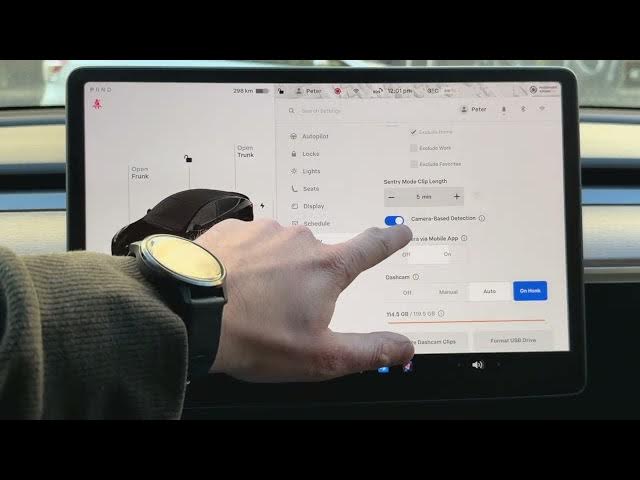
can also go back. Let's enable also the
1:52
camerabased detection. You can read the
1:54
information about it right here. So when
1:57
camera based detection is enabled,
1:59
Sentry mode will use the vehicle's
2:01
extreme cameras in addition to vehicle
2:03
sensors to detect a security event while
2:06
parked. If disabled, the vehicle will
2:09
only save the clips to the USB drive if
2:12
a physical threat is detected. So let's
2:14
be aware of this. Let's have this
2:17
enabled. It's always a good idea. And
2:20
you can also here uh enable or disable
2:24
uh viewing the camera via the mobile
2:27
app. Let me tap yes. In my case, I like
2:30
to have the opportunity to see the
2:33
cameras through my app. So, let me tap
2:35
on here. You've got also the dash cam.
2:39
For my experience, the automatic dash
2:42
cam works perfectly. So, I recommend to
2:45
have this auto. We've got the
2:46
information here. So, auto save up 10
2:50
minutes of video to your USB
2:52
automatically when your vehicle detects
2:55
the occurrence of a safety event. So,
2:57
let's be aware of this and let's have
3:00
this enabled. Let's just close the
3:03
following dash cam. And I recommend to
3:06
have this amazing feature enabled. So if
3:11
you are sure that something happened and
3:13
you would like to save the recording,
3:16
you can enable unh. And when you honk,
3:19
the recording will be saved. And also
3:22
the last and also really important
3:24
thing, as you can see here, you've got
3:25
the storage. In my case, the storage is
3:28
almost full. So be aware of this. Let's
3:31
uh just take a look to your storage
3:34
sometimes and sometimes you should
3:36
delete some clips. You can also format
3:39
the USB drive. So let's be aware of
3:42
this. In my case, I will uh format my
3:46
USB drive just in like a few days. So uh
3:50
I am aware of this and I will have my
3:52
USB drive formatted. But let's check out
3:56
the situation in your case. So I think
3:58
that's it. So now you can set up your
4:02
sentry mode to your needs. Thank you for
4:04
watching. Please subscribe to our
4:06
channel. Leave thumbs up under the