0:01
In front of me I have Xiaomi Redmi Watch 3 and I'm going to show you how to pair this watch with
0:07
the Android phone. First you will need to turn on the watch and you can turn it on by pressing and holding the side button
0:17
Keep holding it until you see the me logo on the screen
0:22
Once you see the logo you can release the button and wait until the watch turns on
0:30
After the watch turns on, you may see the list of languages on the screen
0:35
You can scroll through this list by swiping up and down on the screen. Now, find the language you would like to use on your watch
0:41
and tap on it to select it. And once you select the language, tap on the checkmark to confirm
0:46
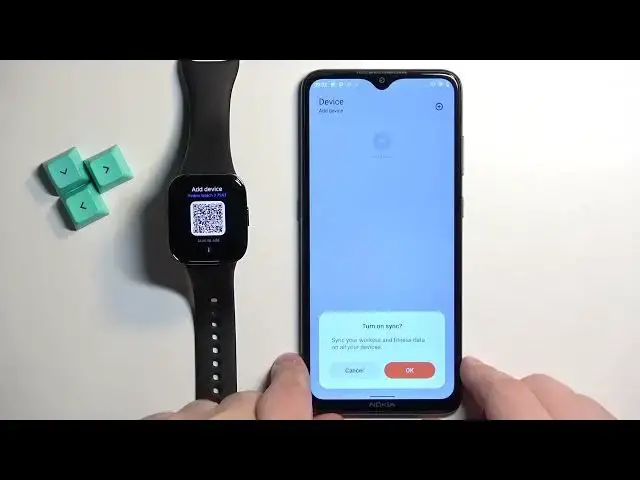
And after you select the language, you will see the QR code on the screen of the watch
0:51
This means we need to download and install the Mi-Fitness application on our phone
0:56
So make sure you have the internet connection and Bluetooth enabled. Once you do, open the Google Play Store
1:04
And the Play Store tap on the search bar. Type in Me Fitness
1:11
And tap on search. And you should see this application, Me Fitness by XiaomiWR
1:18
Tap on the install button to download and install the application And once the application is done installing you can tap on the open button to open the app
1:35
In the app, tap on the start button. Check the first box because it's required
1:41
And then tap on Agree. You can also check the second box to enroll into user experience program
1:47
if you want. I won't do that. So I'm just going to tap on Agree. Now we need to select the region
1:53
You can tap right here. Scroll through the list, find the region you want to use
1:58
Tap on it and then tap on the next button to continue. After the region, you should see the health page of the app
2:05
Now tap on the device icon to open the device page. Tap on the ad device
2:10
Tap on sign in. And we need to log in into a me account
2:14
If you don't have an account, tap on create account right here. You can also use the sign in
2:20
via SMS option if you want to. I already have an account so I'm going to tap right here, enter the email address and password
2:33
And then we need to check the bugs at the bottom right here
2:38
And finally we can tap on sign and login. Give me a second
2:42
I must have entered the password wrong. Okay Let try again and this time it worked and after you log in you will see the device page Again here you can agree to sync the workout and fitness data to new devices if you want
3:03
I'm going to tap on console, tap on add device. Again, we need to agree to the permissions or allow the permissions, so tap on agree, allow
3:12
the location permission. The app should detect your watch after a couple of seconds
3:18
Once it does, tap on the watch to select it. Tap on the checkmark to confirm on your watch
3:24
Tap on per and connect on your phone. Tap on per. And here, tap on done. Continue
3:42
Go through the tutorial how to use the watch. right here we can turn on the notifications
3:48
so basically if you want to receive the notifications from your phone on your watch you can select one of the options for example
3:56
select notifications or sync all notifications and then tap on set it will be redirect you to different menu
4:05
and then you will need to allow required permissions for the notifications to work
4:09
if you don want to use the notifications you can tap on the dismiss button right here Let say we want to enable them so let select one of the options right here Tap on set tap on set
4:21
It will redirect you to the notification access. Here find the Mifitness application on the list
4:27
Tap on it, tap on the switch, tap on allow, and then go back to the app
4:32
Here we can enable the incoming calls, SMS. So basically, if you want to receive the notifications about calls on your watch
4:40
you need to check this box tap on set and allow required permissions
4:44
if you don't want to use it tap on dismiss I'm going to tap on set
4:49
allow allow the required permissions and here we have the sync D&D with phone
4:54
so basically you can sync the do not disturb mode status or status
4:58
rather my bad with your phone if you want to and you can tap on set to agree to it and allow the permissions
5:04
or tap on dismiss to dismiss it I'm going to tap on set and once you're done with the
5:10
notifications and permissions and stuff like that, you will see the watch appear on the device page
5:15
and it's also, we'll say, connected, which means that the devices are paired together
5:20
And that's how you pair this watch with the Android phone. Thank you for watching
5:25
If you found this video helpful, please consider subscribing to our channel and leaving the like on the video