0:00
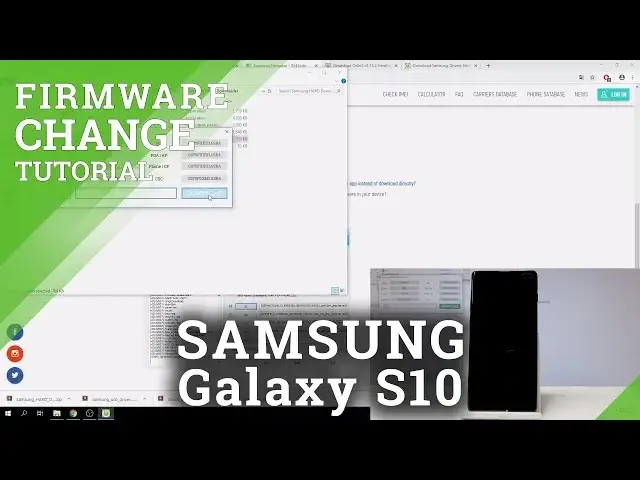
Here I have Samsung Galaxy S10 plus and let me show you how to flash this device
0:11
Let me show you how to change filmware on the following device. So at the very beginning you need to start by using our tutorial
0:18
The link will be under the video and here we need to download a few things, the audio software and the Samsung drivers
0:26
So let's download the latest audio software you can find it from the following
0:29
or you can find the latest Odin software here. Right here, this is the latest one
0:37
Let me just download this one. You can use the following button. Then let's also download the drivers
0:43
All links will be in the tutorial and in the description. Here we've got the drivers
0:48
Let's choose the Samsung ones. So here I have Samsung. Let's choose download
0:53
And let's here also tap download. Alright, so when you have Odin and the Samsung drivers
0:59
drivers, you need to find бли to the Samsung firmware. So you can do it by using our website
1:05
Let's use this link right here. And here you need to enter your model
1:10
So in my case it's S10 plus tab search
1:24
Let me do it again. Let's choose S10 plus. This is the following one, S-10-plus with SMG-975F code
1:47
So let me do it. Let's use the following searcher. As you can see you can also search just by using the following code so you can do it just by using the following code name So you can do it just by using the SMG9 right here and you can just tap search as well
2:15
Alright, so here let's choose your country and your carrier. So in my case, let me choose Poland and let me choose Open Carriers
2:26
So without any carrier. And here you've got the specification of that firmware
2:32
If everything is correct, let's choose download. As you can see, this is the following Android, Android orio, the 9 version
2:45
This is the size. And if you download your file, you can unpack those files and you can open this
2:56
So here you will open the following assistant
3:10
And here if everything will be correct, the region, the model, you will be able to tap download
3:16
Let's wait a few seconds. Let's just use the download and you will download your firmware whenever you want
3:23
All right, that's it. I've got my firmware downloaded right here. You can download it right here
3:27
Here I have all files. Then let's also install, unpack and install the Samsung drivers
3:33
Here I've got Samsung drivers. You can install the following drivers on your PC
3:43
As you can see, I've got my firmware installed. Let's also here unpack the Aldin and you can now use the Odin
3:50
So let me use the Odin. Let's use the right click, choose run as administrator
3:54
Let me tap okay This is the audio version alright Now let me connect my device in the download mode so let simply press power key right here
4:13
choose power off and tap power off again. Let's connect the device with the USB cable but before you do it you need to start holding the
4:26
Bixby key and volume down. Hold down together those two keys, BixB and volume down
4:32
Let me do it again. Keep holding Bixby and volume down. We are connecting to the USB cable
4:41
Here the warning pops up. Let's press the volume up to enter the download mode
4:46
And the phone is in a download mode. As you can see, the device added to the audience, so it's a good sign
4:53
Here let's choose options. Make sure that you've got auto reboot and factory reset time
4:57
Select it and now you can load the files. Let's choose BL
5:03
Choose downloads and select here your firmware and let's choose BL. Alright, now let's choose AP and let's use AP right here
5:27
All right, the AP file is loaded, let's use now CP, that's it, and CSC
5:49
Here you can use CSC and you can perform the hard reset, erase all data or you can just update your device and use home cc without using your personal data
5:57
Let me perform also the hard reset so let me choose CSC the regular one
6:12
Alright, if everything is done, you can choose start, let me do it
6:17
Let's wait until the flash will be completed. As you can see the flash is completed and the device is restarting
7:10
So you can now even disconnect your device from the PC and let's just wait until the welcome
7:21
panel pops up. Excellent, as you can see the welcome panel just pops up and you just flash your device with the new firmware
7:51
So everything went well, thank you for watching. Please subscribe our channel, leave thumbs up under the video