0:00
Welcome, in front of me is a realme X50 Pro and today I will show you how to enable and
0:10
set up the portable hotspot. Now to get started you want to find the toggle on your notification panel, so pull that down
0:17
and I know that for me it's on the second page right over here. So what you want to do once you find yours is simply hold it
0:24
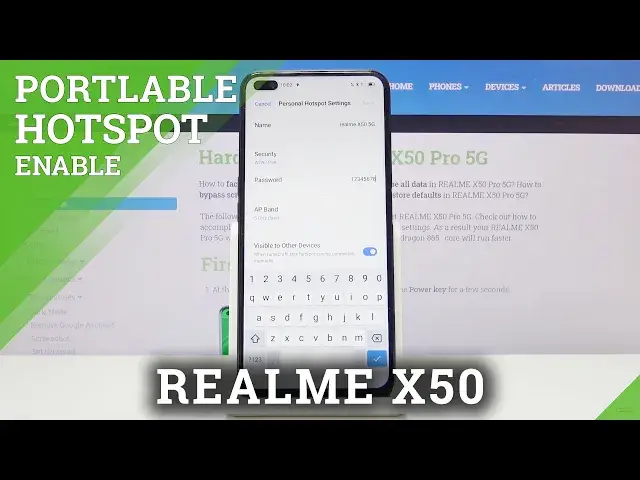
This will take us to the settings where we can customize it
0:27
Now the most important part probably will be the password so you can actually connect
0:31
to it, which is set by default and just some kind of random generic password
0:35
As you can see this is not random, this was set by me
0:40
So all you need to do is just tap on the password field, remove the old one and provide a new
0:45
one if you wanted to. So it needs to have 8 characters in length otherwise you won't be able to save
0:57
And also there's a couple of additional settings that I will go over
1:01
Number one at the top you have the name, this will be the name visible in the wifi list
1:07
once you set it up and enable it. And also below that you have the 5GHz band right now, by default it comes at 2.4, that
1:17
is what is selected, you cannot have both of them, that's a little bit of a shame
1:22
But the gist of it is 5GHz one will be better, faster and more stable while the 2.4 will
1:30
be a little bit slower because of the crowd that usually is associated with it
1:35
And overall it's just going to be a little bit outdated in terms of speeds
1:43
And if you're not sure if your device supports the 5GHz version of it, simply enable it at
1:50
5 and if you don't see your wifi at all on the device that you're going to be connecting
1:55
to, then just go back here and change it back to 2.4
2:01
Anything devices I believe from like 2016 and above started I believe already having
2:06
the 5GHz wifi band so anything like that should be good. Maybe the more budget version started a little bit later so keep that in mind
2:18
And like I said, if you can't see it, that means that your device doesn't support it and all you need to do is just go back to 2.4
2:24
Now also I will mention that the 5GHz band right here is completely something else in
2:31
terms of for instance like you can see in the back, this device is a 5G, right
2:36
The 5G in the phone is more designed for the cellular, the 5GHz band right here is strictly
2:42
wifi based and they are not associated with each other in any kind of way
2:47
So like I said, check it with the better one, if it can't run it then go drop it to 2.4
2:55
At the bottom also we have an option for the visible to other devices
2:59
If you disable this it will make connecting to your wifi a little bit harder, just as
3:03
an example. Right now if this is enabled I can see it as I can see every other wifi on here, right
3:11
If you disable this you would have to go down and tap on add network, type in the network
3:17
name which is right here and from there also type in the password and then connect to it
3:24
So I would advise on keeping this on, it makes connecting to wifi a whole lot simpler
3:30
And apart from that, that's about it. You can also change the name if you wanted to, it doesn't really matter apart from finding
3:36
it in the wifi list and connecting to it. So from there, all you need to do is simply enable it from here or either through the
3:46
hotspot toggle that is in your notification panel which will also check it on here
3:51
And now if I whip out my phone again and go back, you will see that there should be, oh
3:58
there we go, realme X55G. So there's the hotspot and I can simply connect to it using the password that I have set
4:09
Like so. And let's see if it gives me any notification. There we go, so one device connected and shows you how much data I'm using
4:20
So yeah, that is how you would set up and also connect to this hotspot
4:27
And if you found this video helpful, don't forget to hit like, subscribe and thanks for watching
4:39
I'll talk to you soon