0:00
Welcome, in front of me is a Motorola Edge 20 Pro and today I'll show you how to capture
0:11
a screenshot on this phone. So to get started, you will want to open up the content that you wish to capture
0:17
I'll be using settings as an example for this. So once you have your content open and visible, as I do, all you need to do is hold par key
0:27
and volume down at the same time. You'll get this pop up right here, you can let go
0:33
As you can see there's a couple options which just disappear, that's normal, it disappears
0:37
after a moment of not doing anything with it. So I'm going to do that again
0:42
And we have edit, we have share, we have delete and we have also scrollable
0:45
I'll go straight to the scrollable because as you can see it will allow you to capture
0:49
a longer version of that screenshot. Now there was a red square there to stop it from scrolling down and it is probably
0:58
one of the worst execution for scrollable screenshot as you just seen because going
1:03
back to it, I'm going to do that again, you get to tap on it and it will start scrolling
1:07
in chunks and then you have to stop it, right? And chances are you either overshot whatever you were trying to capture or you didn't go
1:15
far down enough for it to capture. So to combat this what I would advise you to do is capture basically way more than you
1:26
need to and I'm going to do that once again just to show you what I'm trying to demonstrate here
1:33
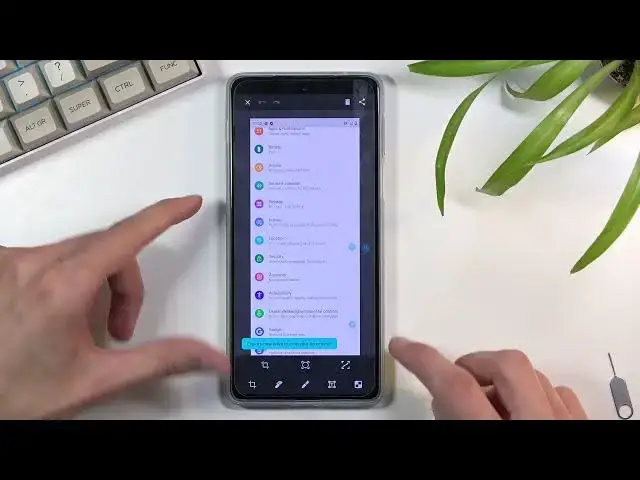
So overshoot whatever you're trying to capture, as you can see it stops, then you can tap
1:38
on it and this will then allow you to edit it. So in here we can, I believe it's right here, this button and you get to shorten it
1:47
So if you overshot whatever you were trying to do, you can now crop it to a point that
1:51
you want to keep it at and then select save, allow and you're done
1:58
Now all the screenshots that I have captured can now be found in the photos application
2:02
so I'm going to quickly find it, there we go and as you can see we have five different
2:06
screenshots right here. So this is the cropped one, this is the non-cropped one
2:12
It still keeps the non-cropped one so when I started the second, or actually the third
2:20
scrollable screenshot went all the way down and it stopped and then I shortened it, right
2:24
And this is the short version of this screenshot so it keeps both of them
2:29
Then we have the long one, the super long one and a normal one as you can see
2:37
So there we go, that is basically how you can capture normal screenshots and also scrollable
2:41
ones and if you found this video helpful, don't forget to hit like, subscribe and thanks