0:00
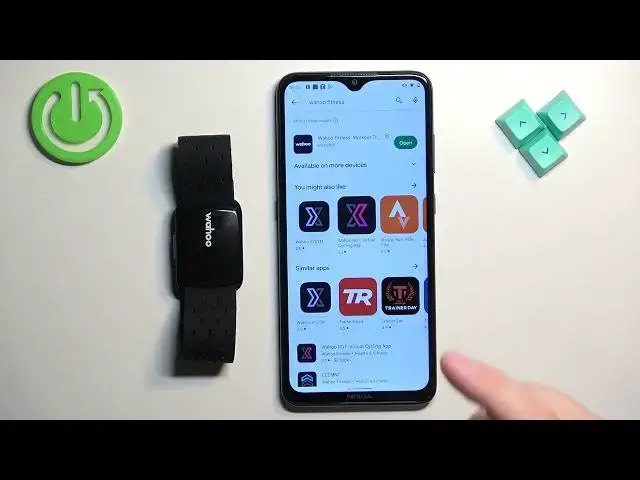
Welcome! In front of me I have Wahoo TickerFit sensor and I'm gonna show you
0:05
how to pair this sensor with the Android phone. First thing we need to do is to turn on the sensor and to turn it on simply
0:15
press the side button right here for three seconds. Once you see the blue
0:22
light flashing on the sensor you can release the button and this means that
0:27
the sensor is turned on and it's ready to be paired. So we need to make sure we
0:32
have the internet connection and Bluetooth enabled on our phone. Once we
0:36
do open the Play Store. In the Play Store tap on search type in Wahoo Fitness and
0:46
tap on search. You should see this application Wahoo Fitness workout. Tap on
0:50
the install button to download and install the application. And after the
0:59
application is done installing you will see the open button. You can tap on it to
1:03
open the app. Once the application opens you will need to log in into a Wahoo
1:11
account. If you don't have an account you can tap on the sign up button right
1:15
here to make a new account. I already have an account so I'm gonna tap on login. Enter the email address and password. And then we can tap on login
1:28
After you log in you will see this page. Basically we need or rather we can set
1:34
up our new product. So you can tap on set up new Wahoo products right here. Select
1:39
the ticker from the list. Tap on continue. Allow the permission for the location so
1:46
tap on grant location permission. Tap on while using the app. Then tap on enable
1:51
Bluetooth. And the app will start looking for the nearby devices and it should
1:56
detect you a sensor. If it doesn't detect it you could try by turning it on or on
2:03
and off by pressing and holding the side button for three seconds basically
2:08
As the app detects the sensor tap on the pair button. Then tap on continue. Tap on
2:16
finish setup. Here we can learn more about the subscription. I'm just gonna tap
2:21
on no thanks. And then you will see the workout page. Then you can tap on the
2:27
settings icon. Select sensors and you should see your ticker fit right here on
2:32
the list of sensors. You can tap on it to open the device page for it. Okay and
2:38
that's how you pair this sensor with the Android phone. Thank you for watching. If
2:44
you found this video helpful please consider subscribing to our Channel and leaving the like on the video