Up next in 10


Read More WILEYFOX Spark+: https://www.hardreset.info/devices/wileyfox/wileyfox-spark-plus/hardreset/first-method/
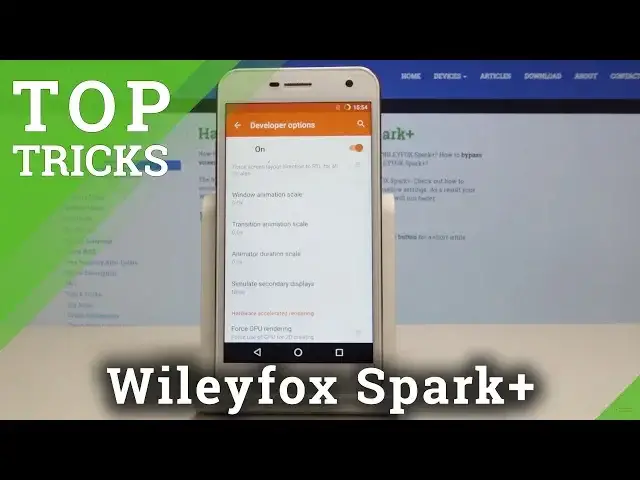
In this video, you can check out the list of top tricks for WILEYFOX Spark+. Let's find the secret options, advanced settings and helpful options. Find out the way to know your WILEYFOX Spark+ better.
Follow us on Instagram ► https://www.instagram.com/hardreset.info
Like us on Facebook ► https://www.facebook.com/hardresetinfo/
Tweet us on Twitter ► https://twitter.com/HardResetI
Show More Show Less View Video Transcript
0:00
Welcome
0:07
In front of me is a Willy Fox Spark Plus and today I'll show you a couple of tweaks and tricks that you can do on your device
0:12
So I will start off with the status bar icons. And as you can see, if I pull down the notification panel, I have a lot of things enable like localization
0:22
Bluetooth, Wi-Fi and other stuff. But what you can see is basically the battery and the time
0:29
and to fiddle with the settings, what you want to do is go into all the settings itself
0:34
and then scroll down to see where it was it. The status bar as you can see right here
0:47
And then status bar icons. And from here I have disabled everything but again let's say enable
0:54
by default it should be all enabled. So looking like this. And from here you can just disable whatever you don't like
1:04
So let's say you want to get rid of Bluetooth and, for instance, Wi-Fi
1:10
You can do that or just alarm flag. Whatever you want to get rid of, you can just flip it off and it will be gone
1:18
So that's one thing. Now, moving on, we're going to go into the developer options to reduce the animation speed
1:26
and as you can also see the animations right now are basically instant there is well no animation
1:31
whatsoever apart from like a little window popping up and to do it want to go first to all the way
1:39
down to about phone and then find build number and top it seven times now as you can see it
1:46
already tells me that i have developer mode enabled so i can go back and then you will see it
1:51
right above here about phone developer options so you want to go in here
1:56
then scroll down into right here window animation scale transition animation scale and animation duration scale all those three things will basically influence how quick you While the phone goes through the animations
2:12
and as you can see, the transition and animation duration and that stuff is set to zero
2:18
The only window animation scale is set to one, which is default
2:24
And basically the window animation scale is this little window, like when I top it
2:28
how quick it opens. But for some reason, if I change it to zero, it doesn't really look that much different honestly, at least not to me
2:37
But these, if I increase it, for instance, to five times, as you can see, it will be way slower now
2:48
So you can see, now the animations are way longer. So you can change it to zero or half speed, whatever you like
2:58
You can just choose whatever suits your desire. here. So that's one fun setting here. Now moving on we're going to go into the live
3:09
display which is in settings and display and lights. You can see right here. Oh wait
3:15
whoops. My bad. Display and lights. And from here we'll go into live display, which is right
3:25
here. And what it will do is basically a blue light filter, which is
3:31
which you go in here. Normally it's set to off. So I would advise on setting it to automatic
3:37
but you can also choose day or night, whichever one you like
3:41
And then you have color temperature. And what we'll do is just remove
3:45
how much blue light is on the screen and add more of yellowish slash orange here
3:51
So you can see. And night mode is a little bit more intense
3:55
than the day one. As you can see now, the day one is enabled
3:59
I'm not sure if there's going to be much of a difference if I turn it off
4:04
Just maybe a tiny one. But let see if I move this you can see the screen going a little bit like more pale So and the reason why you would want to use this is for instance like when you
4:20
as an example for a night, going to sleep and try to use your phone during, like, for instance, when you're in bed
4:26
it will help you fall asleep because blue light, overall if on the display, is a little bit more straining
4:33
So it won't be, it will be a little bit more, well
4:38
it will be easier to fall asleep without it. Let's put it this way. And you can see the night one is a little bit more harsh
4:46
and if I enable night, you can see the screen is kind of more
4:52
orangeish in a way. But again it helps you fall asleep when you're trying to use the phone at night
5:00
So like I said, I feel like automatic is probably the best one
5:05
Now moving on, we're going to go into the daydream. and still in the display settings which I just left
5:14
You want to go down and down into Daydream, as you can see right here
5:21
And you can top on these three little dots here and you will have option when to Daydream
5:26
So you can top on it and choose when duct, while charging or either
5:30
So you can choose both of them this way. And then you get to choose what you want to do
5:35
So what will happen when you plug in your phone for instance at night to charge, it will look like this
5:43
So I have it set to clock and it will basically make the dim little clock on a screen
5:48
while it's plugged in charging. But you can also choose other things like news and weather, photo frame, photo table or photos
5:57
which is basically the same thing as photo frame. And each one just has a little bit of a different thing
6:03
So if I choose news, we'll see if it shows any. I guess it's not showing anything
6:15
Photos I don think it going to actually show any because there is no photos I can try Okay here maybe we just show something
6:25
Nope, no photos selected, so yeah, there's no photos for me to select
6:30
But if you would have this on, it would generally show you basically your photo library
6:35
or whatever photos you have selected whenever your phone is, for instance, it's charging
6:39
So that's a nice thing. Now, moving on to the last thing, we're going to go
6:44
thing we're going to go into lack screen shortcuts and what we want to do is go
6:50
into the lag screen and the main settings let's find that lag screen right here
6:56
and then see lag screen shortcuts right here and what you can do now is just
7:04
change since the icons that have right here which is for like voice recording
7:10
and photos too you can choose default or select an application so i could for instance select driving mode or not um it's true
7:25
something else i guess um music player so i guess i would have to have a playlist um but as you can see
7:39
you can't really see to find enough that that would function with
7:44
out some kind of customization. But then in basically the gist of it you would have the
7:51
lag screen and you could for instance open your playlist from here by just flicking it up like this and right now it opening up camera because it didn't
7:58
really change it to something else. But yeah that's basically how it works. The
8:04
same thing as apps right now but you can customize what you can open with that
8:08
shortcut. So with that being said that would be everything I wanted to show and if
8:13
you enjoyed this video, please hit like, subscribe and thanks for watching
Online Video
Online Goodies
Skins, Themes & Wallpapers
Science
Other
Gadgets & Portable Electronics